Press Kit
Resources and assets for press and media coverage of McKinley.
Download all assets in one package:
Download Press Kit (ZIP)Need something not in the bundle? Email amy@doubleandthrice.com and we'll send it.
About McKinley
Description
McKinley is an all-in-one studio for drawing and annotating SF Symbols: vector tools that understand the format, so you edit one set of objects across weights, sizes and colours.
McKinley is an all-in-one studio for drawing and annotating SF Symbols. It bundles vector tools — Bézier paths, boolean operations, shapes, freehand and text, with layers and groups — with knowledge of the SF Symbols structure, so you can edit one set of objects across multiple weights, sizes and colours rather than maintaining a drawing per variation. Objects stay point-compatible with each other by construction, so a symbol interpolates and animates the way Apple's own do. Geometry stays linked while you build and unlinks when a weight needs to differ. Strokes stay strokes: no converting to outlined paths before export, and stroke width can vary per weight. Colours are set on objects directly, rather than by building layers to satisfy Apple's parser. Badges, slashes and enclosures are adornments that update when the symbol changes. Import an SVG or start from scratch, preview your work with Apple's own renderer as you go, and export straight into your project's asset catalog — so you never need touch the SF Symbols app again.
Key Facts
- Status:
- 1.0
- Platform:
- macOS 15.0 or later
- Price:
- $60 / £55 / €65 — One-off purchase (perpetual v1.x licence) The GBP and EUR prices include VAT; the USD price is before sales tax.
- Available on:
- Direct purchase from mckinleysymbols.com from release on 7 September 2026; free 14-day trial from the same site
- Website:
- https://mckinleysymbols.com
- Release date:
- 7 September 2026
Pricing Model
McKinley is bought once rather than subscribed to: £55 or €65 including VAT, or $60 before sales tax. A purchase is a perpetual licence for version 1.x — it keeps working indefinitely and includes every 1.x update. If a version 2 is ever released, owners of version 1 will be offered a discounted upgrade; version 1 keeps working either way, so upgrading is entirely optional. A free trial downloaded from mckinleysymbols.com is the complete app, fully functional for 14 days — including saving and exporting. After the trial expires the app still opens, but saving and exporting are disabled until you buy.
Categories
Key Features
- A real vector editor: Bézier paths, boolean operations, path editing, shapes, freehand and text
- Edit one set of objects across weights, sizes and colours, kept point-compatible by construction
- Link or unlink geometry across weights while you edit
- Strokes stay strokes — no converting to outlines before export, and stroke width varies per weight
- Assign colours to objects directly, for monochrome, hierarchical, palette and multicolour rendering
- Live preview drawn by Apple's own SF Symbols renderer, and an animation preview alongside it
- Badges, slashes and enclosures that update when you change the symbol
- Browse and import from SF Symbols, Material Symbols, Phosphor and Iconify
- Import SVG; export SF Symbols, Android VectorDrawable and plain SVG
- Sync straight into your project's asset catalog
- A Mac-assed Mac app: native AppKit, Quick Look previews, and a full AppleScript dictionary
- Export straight to Xcode — no round trip through the SF Symbols app
App Icon
McKinley's icon in light and dark (1024px — click to open full size). For other sizes, email amy@doubleandthrice.com.

Light Mode

Dark Mode
Screenshots
Screenshots are available in both light and dark mode variants. Click to view full size.
Light Mode
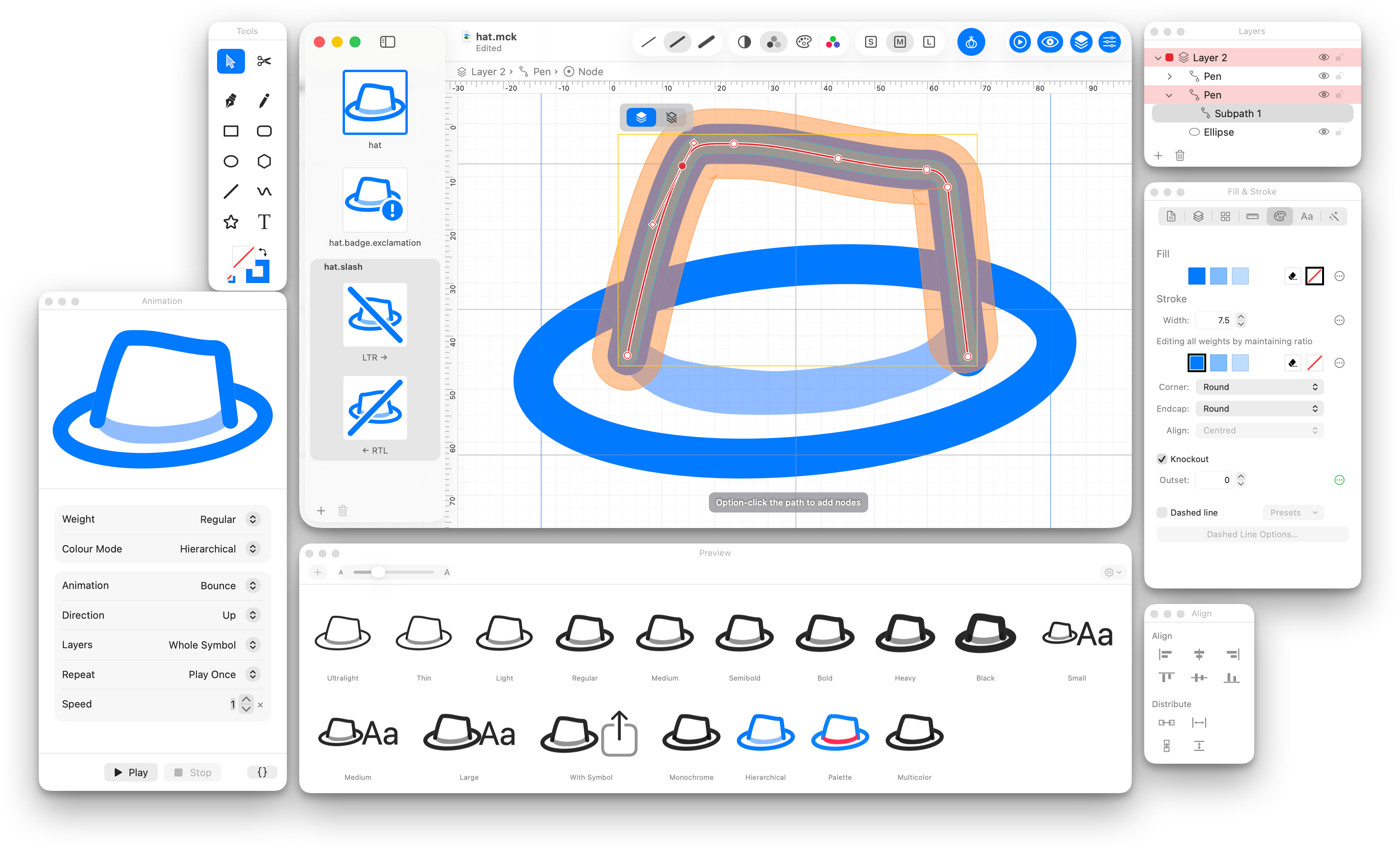
The McKinley workspace: a symbol open for point editing, with the preview palette showing it across weights and rendering modes as Apple's own renderer draws it.
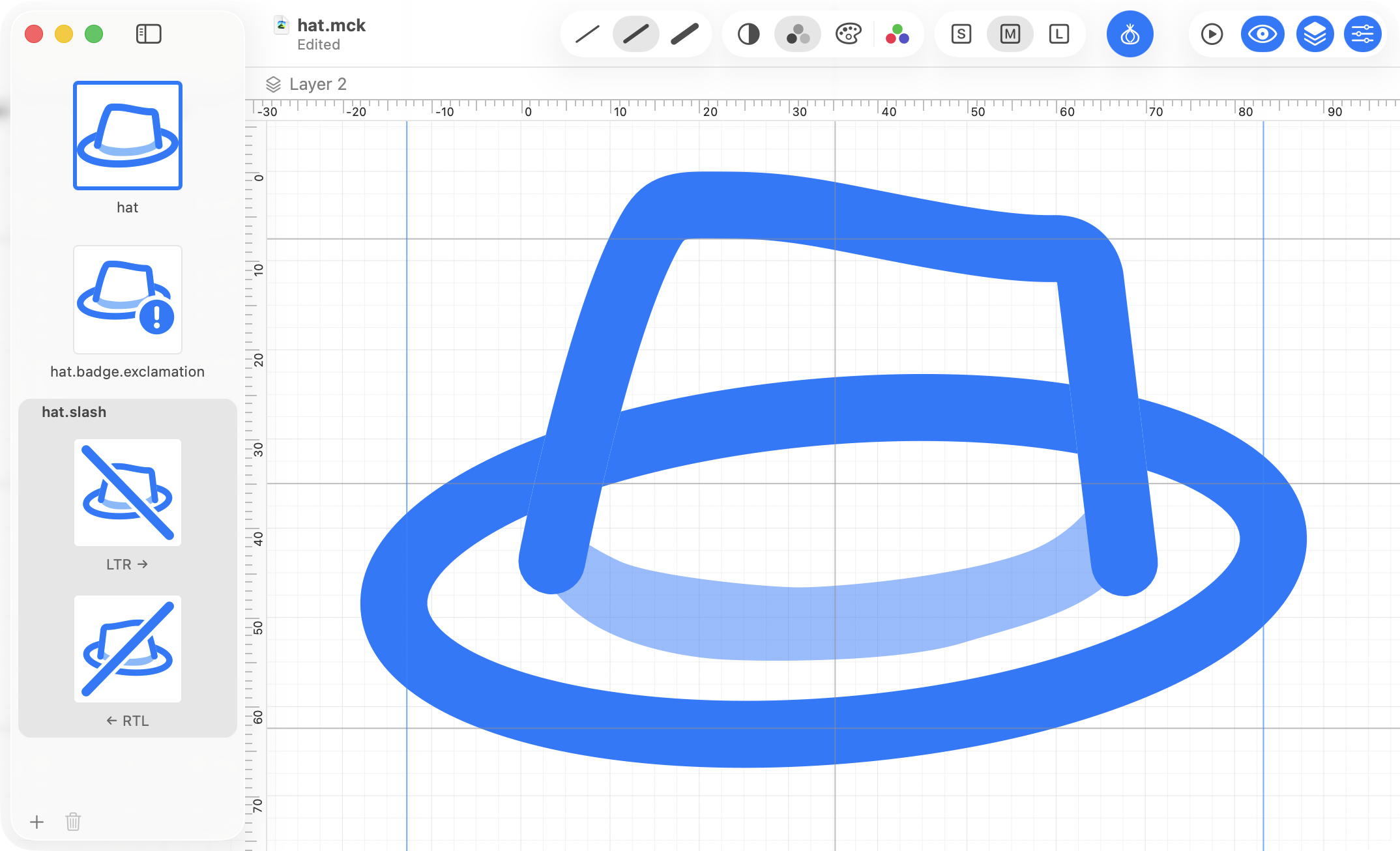
Editing a custom symbol. The sidebar holds its variants — the base symbol, a badged one, and a slashed one with its left-to-right and right-to-left versions.
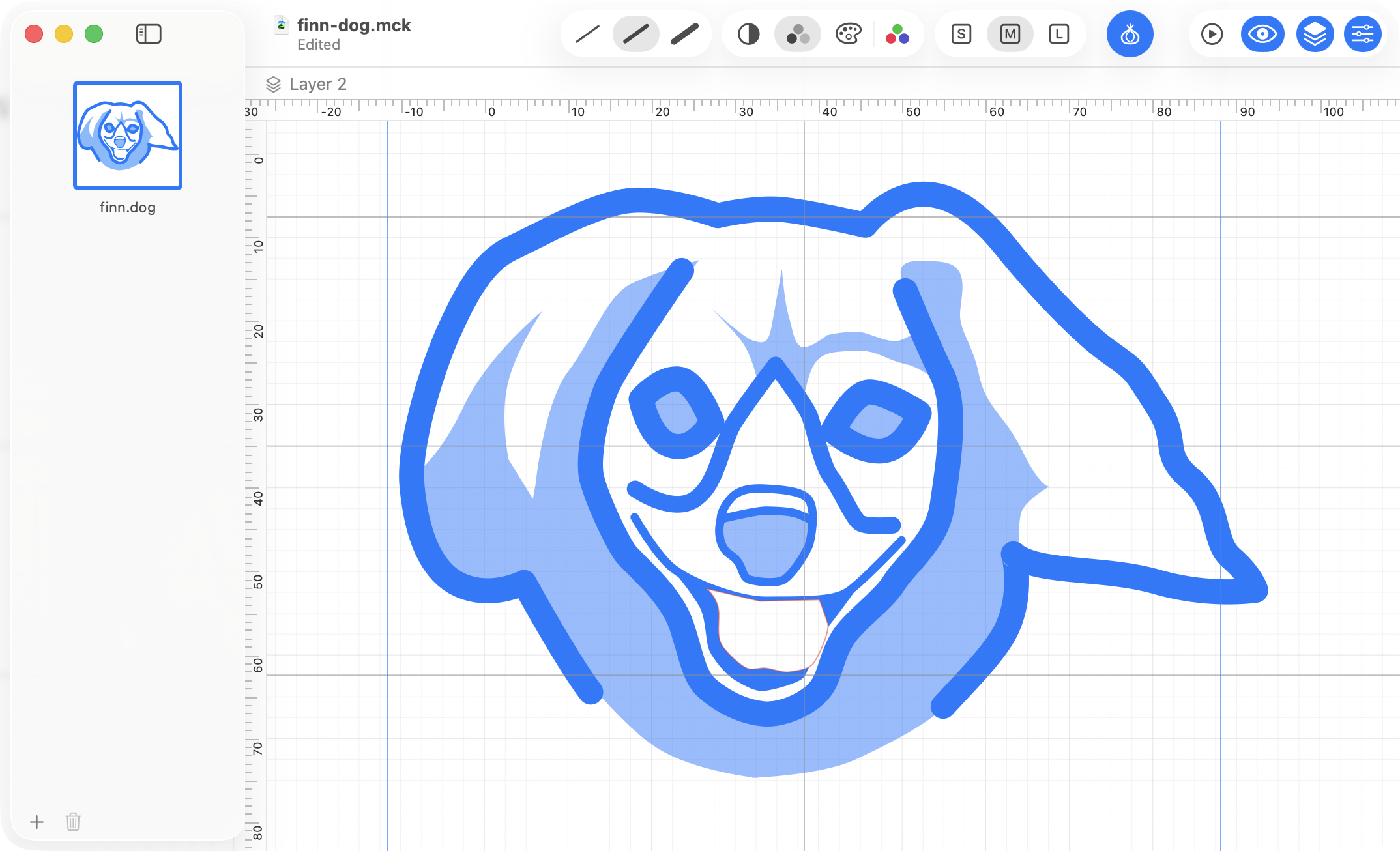
A more involved symbol, drawn with strokes and fills and kept that way — nothing here was converted to outlines.

The Tools palette: select, pen, pencil, cut, shapes, line and text, with the fill and stroke wells below.
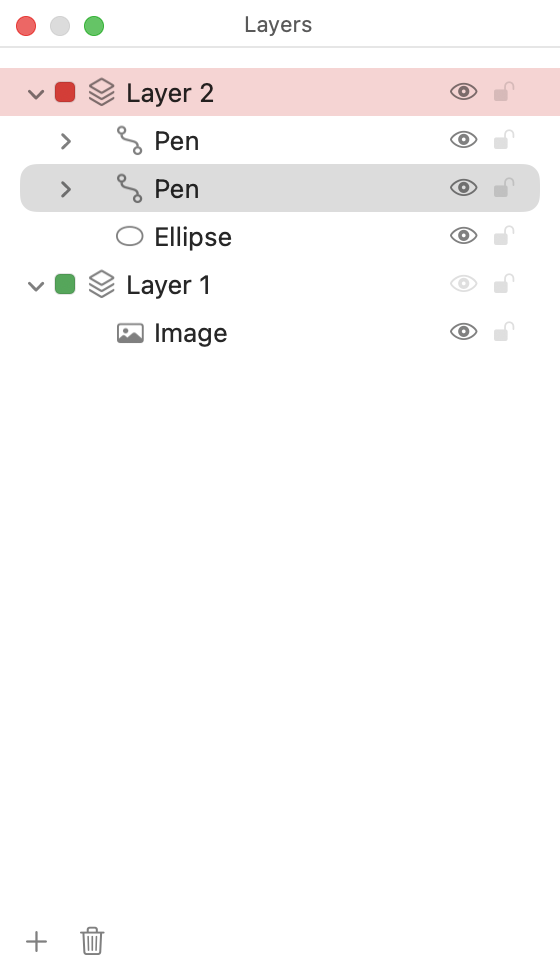
The Layers palette. You don't need layers to satisfy Apple's parser, but they are still handy for organising your own work.
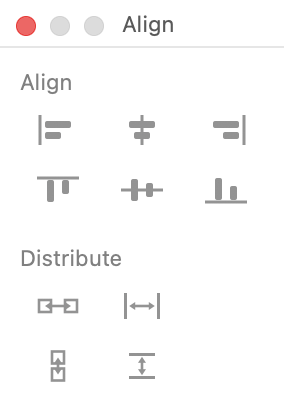
The Align palette: aligning and distributing objects.
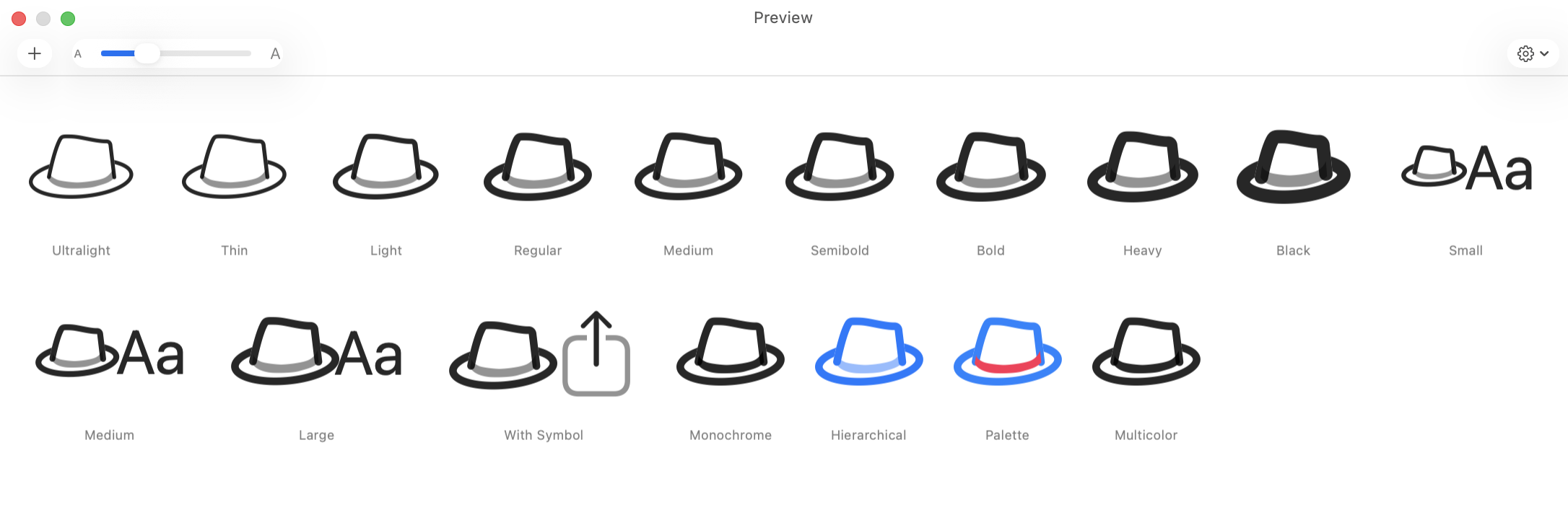
The Preview palette, drawn by Apple's own SF Symbols renderer — so you can be sure things look how they will look in your app.
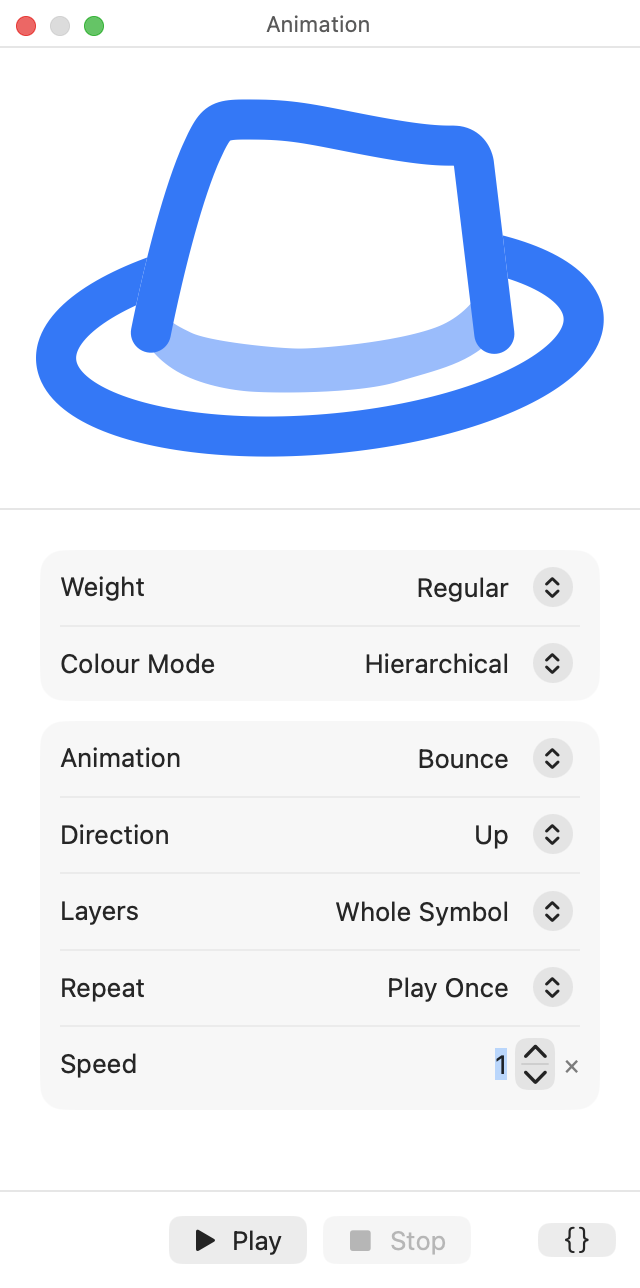
The Animation palette, playing the SF Symbols effects on your own symbol before you ship it.
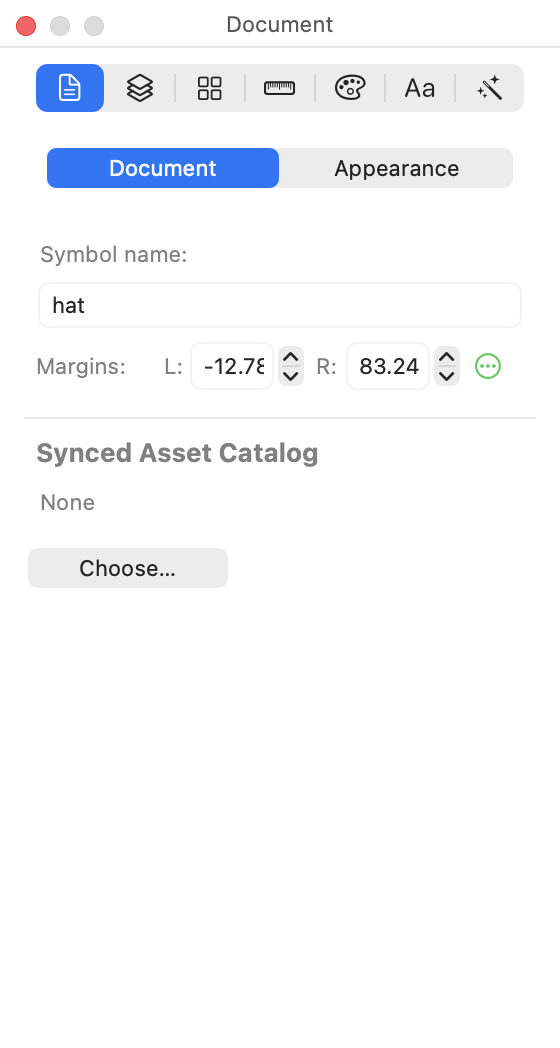
The Document inspector: symbol name, margins, and the asset catalog to sync into.
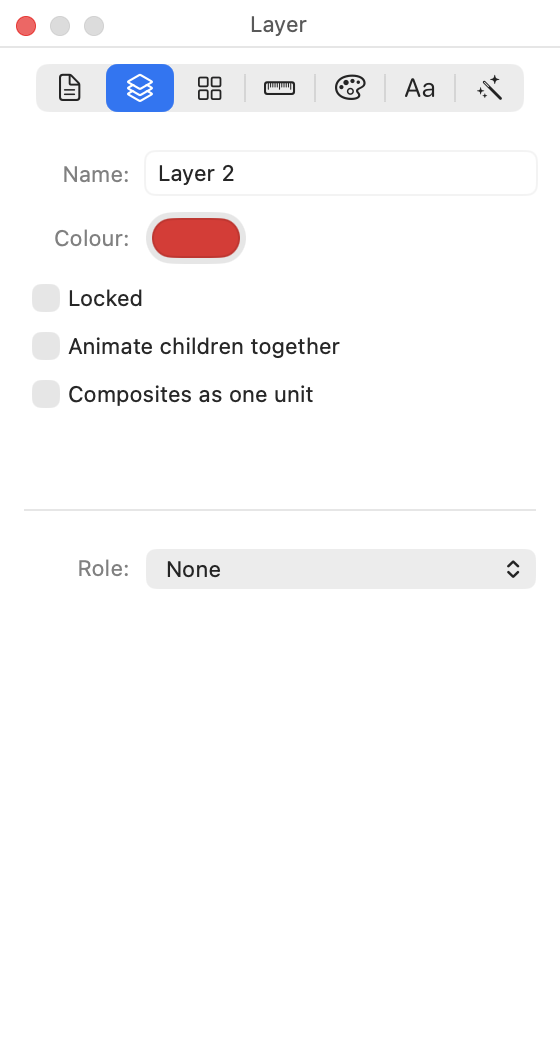
The Layer inspector: name, colour, locking and role.
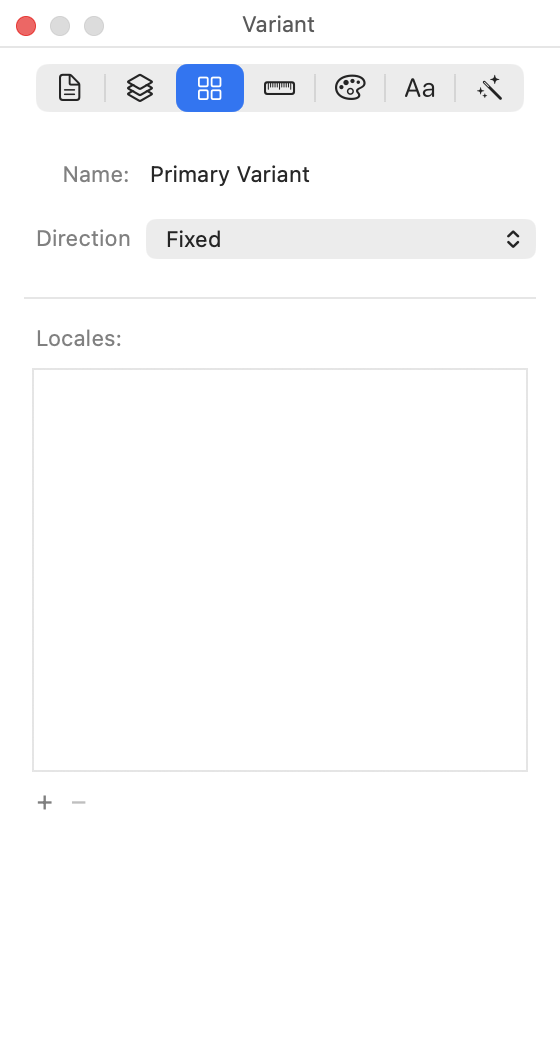
The Variant inspector: a variant's guides, and the direction and locale settings that decide which versions of it get exported.
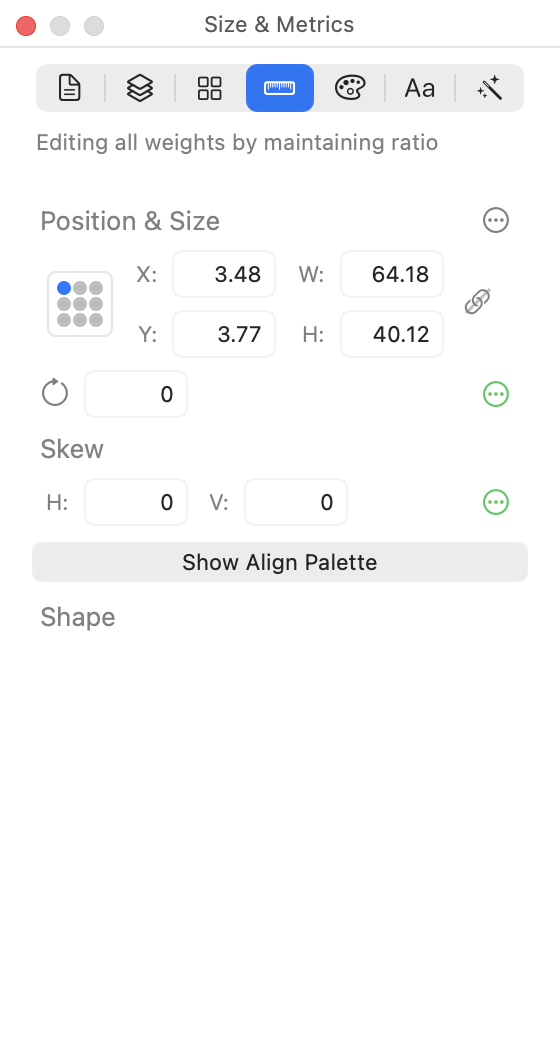
The Size & Metrics inspector: the selected object's geometry.
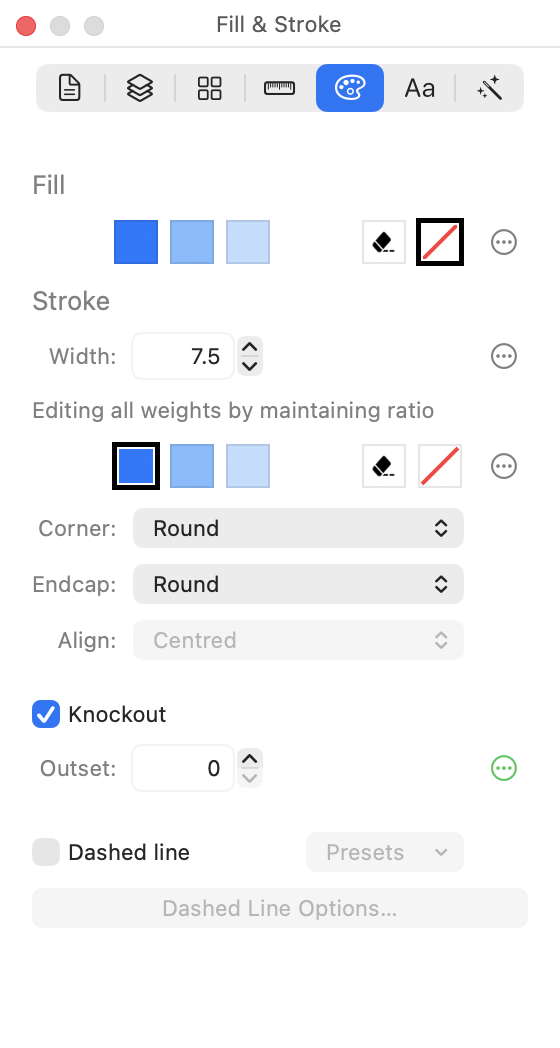
The Fill & Stroke inspector: colours per rendering mode, stroke width per weight, corner and endcap style, knockout and dashes.
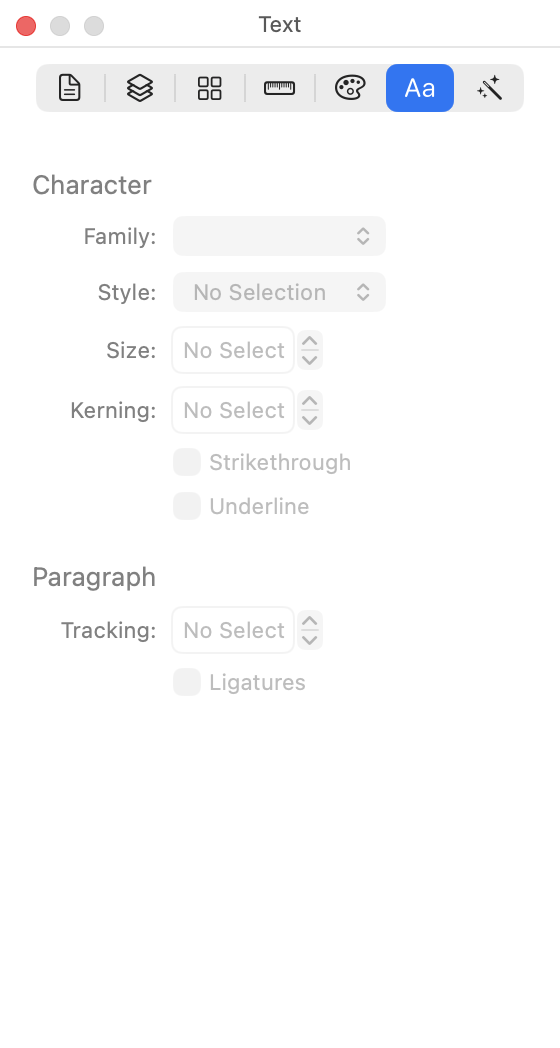
The Text inspector. Text stays editable, and still exports and interpolates correctly.
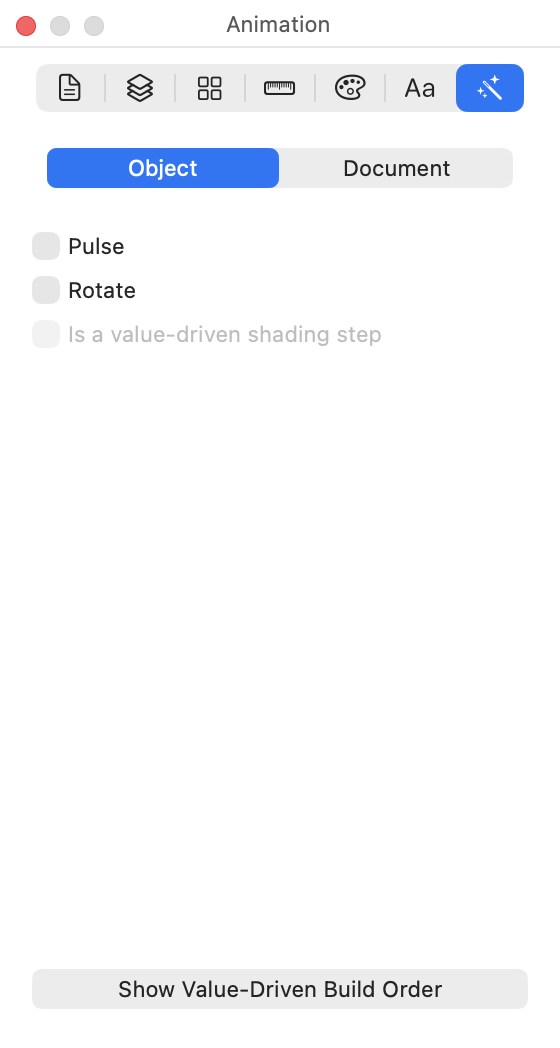
The Animation inspector: per-object effects, and the document's animation defaults.
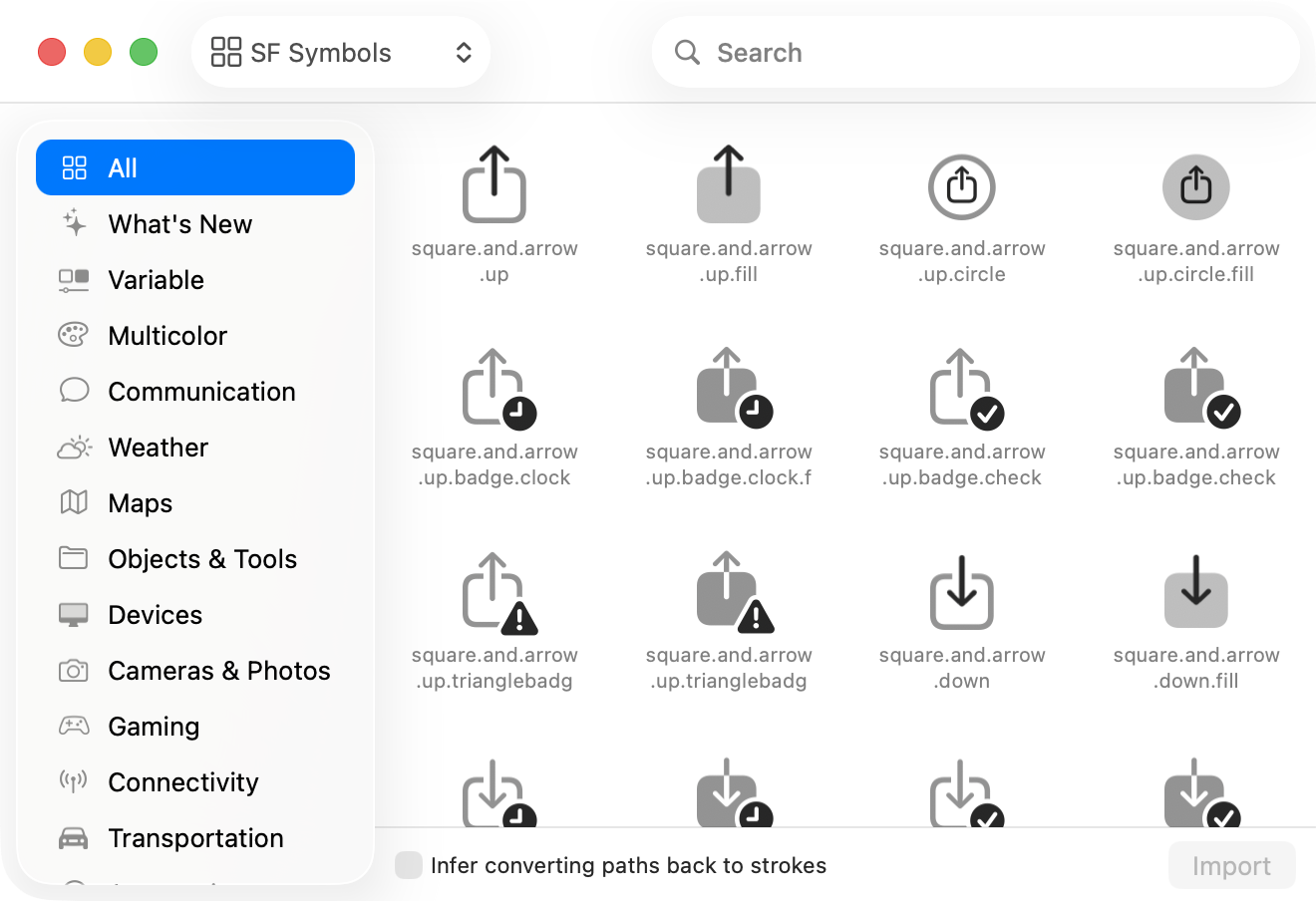
The Symbol Library browsing SF Symbols — load one in as a starting point to modify.
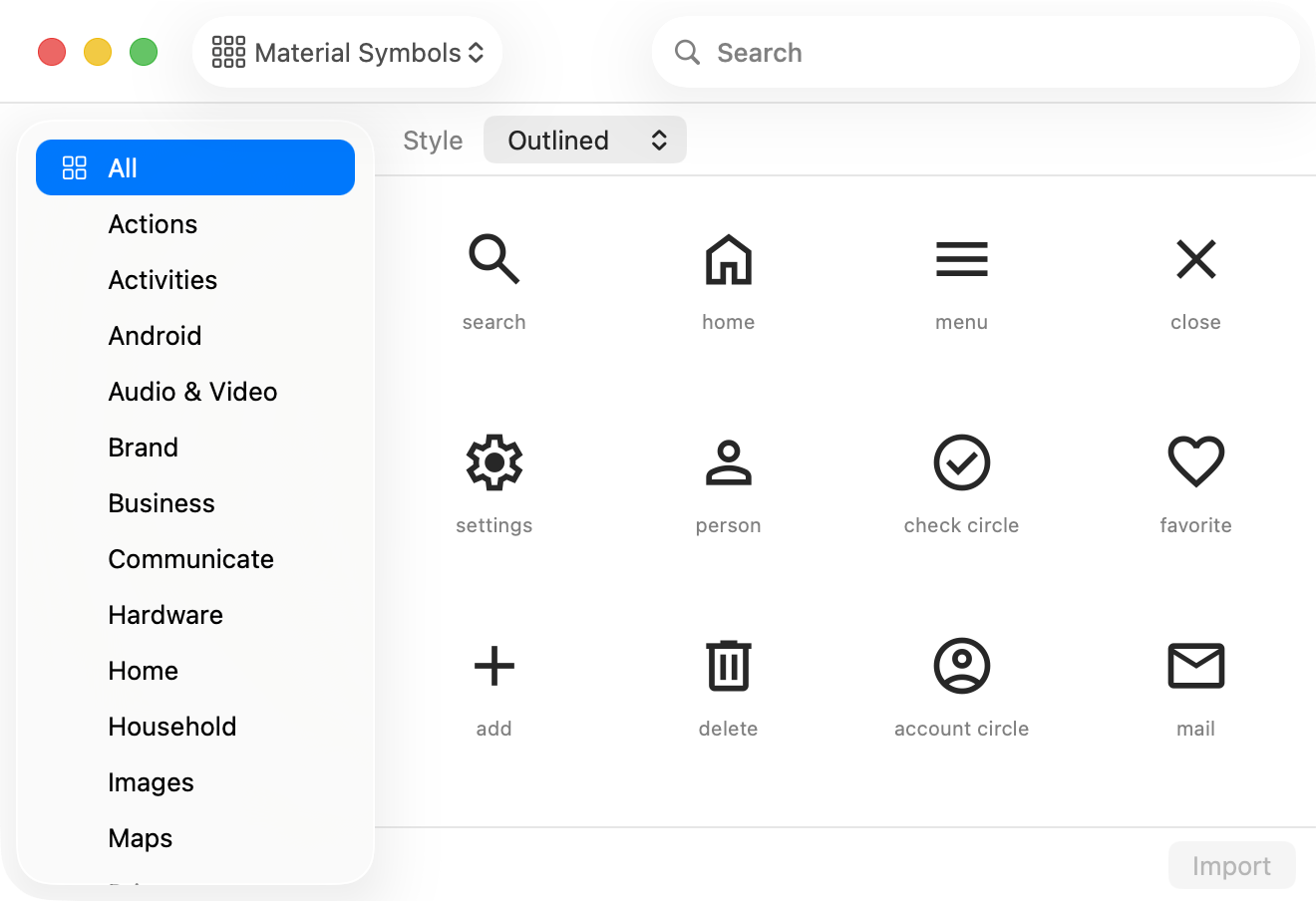
The Symbol Library browsing Material Symbols, one of several icon sets you can start from alongside Phosphor and Iconify.
Dark Mode
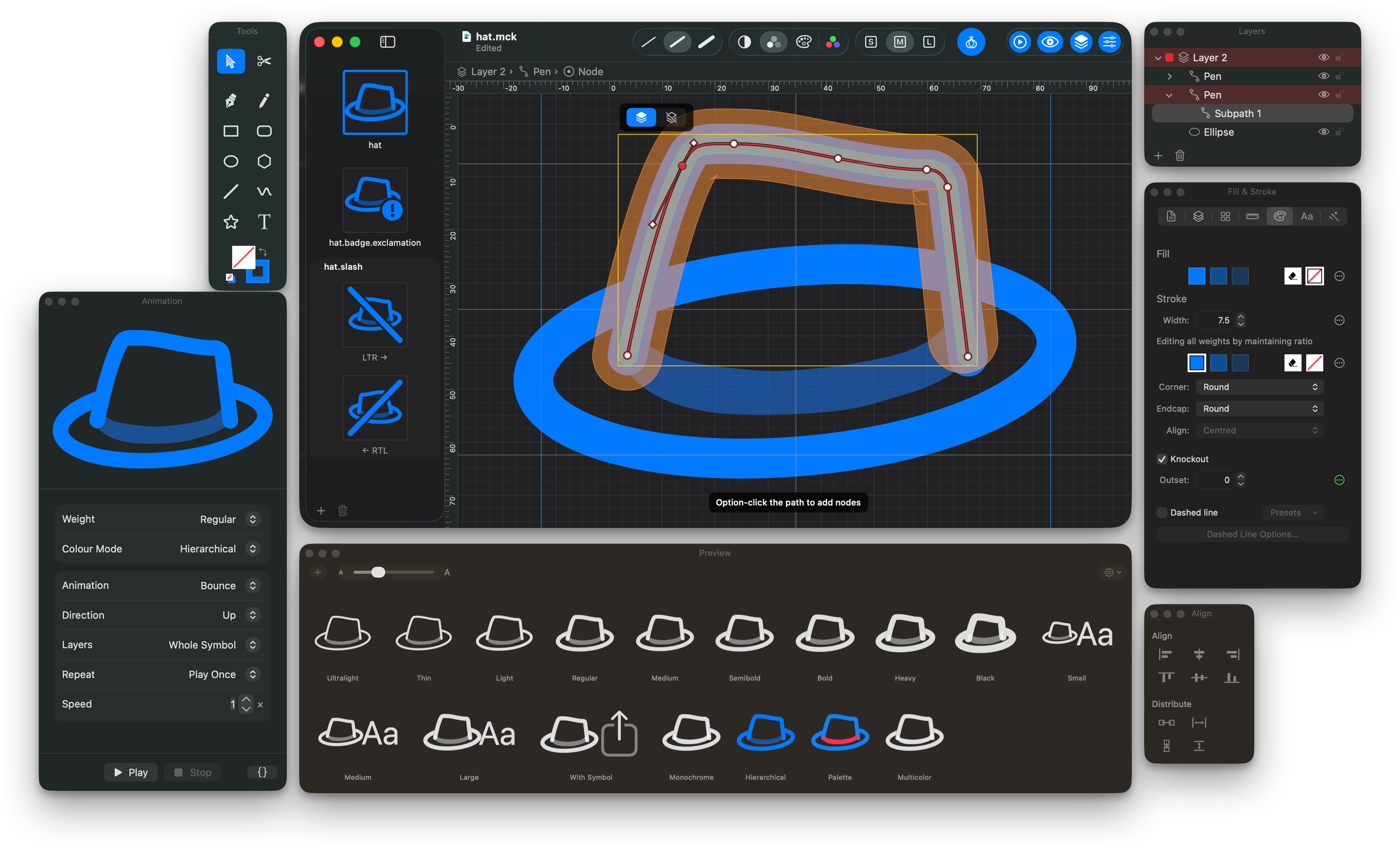
The McKinley workspace: a symbol open for point editing, with the preview palette showing it across weights and rendering modes as Apple's own renderer draws it.
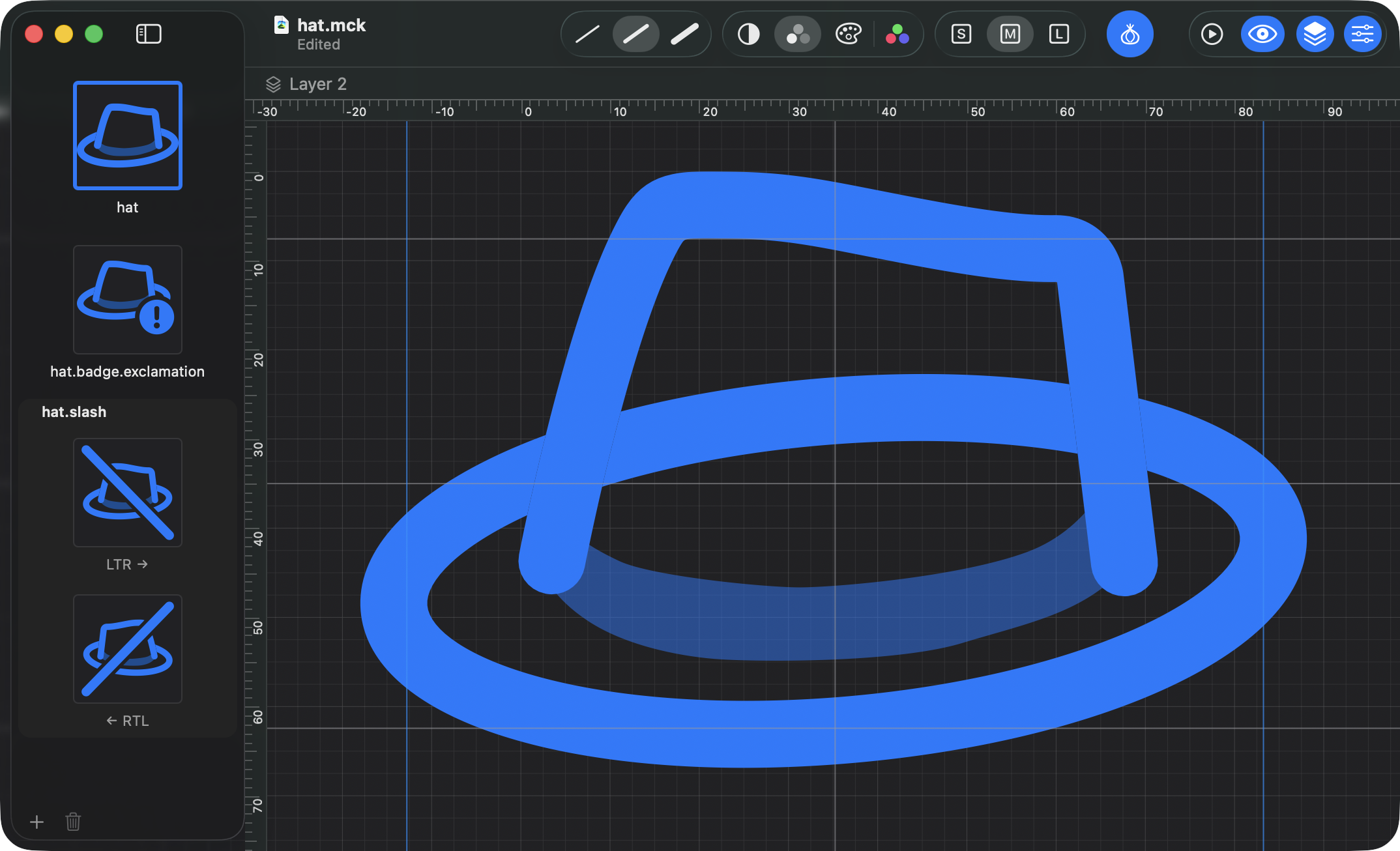
Editing a custom symbol. The sidebar holds its variants — the base symbol, a badged one, and a slashed one with its left-to-right and right-to-left versions.
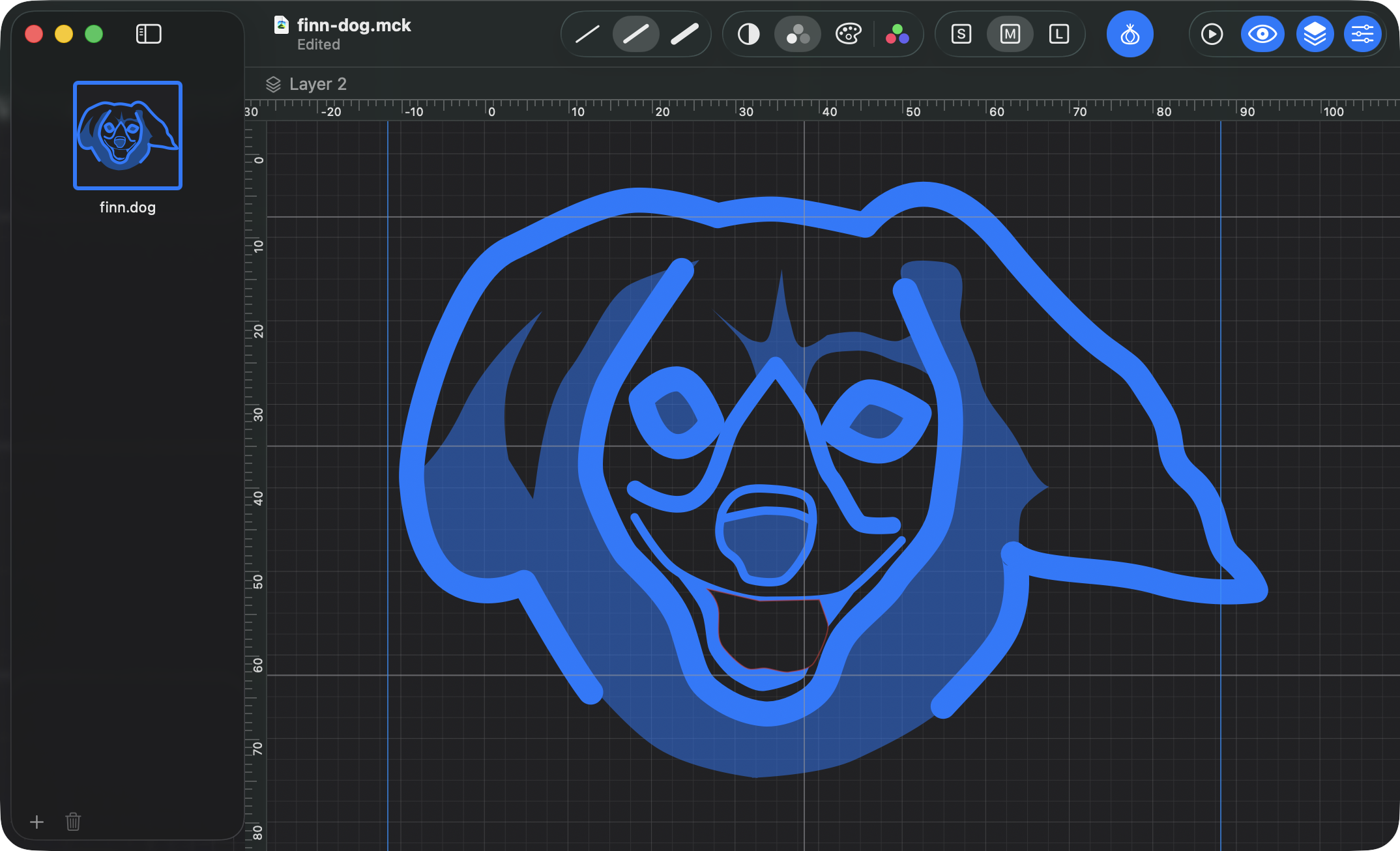
A more involved symbol, drawn with strokes and fills and kept that way — nothing here was converted to outlines.

The Tools palette: select, pen, pencil, cut, shapes, line and text, with the fill and stroke wells below.
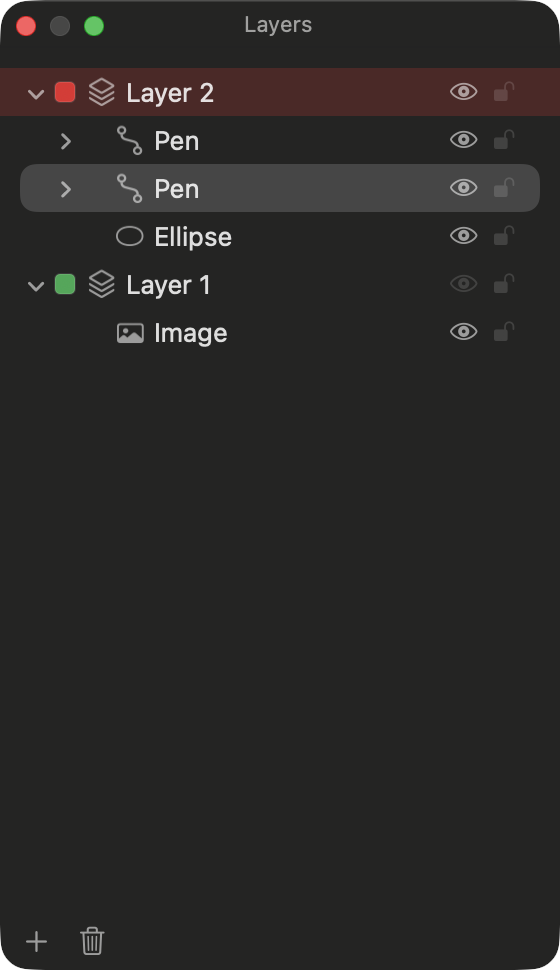
The Layers palette. You don't need layers to satisfy Apple's parser, but they are still handy for organising your own work.
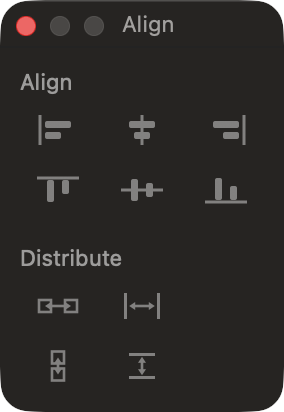
The Align palette: aligning and distributing objects.
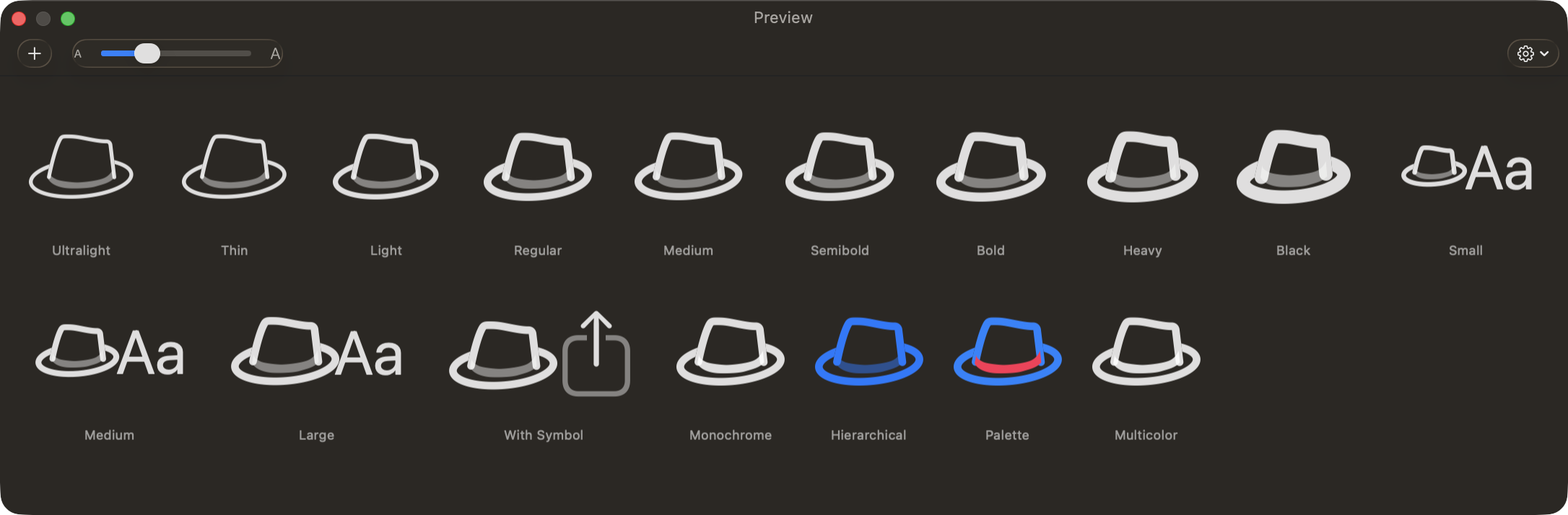
The Preview palette, drawn by Apple's own SF Symbols renderer — so you can be sure things look how they will look in your app.
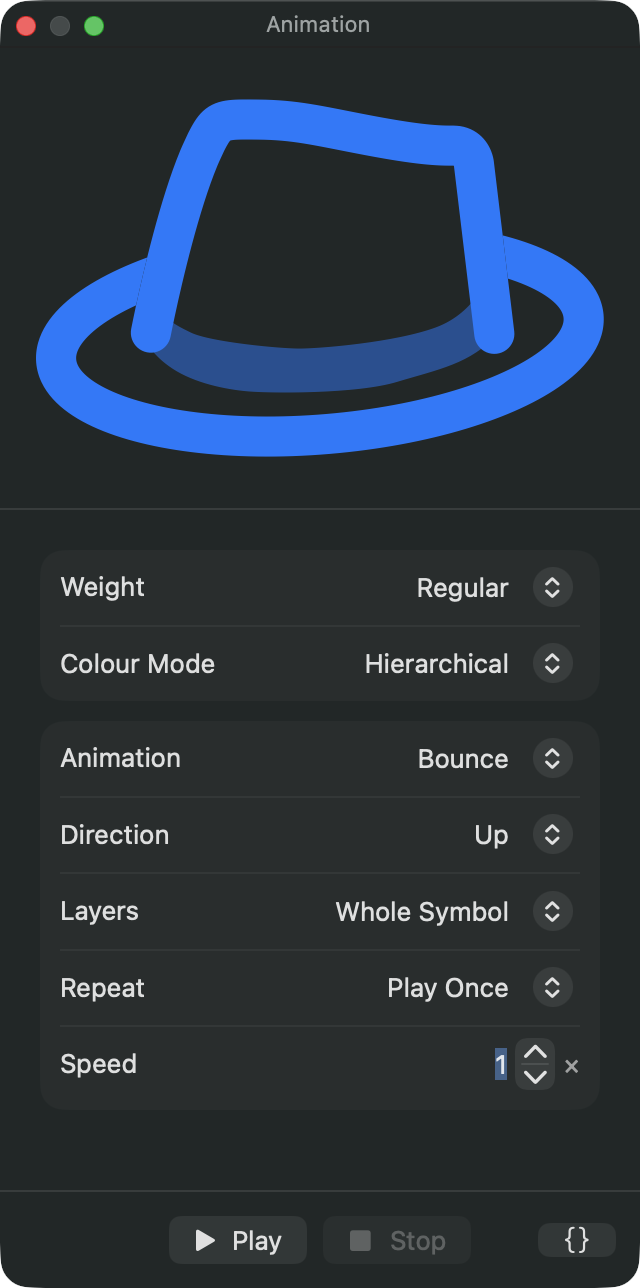
The Animation palette, playing the SF Symbols effects on your own symbol before you ship it.
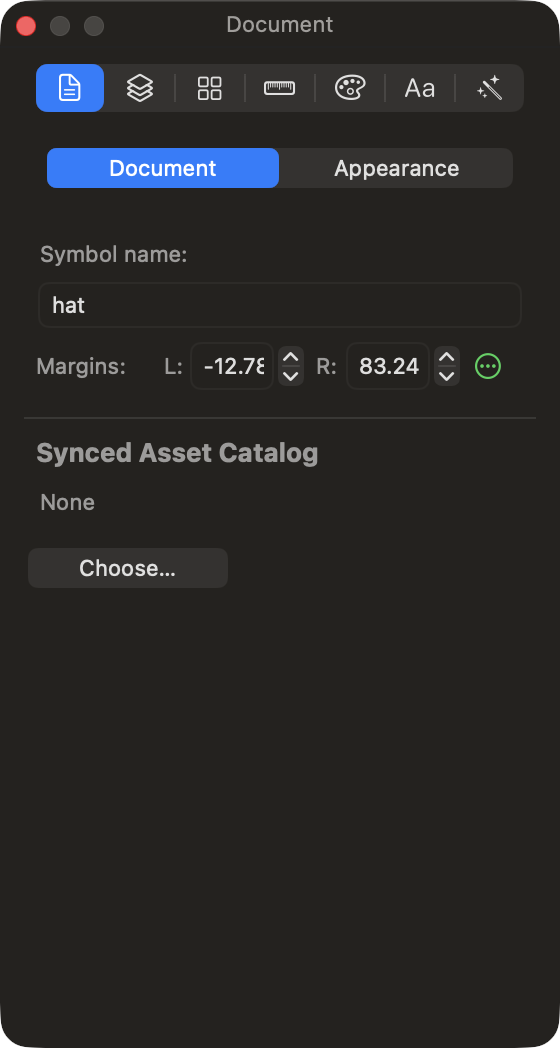
The Document inspector: symbol name, margins, and the asset catalog to sync into.
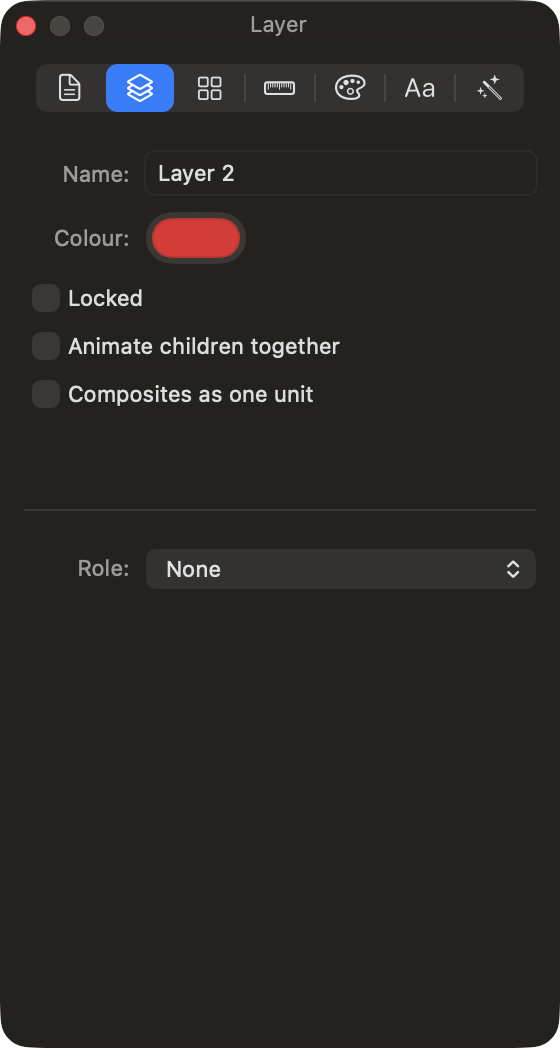
The Layer inspector: name, colour, locking and role.
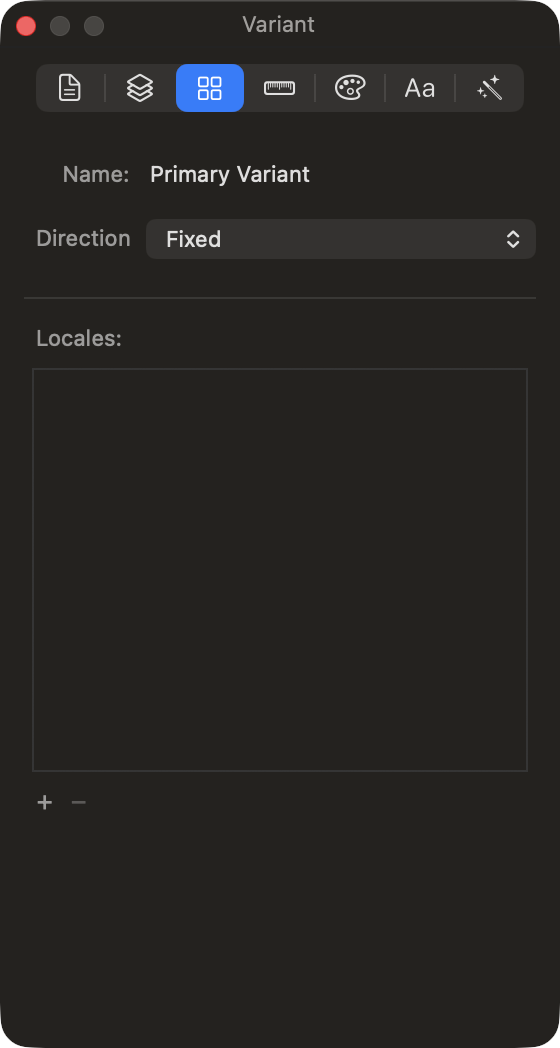
The Variant inspector: a variant's guides, and the direction and locale settings that decide which versions of it get exported.
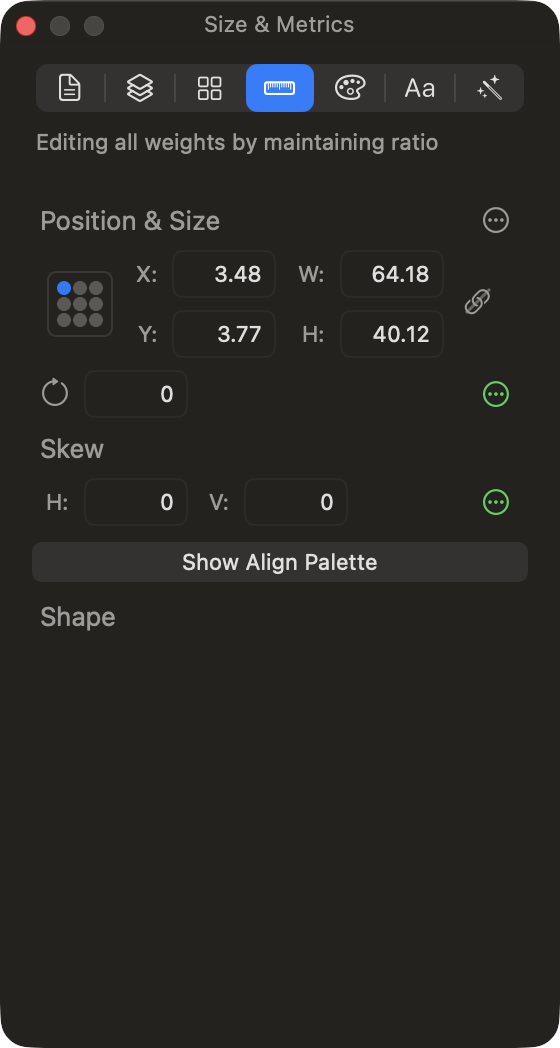
The Size & Metrics inspector: the selected object's geometry.
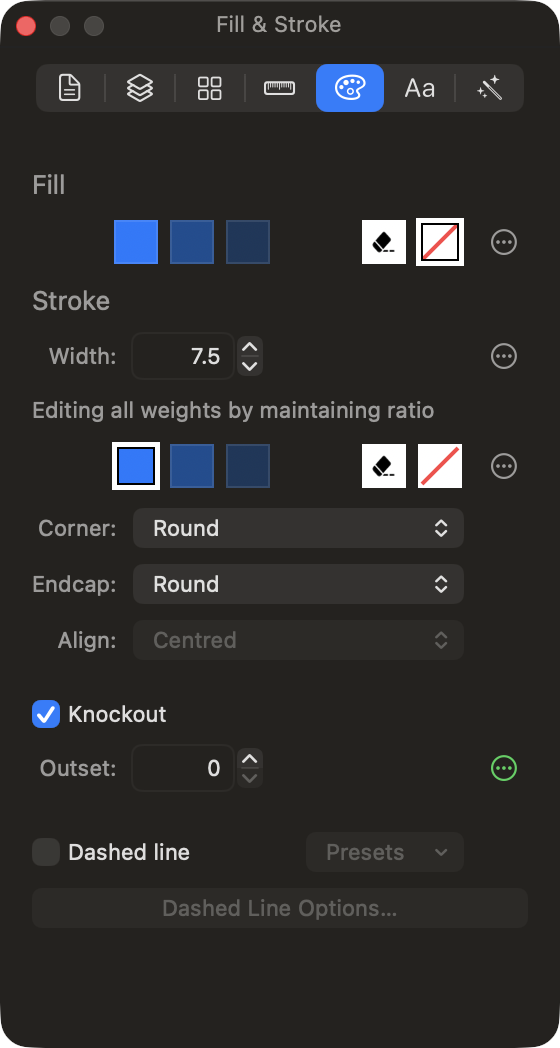
The Fill & Stroke inspector: colours per rendering mode, stroke width per weight, corner and endcap style, knockout and dashes.
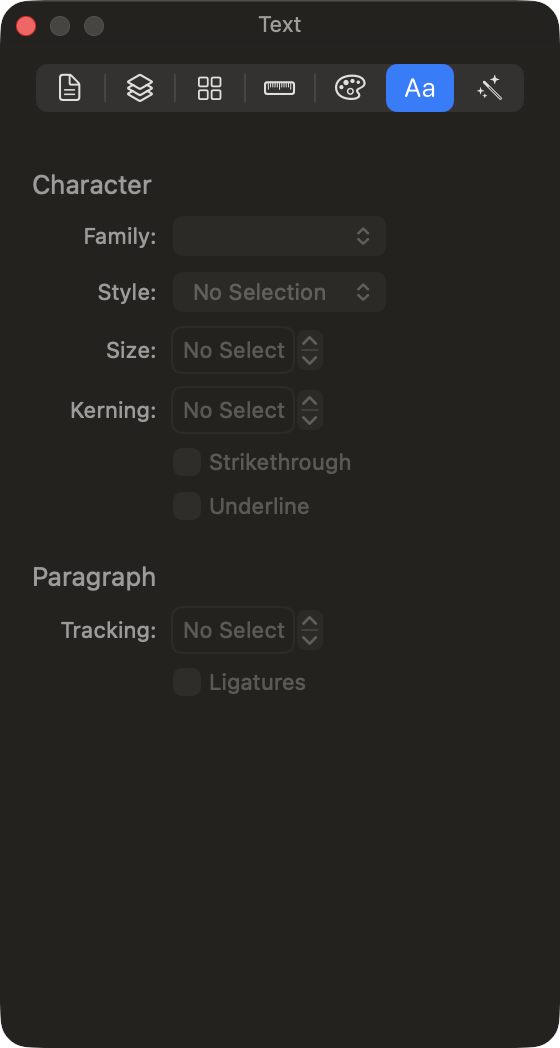
The Text inspector. Text stays editable, and still exports and interpolates correctly.
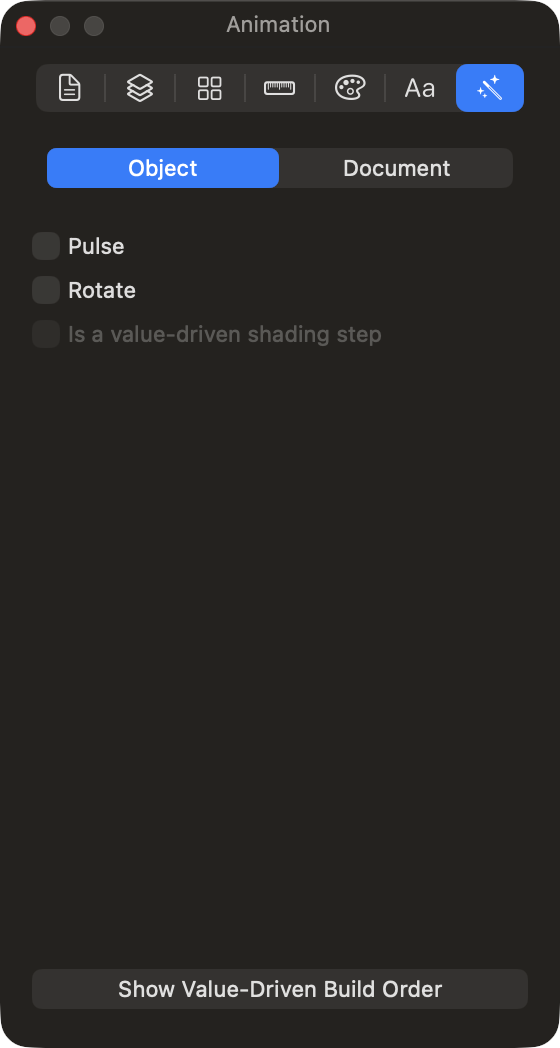
The Animation inspector: per-object effects, and the document's animation defaults.
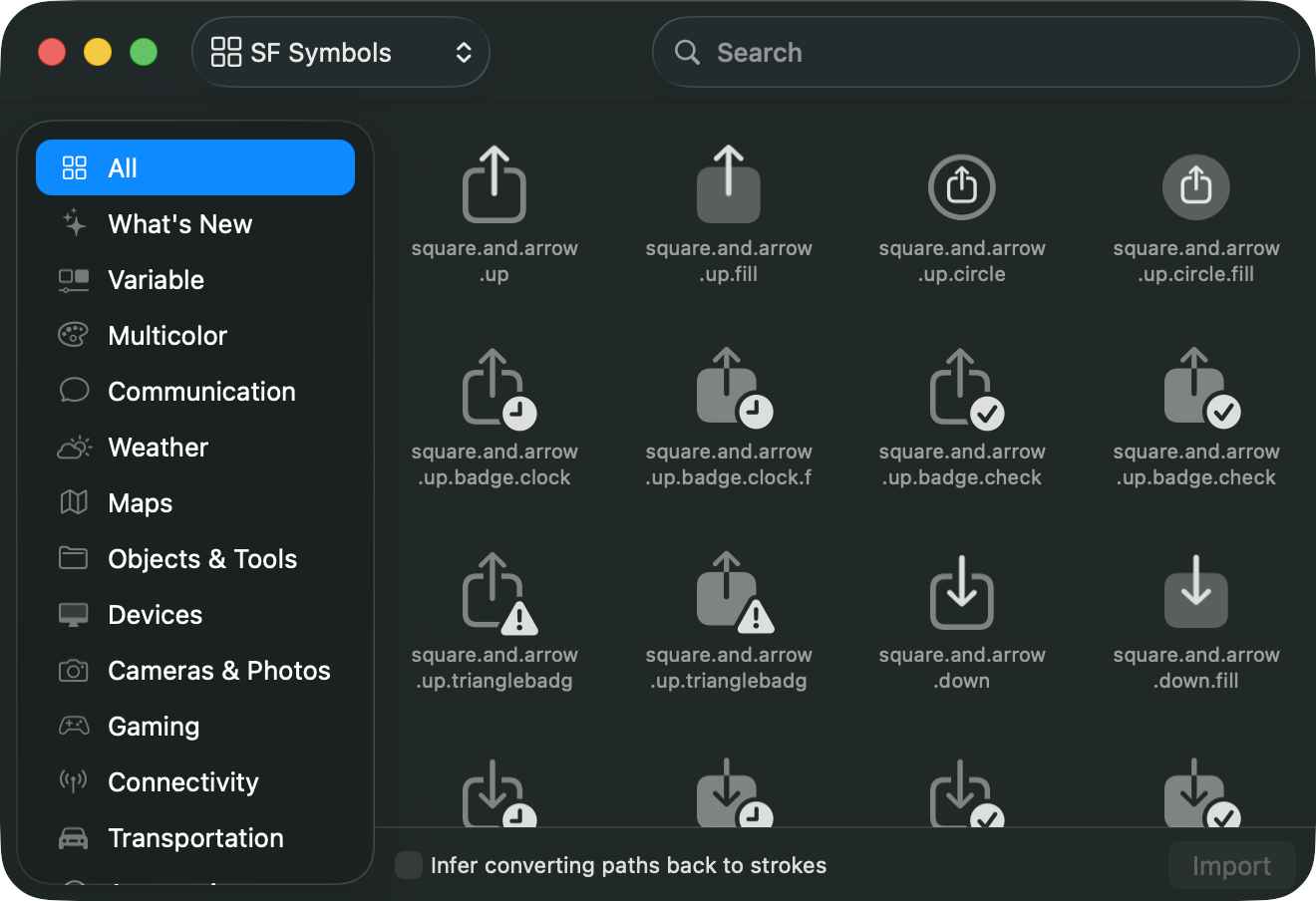
The Symbol Library browsing SF Symbols — load one in as a starting point to modify.
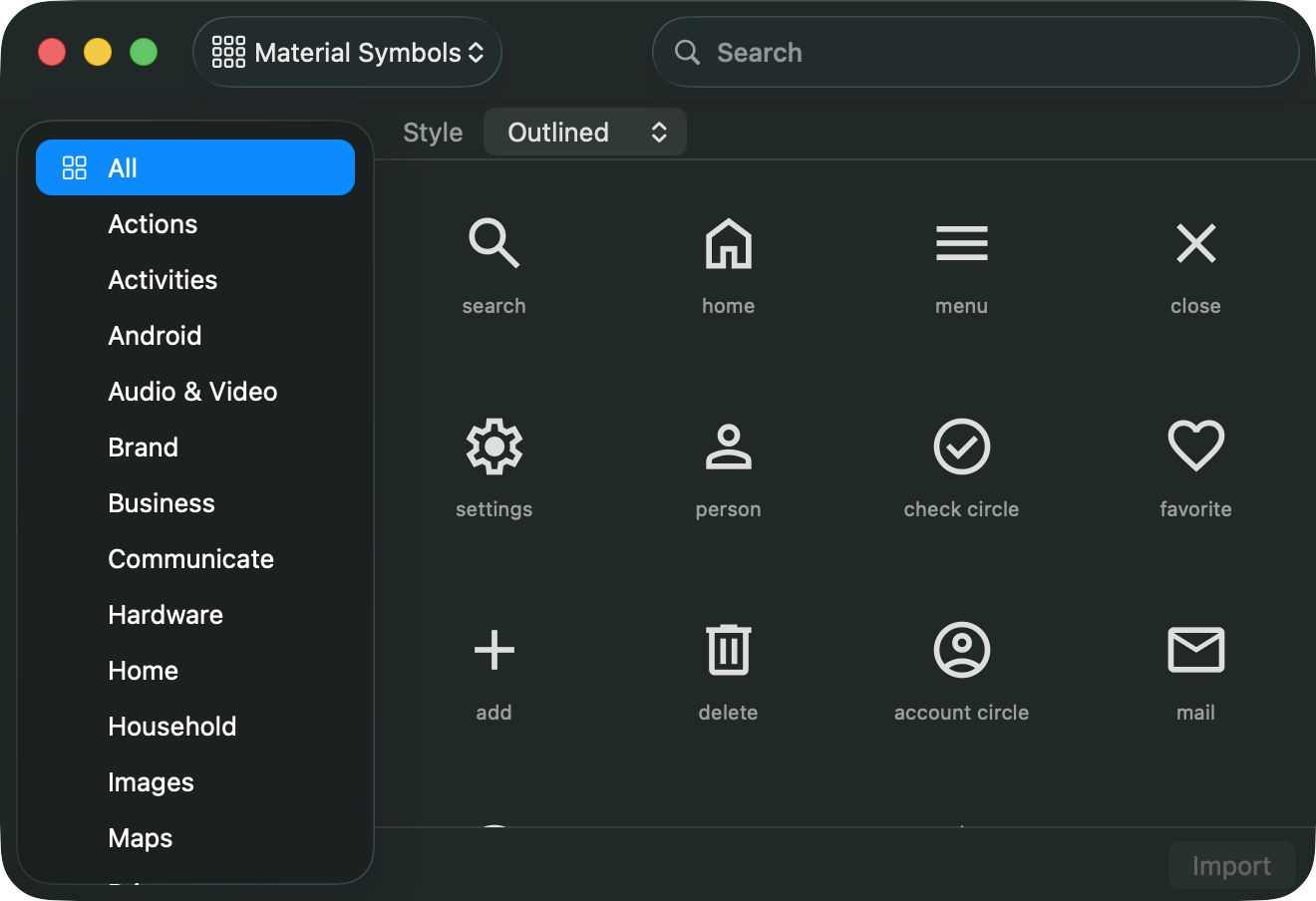
The Symbol Library browsing Material Symbols, one of several icon sets you can start from alongside Phosphor and Iconify.
About Double & Thrice Ltd.
- Founder:
- Amy Worrall
- Founded:
- 1 November 2023
- Website:
- https://doubleandthrice.com
- Other apps:
- Octavo
Press Contact
For press inquiries, please contact:
amy@doubleandthrice.com