Arranging Objects
Arranging Objects
Changing order
Use the Arrange menu’s Bring to Front / Bring Forward / Send Backward / Send to Back commands to change the z-order of objects on the canvas.
Objects are ordered within their layer.
The order of objects is also shown within the layer palette:
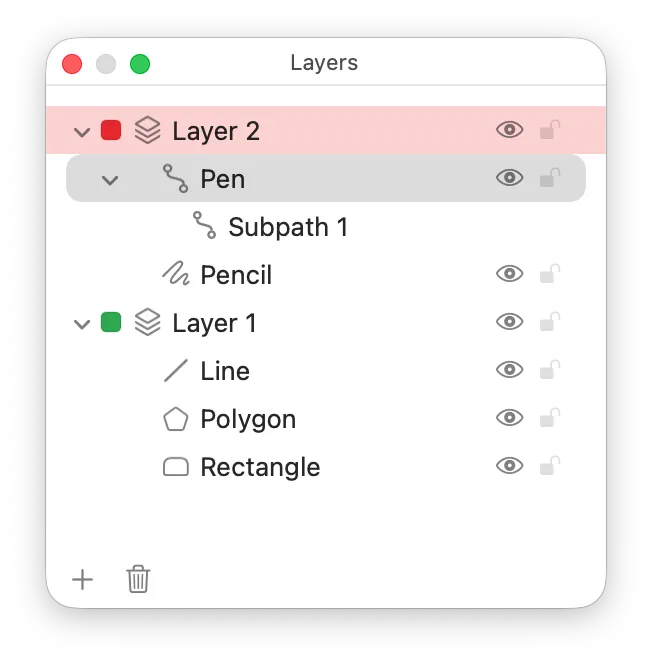
You can drag items within the layers palette to change their order, or to move them between layers.
Moving between layers
As mentioned above, you can drag items within the layers palette to move them between layers.
You can also use Arrange -> Send to Layer to move the selection to another layer.
Rotate, flip
The Arrange menu has options Rotate 90° Left/Right, Rotate 180°, Flip Horizontal/Vertical. These apply the relevant transform to the selected object(s).
Rotation by a custom amount
You can apply a rotation in the Inspector, on the Size & Metrics tab:

This field lets you enter a rotation amount in degrees.
You can also rotate using the mouse. Hover your mouse pointer just outside of one of the resize handles for your selected object. You’ll see the mouse pointer turn into a rotation arrow. You can now drag to rotate the object.
Skew
You can skew an object numerically by entering values into the inspector on the Size & Metrics tab:
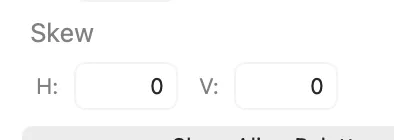
To adjust skew with the mouse, you must first enter skew mode using the Arrange -> Skew menu item. The selected item’s handles will become diamonds, and dragging these handles will skew the object. Choose Arrange -> Skew again to exit skew mode.
Align & Distribute
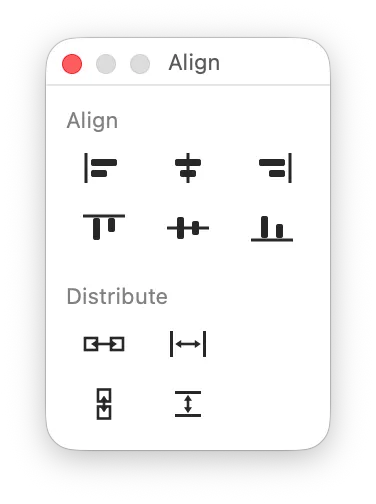
You can align objects to each other, or distribute the space between objects, by using the Arrange -> Align or Arrange -> Distribute submenus.
Additionally, you can open the Align palette via Window -> Show Align, which displays buttons for these operations:
Reset to Natural Position / Reset to Natural Size
Some objects, such as proxies or adornments, have an intrinsic position and/or size. These menu items (in the Arrange menu) reset the selected object to its intrinsic position/size.
Reset Position Across Weights
See the Multiple Weights page.
Make Sides Equal
If you have a polygon selected, this will reset its dimensions so that each side is of equal length (i.e. it is a regular polygon).