Exporting
Exporting
McKinley can output a few different file formats, and depending on your familiarity with how SF Symbols work, these might seem a bit confusing.
Your McKinley document (a .mck file)
When you save a McKinley document, it is a .mck file. This is McKinley’s proprietary format. (It’s not proprietary for secret reasons — we just needed a way to store all the extra data that makes McKinley’s workflow such a rich experience.)
You should always keep your .mck file around, as it is the source of truth for your symbol.
SF Symbols aren’t the same as SVGs, despite appearances
If you’ve ever exported an SF Symbol from the SF Symbols app, you’ll know that it is saved in a .svg file. But what it actually contains is a specific template structure, with your different symbol weights in very specific places, and a bunch of Apple tags to store the metadata.
If you’re interested in the technical details, Apple has an article about it.
The takeaway point is, a random SVG that you downloaded from the web does not count as an SF Symbol, because it doesn’t have all this additional structure.
…But McKinley can make both
McKinley can output both plain SVG and the specific SF Symbol format. Look at the Export menu:
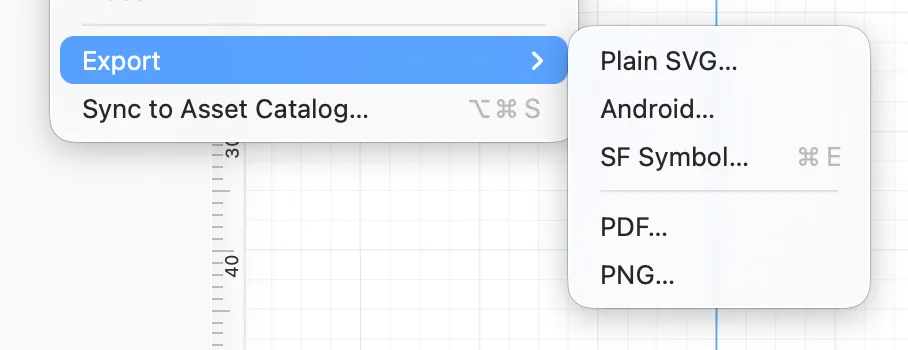
You might want to export plain SVG in order to use your symbol on the web, or in a graphics app. But you need to export it as SF Symbol format in order to drop it into your asset catalog.
You could also use McKinley’s exported SF Symbol format to load into Apple’s SF Symbols app. We’ve worked hard to make McKinley a comprehensive symbol editor, so you shouldn’t need to do this. But you can if you want!
Exporting three or 27 symbols
Getting a symbol into your app manually
If you’re going to export your symbol and bring it into Xcode, you can:
- In McKinley, go to File -> Export -> SF Symbol
- Put the resulting file somewhere temporary, like your desktop
- Drag that file into your Xcode asset catalog: Xcode will recognise it as an SF Symbol
If you have multiple variants within your McKinley document, then the export dialog will let you choose whether to export just the selected variant, or all the variants in the file. Each variant exports as a separate SF Symbol (with .svg extension), and you can drag each of them into Xcode.
Syncing directly to an asset catalog
The easiest way to get your symbol into Xcode is to let McKinley put it there.
Choose File -> Sync to Asset Catalog. The first time you choose this, you’ll be prompted to locate your asset catalog (see the Document inspector). Then, McKinley writes your symbol straight into the asset catalog.
Whenever you make changes in your McKinley document, you’ll see a purple dot in the top corner:
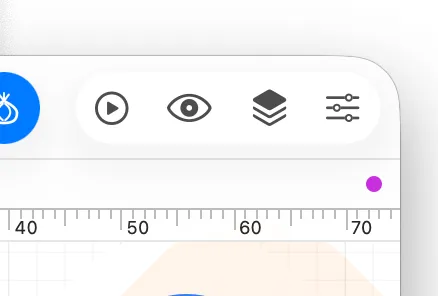
This means you have unsynced changes. You can sync new changes by choosing File -> Sync to Asset Catalog again, and the symbol in your asset catalog will be automatically updated.