Animating Your Symbol
Animating Your Symbol
SF Symbols offer a variety of pre-defined animations, with various parameters you can set. For the most part, the parameters for an animation are set in code by the app using them. But there are a few options you can set within the symbol itself which change how it animates. Additionally, McKinley lets you preview your symbol’s animation using any combination of the properties you’d normally set in code, and you can copy the code for that combination of properties and paste it straight into your app.
The Animation Preview Palette
Show the Animation Preview palette via Window -> Show Animation Preview, or via the toolbar button.
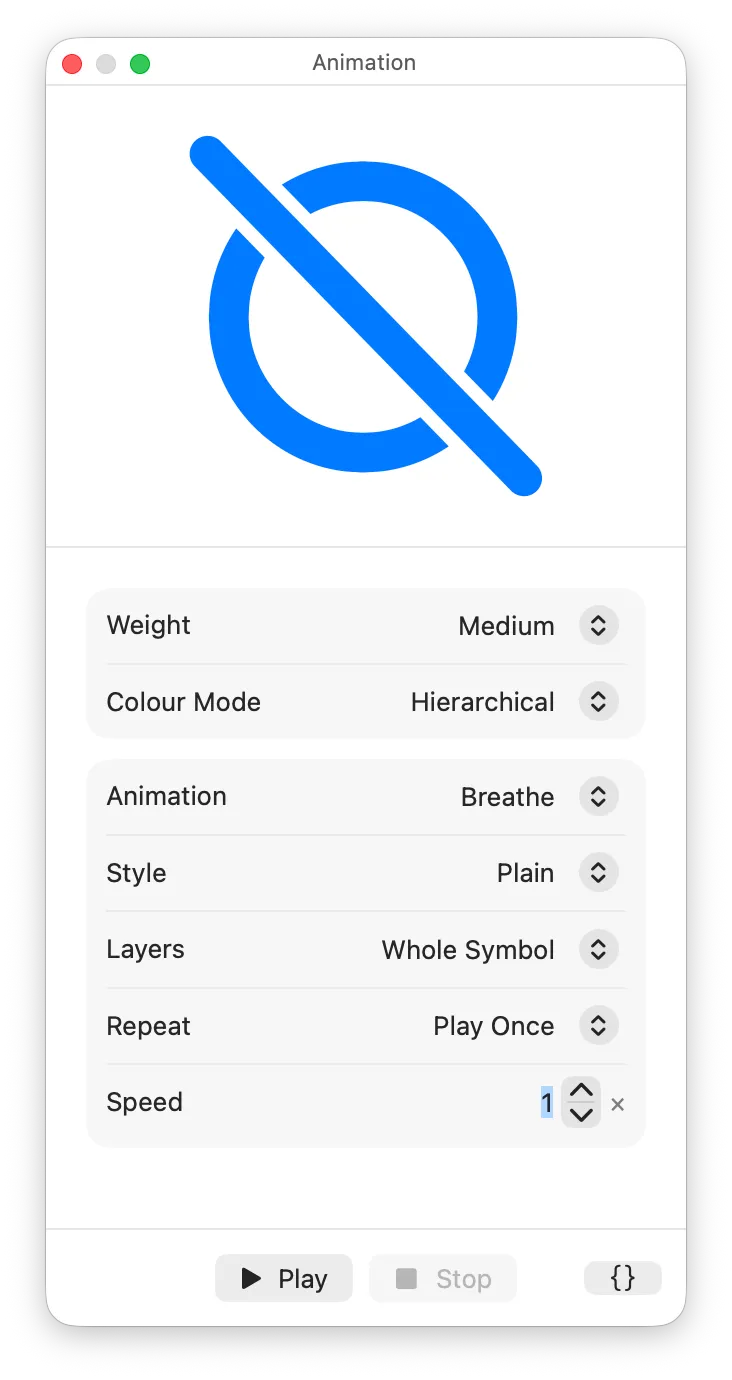
Choose which of SF Symbols’ animations you want to preview with the “Animation” popup. The options below vary depending on the animation you have selected.
Previewing Animations
To preview an animation, once you have set up the options you want, hit Play. This will work in one of three ways:
- For animations that play once, the animation will play then automatically stop and reset.
- For animations that make a transition between two states, pressing Play will transition to one state, and then pressing Stop will return to the former state. Some animations, such as Scale, Disappear or Draw Off, always transition between two states. (Scale animates back when you press Stop; Disappear and Draw Off snap straight back. Appear and Draw On finish with the symbol visible, so they don’t need Stop.)
- For repeating animations (e.g. Breathe with Repeat set to Continuous), pressing Play will start the animation. Press Stop to end the animation.
The animation played back in this palette uses Apple’s real SF Symbols renderer (via SwiftUI). You can be sure that the animation will look the same way it looks in your app.
Copying Code
To help you write the code to make use of your symbol’s animation, you can use the {} button in the bottom right of the Animation Preview palette.
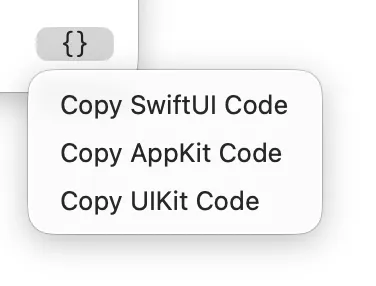
You can then copy some example code in your preferred UI framework. This code will load your symbol and set up the animation with the correct properties.
Replace
Replace is an animation by which one symbol may be swapped with another. In particular, this is useful for replacing a symbol with one of its own variants, such as a symbol with a slash or a badge adornment over it.
- McKinley lets you preview Replace between two variants within the same file.
- Select which variant you are replacing to/from using the To/From menu in the options:

-
Pressing Play will run the replacement, toggling between the two symbols (your current variant and the one you specified in the menu).
-
The Style menu lets you choose one of multiple replace styles: Down-Up, Up-Up, Off-Up, or Magic Replace. The latter is special:
Magic Replace
Apple defines Magic Replace as a smart transition between two symbols with related shapes. Slashes can draw on and off, and badges can appear, disappear, or be replaced independently of the base symbol. In addition, Magic Replace can transition a symbol’s enclosure, and it automatically performs Draw animations if the data exists.
Note that McKinley does not currently support custom Draw animations. McKinley provides Draw data for slashes, but nothing else. This will be improved in a future version.
If SF Symbols cannot perform a Magic Replace, it will fall back to a regular replace animation.
- Magic Replace only works for features in the category of badges, slashes, and enclosures.
- In McKinley, we use a Layer Role (in Inspector -> Layer) to tag that a certain layer represents one of these features. If you create a new variant with a slash, badge or enclosure (e.g. by using the Add Variant button in the sidebar and choosing one of those presets), the relevant Layer Role will be set for you.
- You can use a Layer Role to tag a custom thing you drew as a badge, slash or enclosure. There’s no need to limit yourself to the pre-installed sample badges.
Layers
Many animations have a “Layers” setting. This lets you pick between “Whole Symbol” and “By Layer”. It is for setting whether you want the motion of the animation to affect the whole symbol at once, or if you want individual parts of it to be animated with a slight offset, producing a pleasing effect.
Note that the word Layer here is referring to SF Symbols’ concept of a layer, not to McKinley layers. For the most part, McKinley exports every shape onto its own SF Symbols layer. So with a “By Layer” animation, every shape would animate separately.
What if you want certain objects to be exported on the same SF Symbol layer, so they’ll animate together?
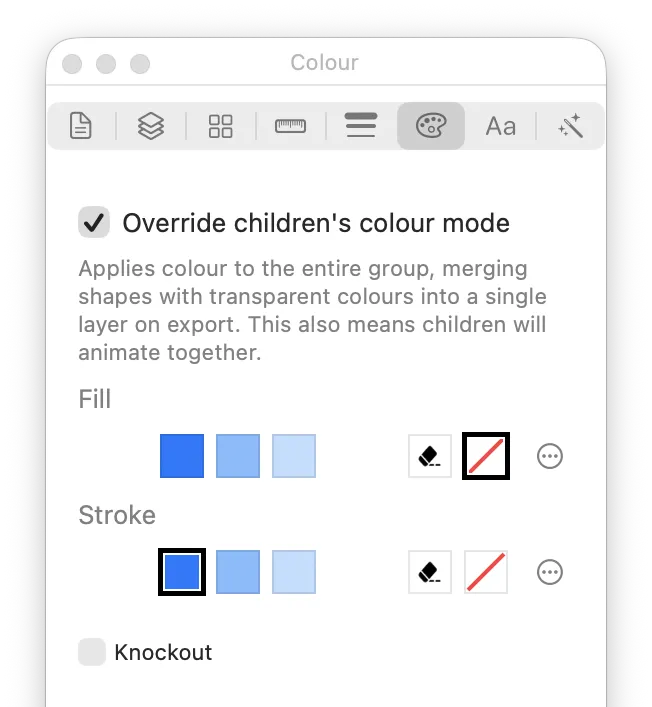
- Group the objects, and turn on “Override children’s colour mode” on the group. The group will now output as either one or two layers (depending whether you specify different fill and stroke colours — SF Symbols never allows more than one colour on the same layer).
- On your McKinley layer, turn on “Composites as one unit”. Similar to the override described above, this will force the contents of the McKinley layer to all be the same colour and output on the same SF Symbols layer. However, this setting also switches SF Symbols to render the layer as its own compositing group, which means that Erase/Knockout will only apply within that layer.
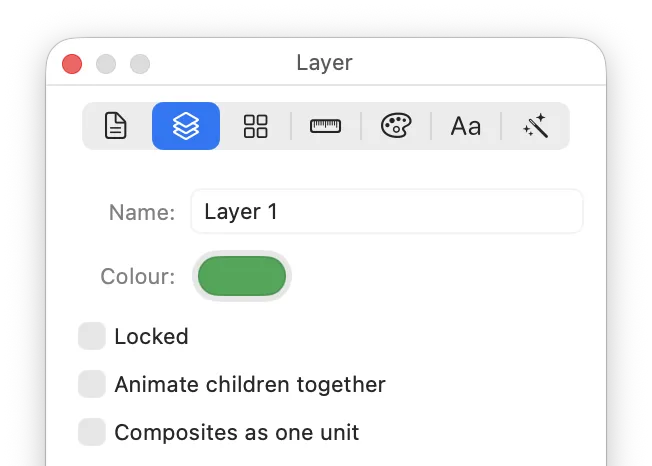
- On your McKinley layer, turn on “Animate children together”. This one is specific to animation, and tells McKinley that regardless of how many SF Symbol layers it outputs for this McKinley layer, they should all animate together. (To accomplish this, McKinley uses an SF Symbols feature called “Motion Groups”. It does the same thing as in the SF Symbols app, making a Layer Group and choosing Animate Sub-layers Together.)
Any of these options lets you make multiple objects animate together when using “By Layer” animation. If you only want to affect animation, the best way is to use Animate children together on the McKinley layer. However it’s useful to know all the techniques available to you.
Per-object Animation Settings
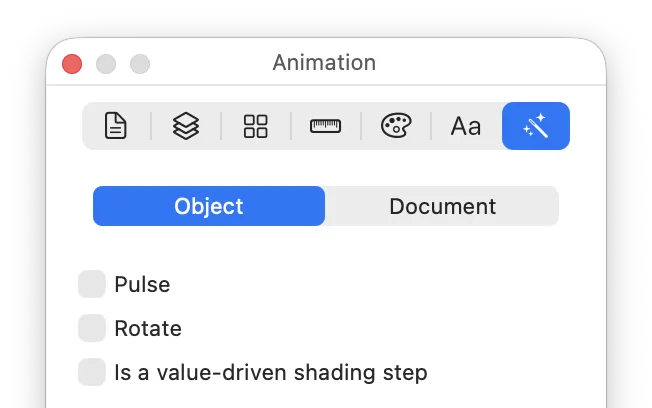
For Pulse and Rotate animations, you can choose which objects ‘opt in’ to the effect, in the Animation inspector. Only the objects with the relevant checkbox ticked will opt in. This is useful if, for example, you are making the symbol of a blowing fan, where you want the fan blades to rotate and the fan housing to stay static.
If you have a group with Override children’s colour mode turned on, then the setting is available on the group, and not on individual objects within the group.
For the “Variable Rendering step” option, see the section on Variable Rendering below.
Per-document Animation Settings
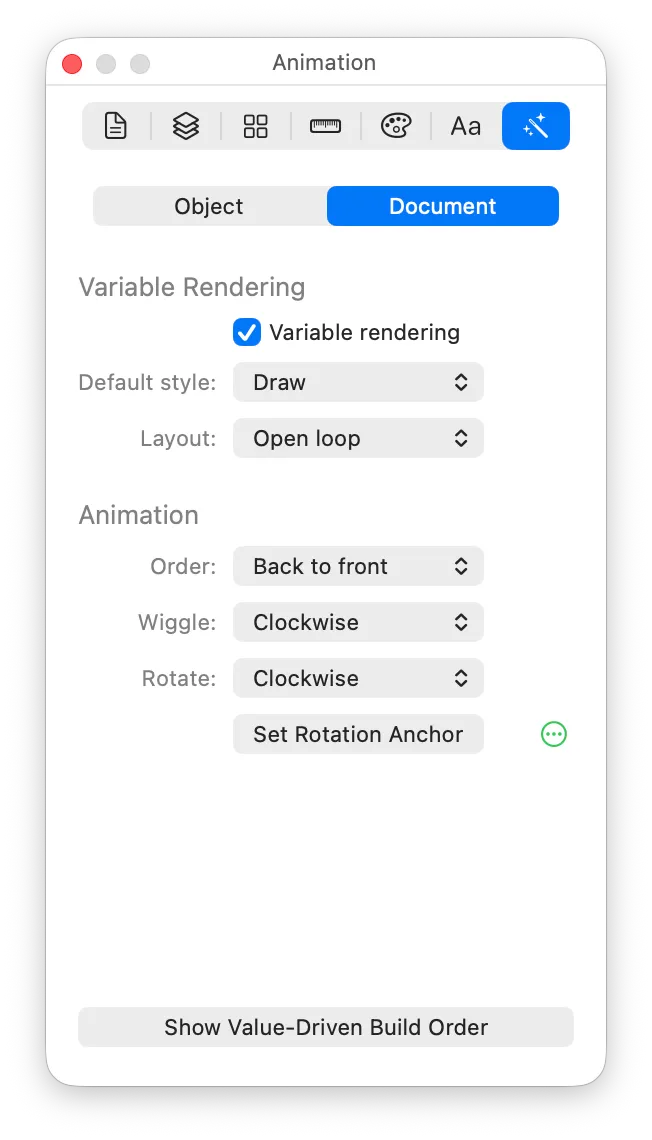
For the “Variable Rendering” options, see the “Variable Rendering” section below.
Order
For a Draw (on or off) animation, the Order setting controls whether the front item is drawn first or the back item is drawn first.
Note that McKinley does not fully support configuring Draw animations yet. This is coming in a future version. (See Limitations.)
Wiggle
For a Wiggle animation, this setting controls the default direction in which your symbol wiggles.
The direction can be overridden in code when using your symbol (for example by specifying .wiggle.up or .wiggle.custom(angle:)); this setting is what is used if the code does not specify a wiggle direction.
Rotate
For a Rotate animation, this setting controls the default direction in which your symbol rotates.
The direction can be overridden in code when using your symbol (for example by specifying .rotate.counterClockwise); this setting is what is used if the code does not specify a rotation direction.
Rotation Anchor
Pressing “Set Rotation Anchor” will display a rotation anchor point on your canvas:
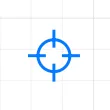
This Rotation Anchor can be dragged to where you want the centre of rotation to be. When a Rotate animation plays, all rotatable layers will rotate around this point.
You can adjust the Rotation Anchor separately per symbol weight. Open the Weights popover (with the button to the right of the Set Rotation Anchor in the inspector), and choose Linked/Independent to choose whether you are editing the position for just the current weight or for all weights.
Variable Rendering
Variable Rendering is where an SF Symbol takes a numeric percentage value, and adjusts the symbol based on that value. For example, a wifi symbol might display a different number of bars of signal strength, or a thermometer symbol might let you adjust the displayed temperature.
Variable rendering can be used within an animation (such as an indeterminate wifi status shown by animating the wifi bars), or as a fixed value.
Variable Draw
McKinley does not support Variable Draw yet. It is coming in a future update. (See Limitations.)
Variable Draw, introduced in SF Symbols 7 and Xcode 26 (in 2025), is part of the “Draw” animation system. Draw animations only work in apps built for and running on iOS 26 or macOS 26 and above.
For Draw animations, the animation looks like your symbol (or part of it) is being ‘drawn’ with a pen when it appears or disappears. Variable Draw uses the same drawing infrastructure, but statically, to display a value. The variable rendering value is the percentage of the drawing that should be shown.
Variable Colour
Variable Colour rendering takes a number of objects within your symbol, and colours them differently depending on the variable value. When used in an animation, items can either be dimmed (lower opacity) or hidden when the variable value is less than 100%. If you’re using a static Variable Value, then you can only dim the non-active items, you can’t hide them.
- To indicate that your symbol supports Variable Colour rendering, go to Inspector -> Animation -> Document and turn on “Variable Rendering”, then set the default style to “Colour”.
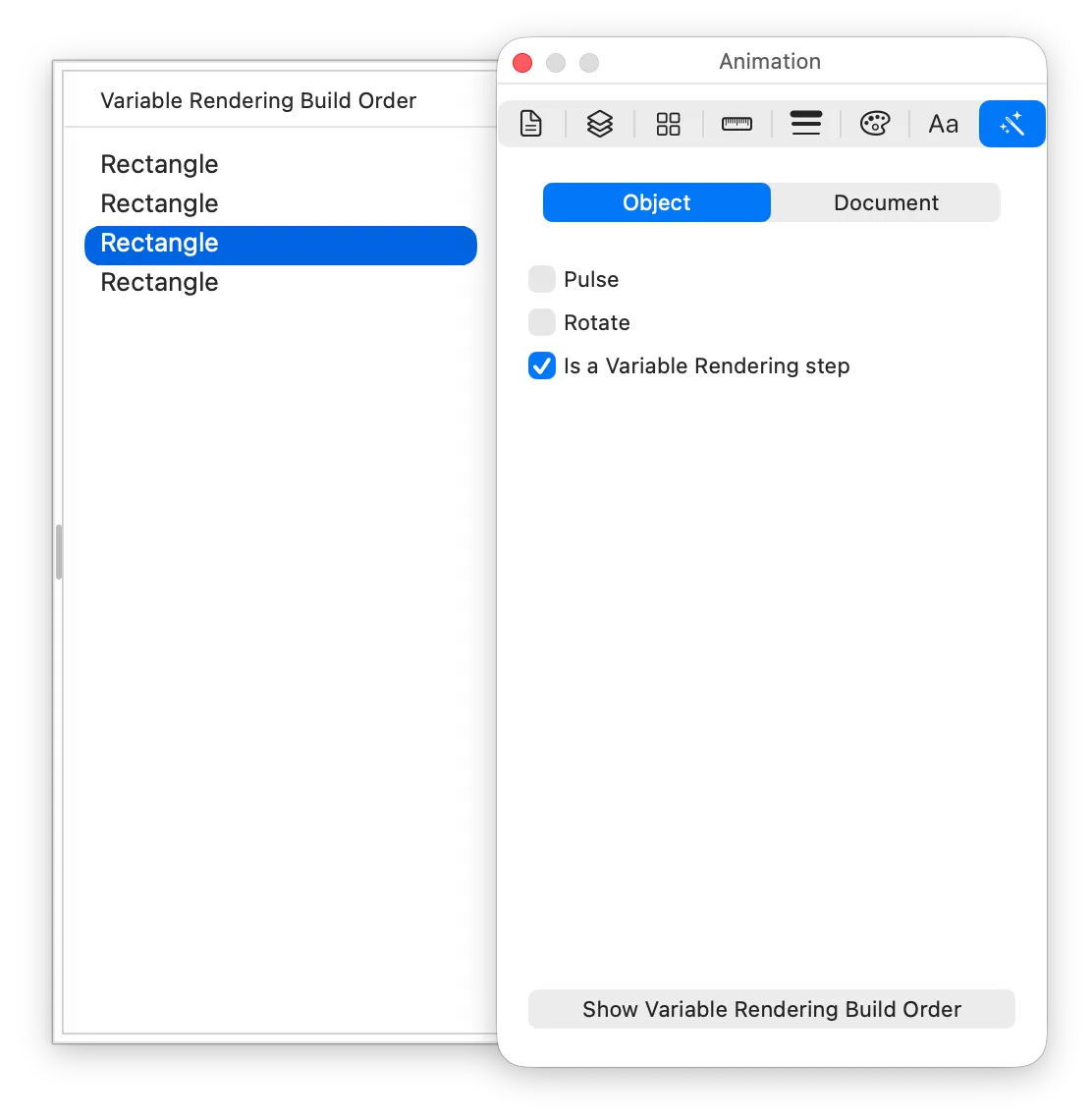
- You will need to set multiple objects to be Variable Rendering steps. These are the objects that will fade or hide when the variable value changes. You can set this setting in Inspector -> Animation -> Object -> Is a Variable Rendering step.
- To set the order in which objects appear with the variable value, press the Inspector -> Animation -> Show Variable Rendering Build Order button. A drawer will appear showing all the items that are marked as variable rendering steps. The order follows the z-order of the shapes on the canvas, so to adjust the build order, bring objects forward or backward on the canvas.
-
To set how your steps are arranged, use Inspector -> Animation -> Document -> Layout. Choose “Closed loop” if the steps form a complete shape whose start and end meet, such as a circular progress indicator: a repeating Variable Colour animation will then cycle round seamlessly. Choose “Open loop” if the steps run in a line, such as wifi bars.
-
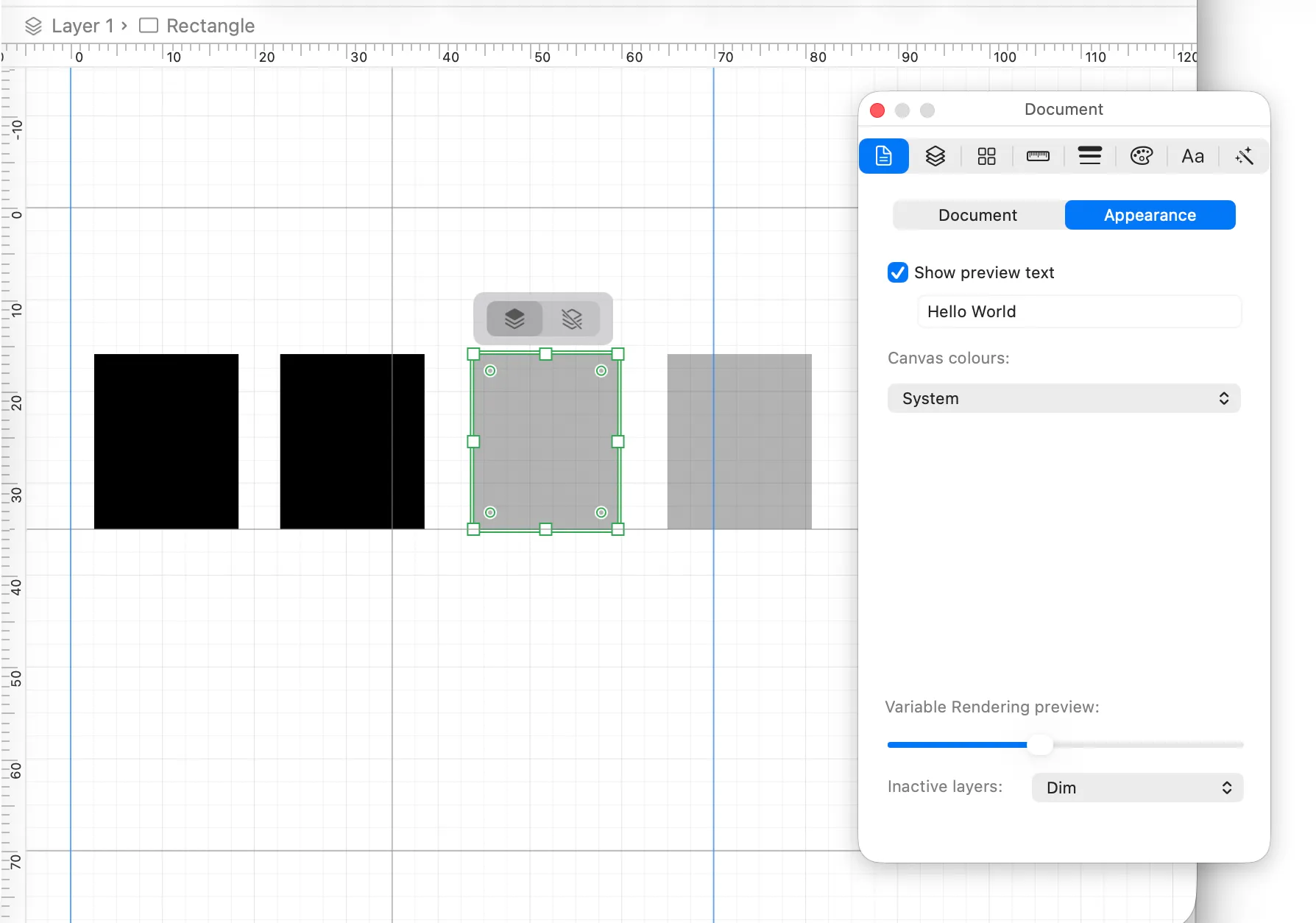
To preview your variable rendering on the canvas, use the Inspector -> Document -> Appearance -> Variable Rendering preview settings. You can set the current variable value using the slider, and you can choose whether inactive layers should dim or hide. (Note that only “dimmed” is available when you’re statically rendering a Variable Value in your app; the “hide” option is only available in animations.)
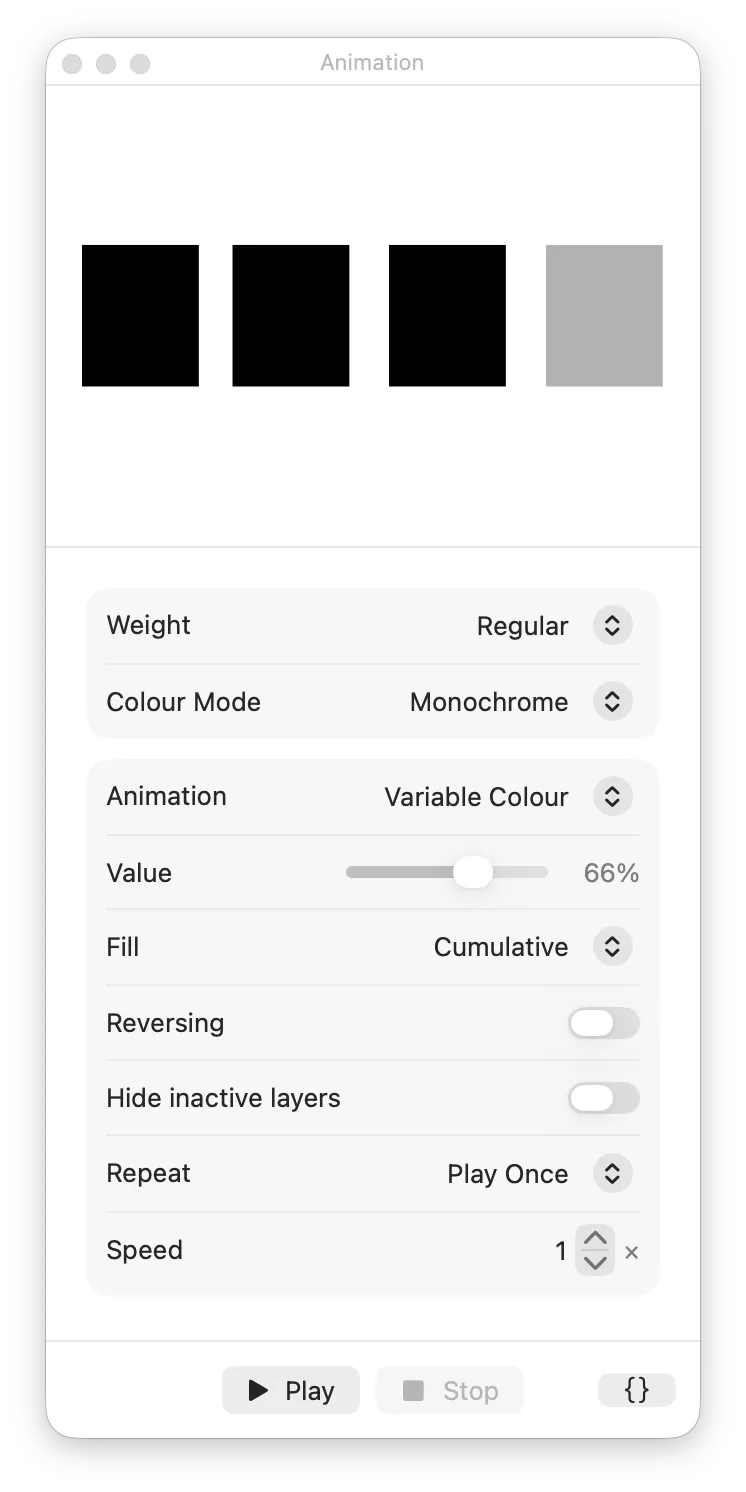
- To preview your variable rendering in the Animation Preview palette, select “Variable Colour” for your animation, and many options are made available: