Clipping Masks
Clipping Masks
A Clipping Mask is a vector shape that defines a ‘window’ that other shapes can be seen through.
A Clipping Group is the thing that contains both the clipping mask, and the contents that the mask is partially obscuring.
Creating a Clipping Mask
To create a clipping mask, select multiple objects, and choose Arrange -> Make Clipping Mask (⌘7). A clipping group is created, and the topmost object in the selection is used as the mask.
Removing (releasing) a Clipping Mask
Select your clipping group, and choose Arrange -> Release Clipping Mask (⌥⌘7). The clipping group is removed, and the clipping mask is turned back into a regular object.
Editing a Clipping Group
Double click on a Clipping Group to enter its editing scope. As usual a gold border appears, and you are now editing the clipping group’s contents.
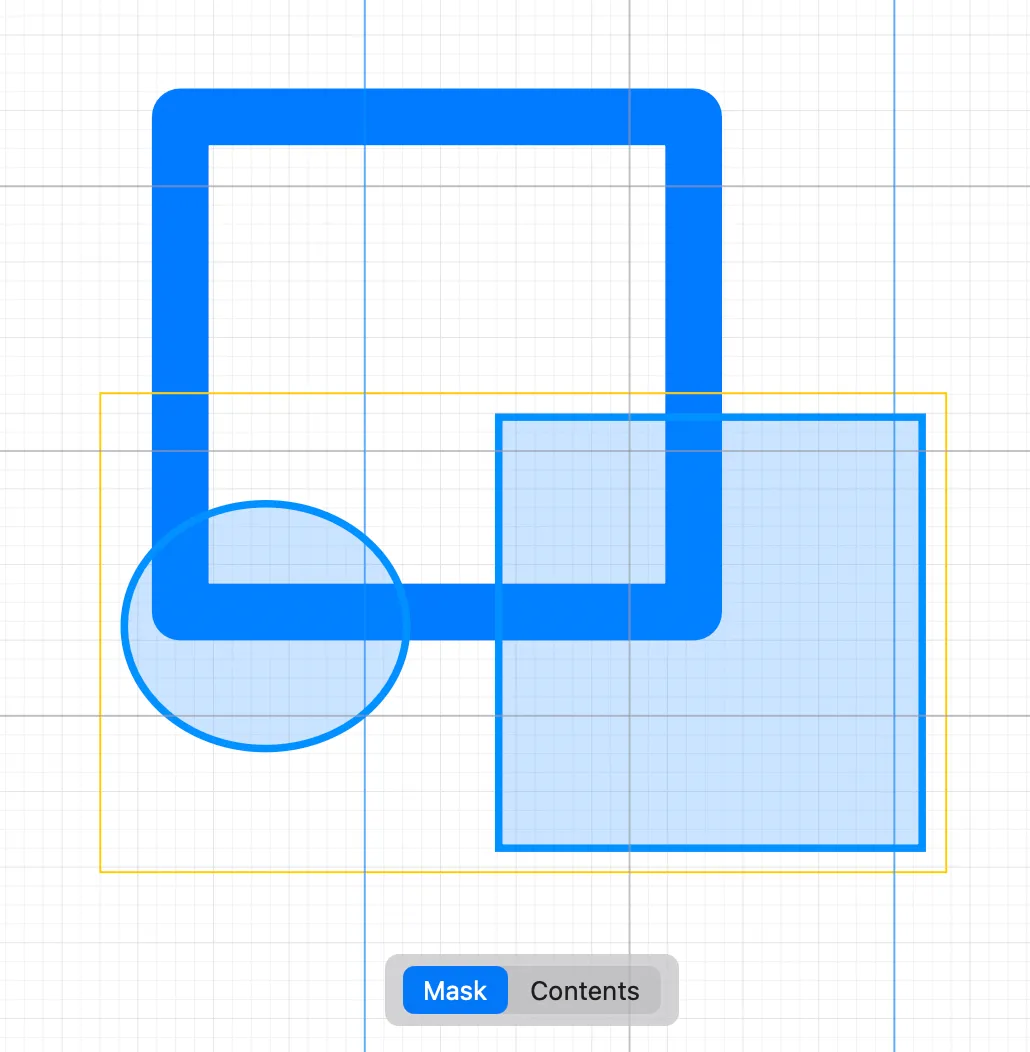
When you are editing inside a Clipping Group, a segmented control appears at the bottom of the canvas, letting you choose whether you are editing the Mask or the Contents.
You can also use the menu items, Arrange -> Edit Mask Shape or Arrange -> Edit Clip Content to access this functionality.
The layers palette
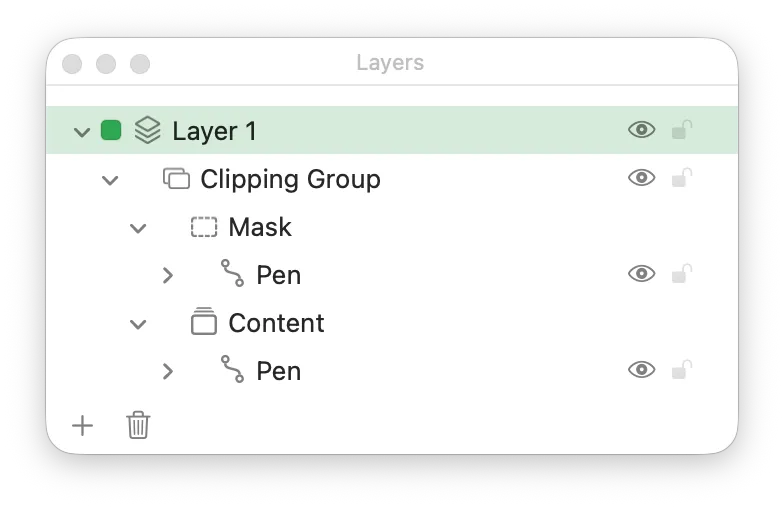
Clipping groups appear in the layers palette as a group with two children, Mask and Content. You can move things into and out of either of those children to add things into the right place.
Mask can be more than one vector shape
Although when you create a clipping mask, it only takes the top item as a mask and the rest as content, there is nothing stopping you adding more shapes or paths to the Mask section. You can either move them into the mask via the layers palette, or copy/paste them in, or draw new objects when the mask’s editing scope is active.
Diverging between weights
Like most things in McKinley, you can make your mask diverge between weights. When editing objects either within the mask or the contents of the clipping group, you can use the floating Link Geometry control as normal.
Clipping Masks are difficult for SF Symbols
One important caveat: clipping masks are one of the most difficult things for SF Symbols’ weight interpolation to accommodate. Apple’s SF Symbols renderer does not natively support clipping masks, so McKinley has to ‘fake’ them by baking (flattening) the geometry at export time.
This isn’t intrinsically a problem; McKinley flattens a lot of things (since SF Symbols also don’t support strokes, text, shapes, or many other things that McKinley can do). However, clipping masks are one of the places where diverging geometry is most likely to cause a problem. Let me explain.
The issues that can cause McKinley to be unable to output properly interpolatable vectors are:
- If the vector image has a different topology in the different weights (for example, the same object has one hole in regular weight but two holes in ultralight weight).
- Situations where the vectors aren’t coming from a starting place of matching points. This one mostly doesn’t happen (since McKinley enforces the same number of points in a path for all weights), but there are some circumstances where it does, such as using different fonts for the same text across weights, or by giving a ‘dashed line’ a phase and different dash/gap ratios per weight, so that its first dash disappears on some weights.
It is the first of these (different topology) that we have to be concerned about with clipping masks. It’s not that clipping masks are calculated differently to other objects, it’s purely that they make it easy to get into the problematic situation.
For instance, consider this figure:
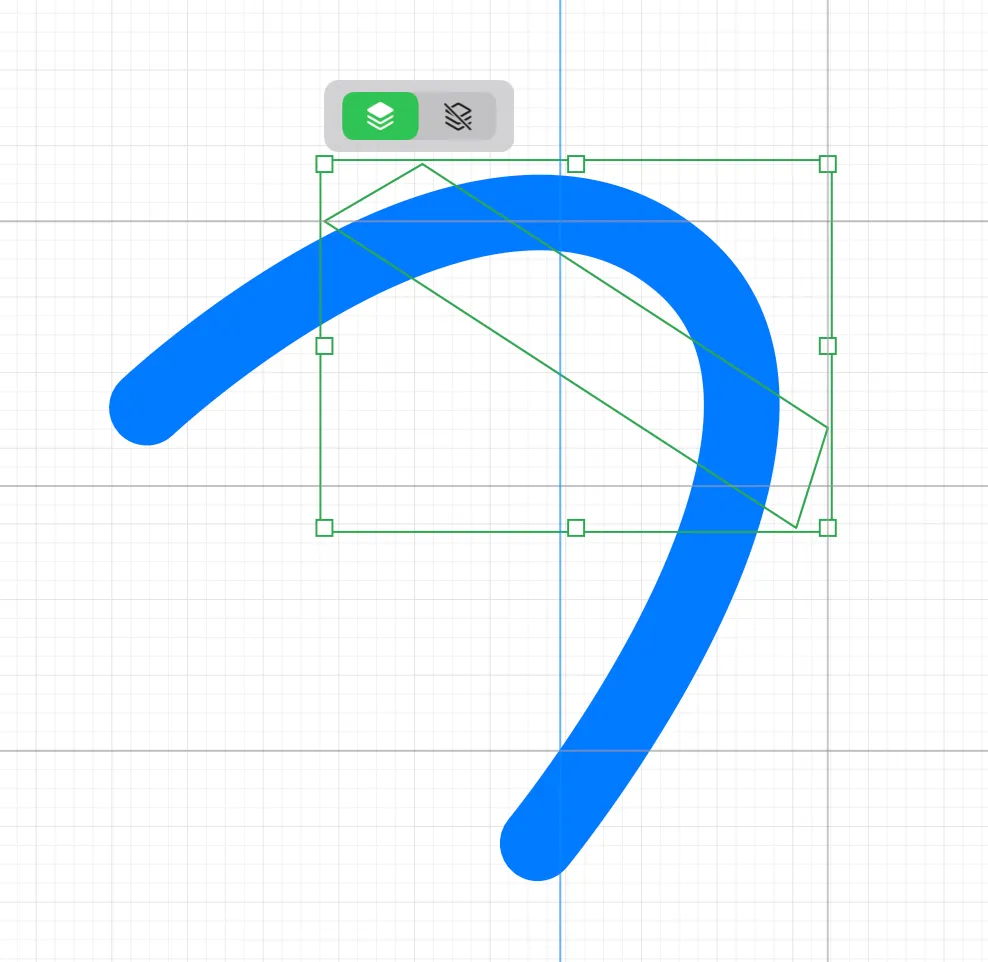
I’m about to apply a clipping mask with the blue curve as the content, the green polygon as the mask. But as soon as I create the clipping mask, I get this warning:
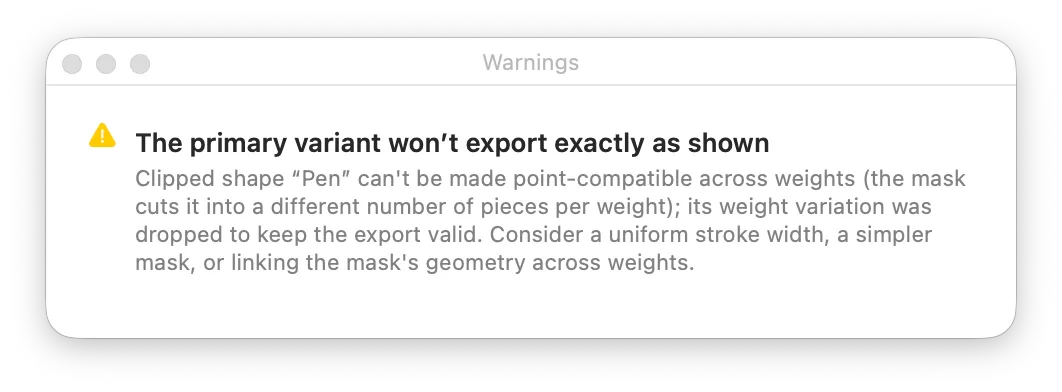
Why? Well let’s take a look at what our mask looks like. Here’s what I see in regular weight:
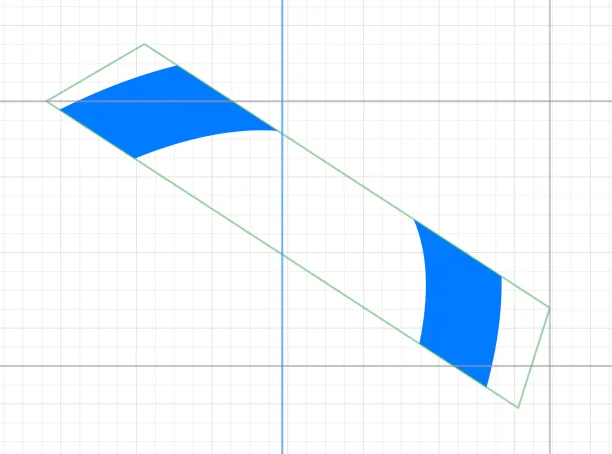
The masked area has revealed two chunks of the curve. So far so good. But let’s look at black weight:
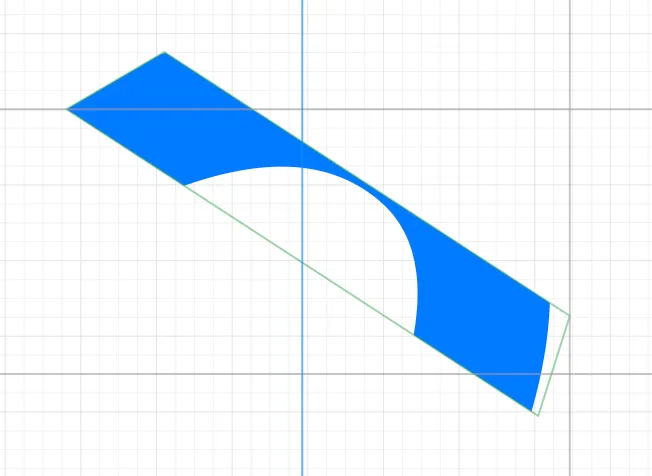
The same masked area has revealed a single filled region. It’s not two objects, it’s one. And this is exactly the divergent geometry that McKinley cannot interpolate.
How could we fix this? The easiest way is to move the mask area slightly in black weight, or else move the curved path itself, such that it still reveals two discrete shapes after masking.
McKinley warns
This should never happen invisibly. McKinley continually checks your document whenever you make a change, and will show a warning triangle as soon as it detects a problem.
So, it’s not a case of ‘avoid clipping masks at all costs’, but rather, if you use them then be aware of the risks and keep an eye out for the warning triangle.
Things you can’t mask
You can’t put a proxy for another variant inside a clipping mask.