Importing
Importing
McKinley can import a few different things:
- Existing SF Symbols (from a file or via browsing the SF Symbols library)
- Regular SVG files
- Symbols from other icon libraries
- Images (to use as reference material)
The ambiguity of SVG files
An SF Symbol saved as a file (whether exported from McKinley, from the SF Symbols app, or elsewhere) is a .svg file. However, it’s a specific kind of SVG file, containing the symbol grid in the right location and format.
McKinley can import and export both SF Symbols and regular SVG files. A regular SVG is what you would use if you want to move your artwork (without the SF Symbol specific annotations) between graphics programs.
Importing an SF Symbol from a file
To do this, choose File -> Import -> SF Symbol from File…, then choose your file. As mentioned above, SF Symbol files have extension .svg, even though they contain more annotations and structure than regular SVG files.
You can also drag an SF Symbol file onto McKinley’s icon. If you drag a file onto McKinley’s icon, McKinley will attempt to derive whether it is an SF Symbol or a regular SVG, and use the appropriate importer automatically.
Importing a system SF Symbol from the Symbol Library
Choose File -> Import -> Browse Symbol Library to show the Symbol Library.
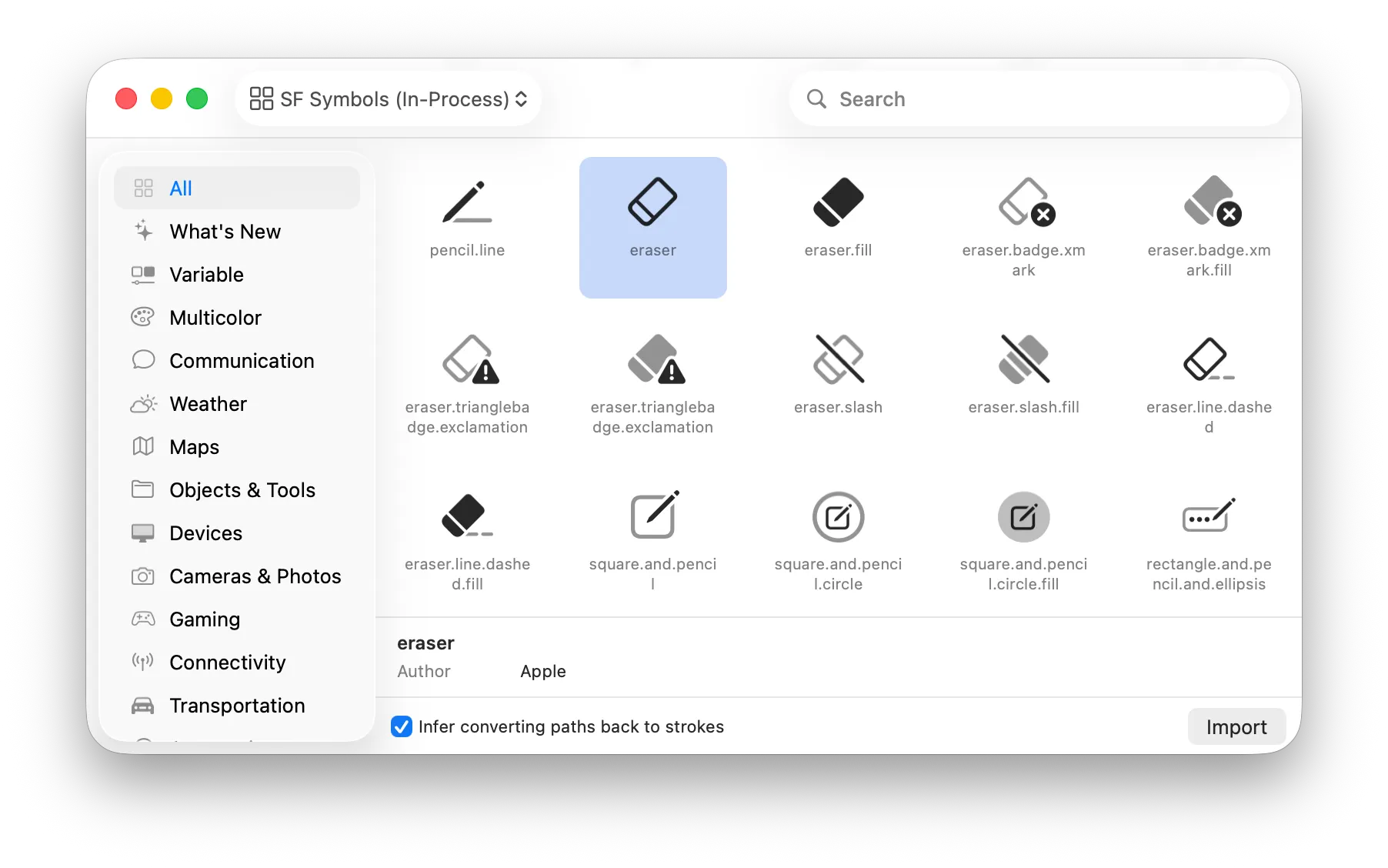
The menu in the top left of the Symbol Library lets you select which library you are browsing: make sure you select “SF Symbols”.
Importing an SF Symbol can bring in its whole family. When the selected symbol has variants or alternates, a checkbox under the stroke option says how many, for example “Import 2 variants and 38 alternates”. With it on, the new document gets the symbol you chose, plus every symbol whose name extends it with a dot (choosing heart also brings heart.fill, heart.circle, and so on) as variants. Each variant also gets the alternates Apple ships for it:
- A symbol with separate right-to-left artwork (such as
list.number) gets its Direction set to Both, with Apple’s right-to-left drawing in the right-to-left alternate. - A symbol the system mirrors on its own (such as
chevron.forward) gets its Direction set to Left to Right, so it auto-mirrors. - A symbol with script-specific drawings (such as
character.book.closed) gets a locale alternate for each script.
With the checkbox off, you get just the symbol you chose. Placing a symbol into an existing document always brings in just the one symbol.
Invisible objects and page backgrounds
Nothing in an imported SVG is thrown away for being invisible. An element that is hidden (display:none or visibility:hidden), or that has neither a fill nor a stroke, is imported with its fill set to None: the geometry is kept and shows as a faint outline on the canvas, but draws nothing and is left out of exports. Give it a fill in the inspector if you want it.
Many editors leave a page-sized rectangle behind the artwork when they export: Affinity Designer and Sketch write the page background, Figma writes a frame’s fill, and icon sets ship an invisible bounds rectangle. McKinley recognises that rectangle (backmost, covering everything else, white or unpainted, with no stroke) and imports it with no fill/stroke, under the name Canvas Background, so it doesn’t turn into a solid black square in your symbol. Delete it, or leave it: it never reaches the export either way. The import warnings tell you when this happened.