Groups & Editing Scopes
Groups & Editing Scopes
An Editing Scope is the container you are currently editing inside. For example, if you have made a Group of objects, you can edit inside the group (to edit the individual objects) by entering that group’s Editing Scope. Likewise, if you have drawn a Path, you can enter the path’s Editing Scope in order to move and edit the path’s points, or if you have a Text object, you can enter its Editing Scope in order to edit the text.
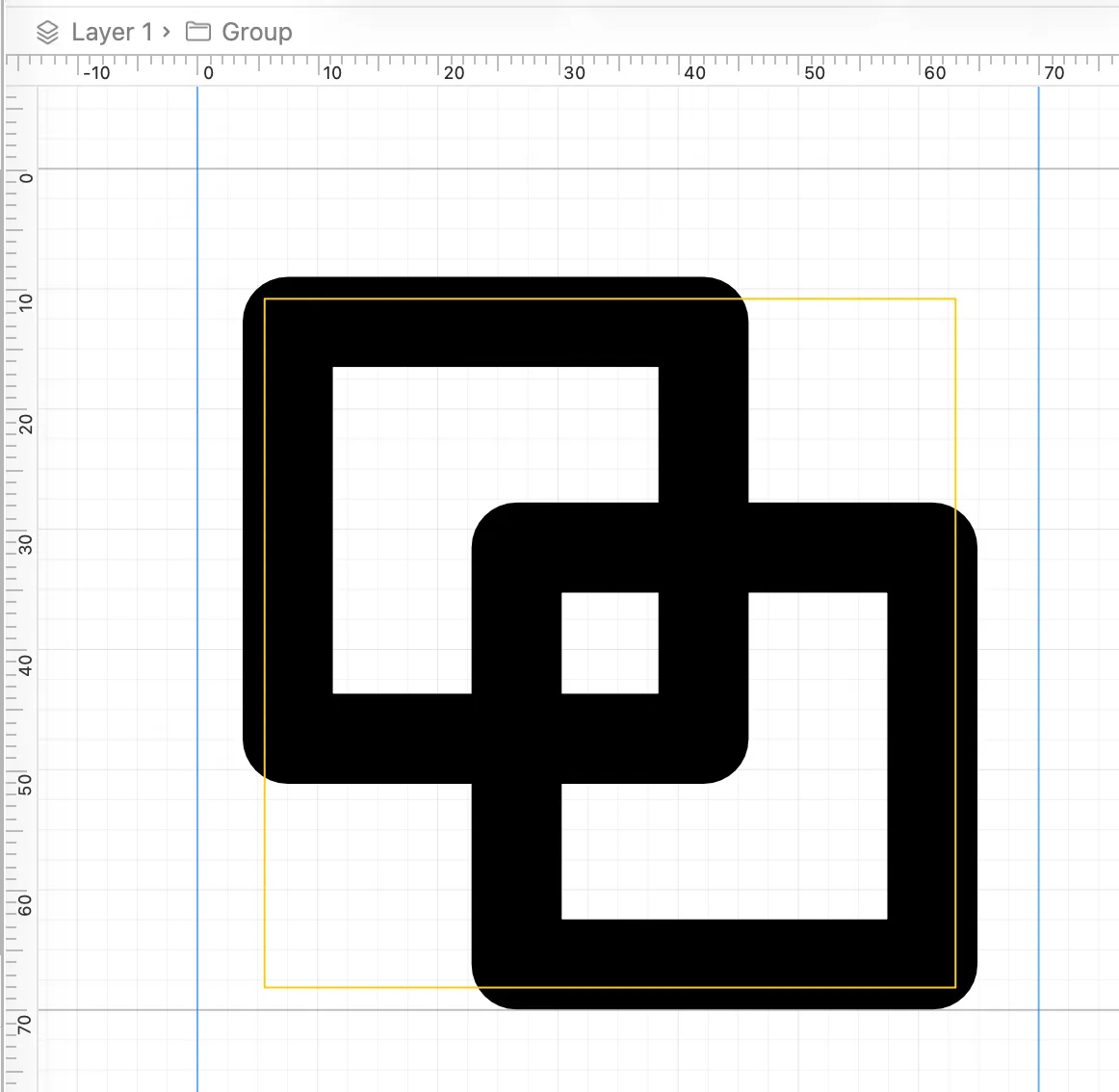
When you are inside an Editing Scope, a gold rectangular border is drawn around the relevant canvas objects. The Editing Scope is shown in the Scope Bar at the top of the canvas.
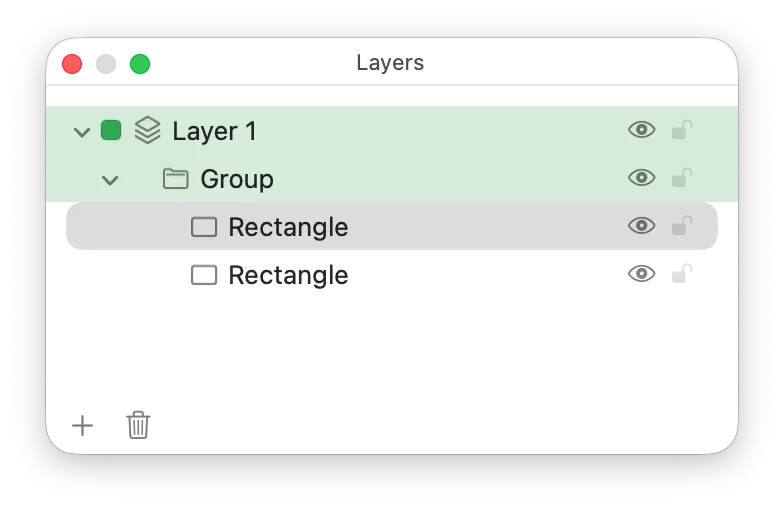
Additionally, the scope you are in (plus its parents, all the way up to the layer) are tinted in the Layers palette:
What things have Editing Scopes?
The following things on the canvas have their own editing scopes which you can enter:
- Groups
- Clipping Groups
- Text items
- Paths
- Variant Proxies
We’ll cover what you can do inside each object’s editing scope below.
Entering an Editing Scope
- Double click on the object in the canvas.
- Double click on the row in the Layers palette. (But avoid the text of the name, as that would edit the layer’s name instead.)
- Select a child object of the object, by clicking its row in the Layers palette. (You can’t select a child object directly by clicking on the canvas though, as that would select the outer object.)
- Right click and choose Edit… from the context menu. The name of the menu item depends on the type of object, e.g. “Edit Path” or “Edit Group Contents”.
- For Text objects, clicking on the text object with the Text tool active will enter its editing scope.
Leaving an Editing Scope
- Press the escape key when nothing is selected.
- Click outside of the golden border on the canvas with the Select tool active.
- Use the Scope Bar above the canvas to click on the parent item (e.g. the layer, which is always the first item on the scope bar).
- Click on the scope’s parent, or some other object, in the Layers palette. This changes the selection, and the active Editing Scope follows the selection.
Groups
In McKinley you can group objects, just like in many other vector graphics programs. Grouped objects can be moved around, hidden, and transformed as one single unit.
To make a new group, select two or more objects on the canvas and choose Arrange -> Group (⌘G).
To get rid of a group, you can select it and choose Arrange -> Ungroup (⇧⌘G). Groups will also disappear once they have no items inside them.
To modify the items inside a group, you need to enter the group’s Editing Scope by means of one of the methods above (e.g. double clicking on it). Once you’re inside the group’s Editing Scope, you can work with the individual objects inside it (select them, use their handles to transform them, etc). You can also create new objects directly within the group’s editing scope.
You can nest groups within each other. Just group some objects while you’re inside another group’s Editing Scope! You can enter nested Editing Scopes as normal, by double clicking on them or via one of the other methods.
Override Children’s Colour Mode
Groups are useful for your own organisation, but there are some SF Symbol specific things that they can do:
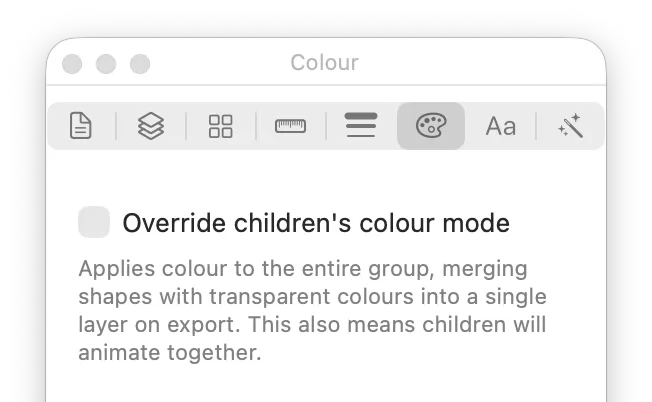
The most useful is Override Children’s Colour Mode. Find this in the Colour inspector pane when your group is selected:
This feature enables certain things that you can do on SF Symbol layers in the Apple app, namely:
- flattening transparency (so that transparent objects within the group don’t show as overlapping each other)
- animating as one unit when the “By Layer” option is used on an animation.
- being treated as one step for Variable Rendering.
If you turn Override Children’s Colour Mode on on a group, you will see colour controls appear in the inspector pane, applying to the group itself:
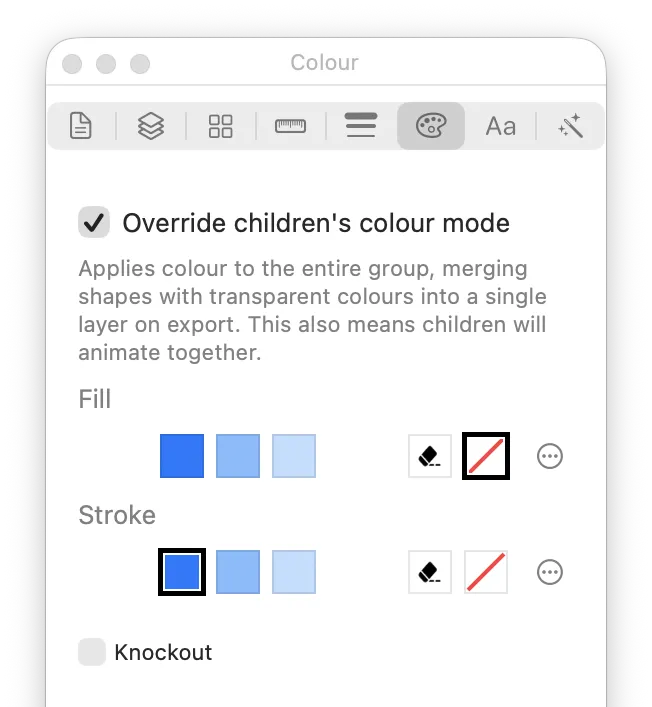
These colours (including the Knockout setting) will be applied to every item within the group. If you select an item inside a group that has Override Children’s Colour Mode turned on, that item will no longer have its own individual colour settings, only checkboxes for whether it has a fill and/or a stroke:
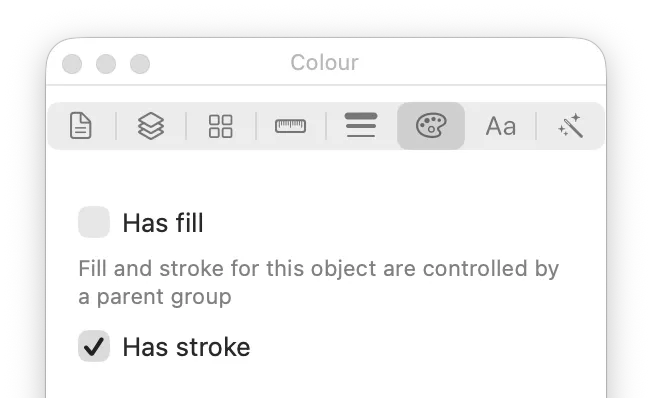
The same is true of the per-object animation steps: if the object is within a group with Override Children’s Colour Mode, that also means the group now owns the object’s Pulse, Rotate, and Variable Rendering step settings (so they can’t be set individually on the child object any more).
Why is this setting on Group?
You might be (justifiably!) confused why this is a setting on Group.
This is because of where the ‘unit of colour’ goes in McKinley vs the SF Symbols app. In SF Symbols, you can only apply colour to a whole layer at once. Therefore there’s no need to have a separate setting to control something like this. In SF Symbols, if you didn’t want paths to be the same colour or to animate together, you’d just make them be separate layers.
In McKinley, you don’t have to manage things yourself like that. For the most part, you can just apply colours and animation settings directly to objects, which is much more natural (and similar to how other vector graphics apps behave).
However, because of that flexibility, you have to tell McKinley when you do want to colour or animate things as if they’re one unit. That’s what this setting is for.
In keeping with McKinley’s philosophy of most flexibility, it’s a setting on Group rather than Layer. You shouldn’t need to make new McKinley Layers just because you want to change some colours together.
How is this setting different to Layer -> Composites As One Unit?
There is a setting on Layer called Composites As One Unit. At first sight it might seem like they do similar things.
The Composites As One Unit setting makes the whole layer use a different rendering mode, called Shape Group (or LayerTree), within the outputted SF Symbol.
When using the Apple SF Symbols app, you cannot turn this setting on manually. It is used when you use the SF Symbols app to make an Enclosure. In McKinley we give you manual control over it if you want.
Both a group’s Override Children’s Colour Mode setting and a layer’s Composites As One Unit setting let you override the colour of their children. However they’re doing different things on export, and thus they have different capabilities:
- A group’s Override Children’s Colour Mode setting puts the group’s content into one SF Symbols layer, and sets that layer’s colour and animation options. This causes SF Symbols to animate the contents together, and to merge any transparency. (If you set different fill and stroke colours, McKinley will merge the contents into two SF Symbols layers instead of one.)
- A McKinley layer’s Composites As One Unit setting causes SF Symbols to render the contents of the layer as a Shape Group. This overrides the colour of the children, but also gives the layer its own buffer to draw into. Any Erase or Knockout settings within that layer will now only erase content within the same layer, leaving any layers underneath it still visible. It’s this scoped erasing that makes Composites As One Unit really useful for putting your symbol in enclosures (where you might have to change your symbol’s colour to distinguish it from the enclosure background).
One further thing to note: editing Shape Group layers within the SF Symbols app is not supported (apart from the Apple-provided enclosures). It’s fine to use them in your symbols, and they’ll work fine within your app, but if you try to edit them in SF Symbols you might get an error.
Clipping Groups
You can read more about Clipping Groups on their own page.
A Clipping Mask is a vector shape that defines a ‘window’ that other shapes can be seen through.
A Clipping Group is the thing that contains both the clipping mask, and the contents that the mask is partially obscuring.
Editing Scopes
-
A clipping group has two Editing Scopes inside it, Mask and Contents.
-
Double click on a Clipping Group to edit its Contents.
-
You switch between editing the contents and the mask with the segmented control at the bottom of the canvas or Arrange -> Edit Mask Shape / Edit Clip Content.
Text Objects
You can read more about Text objects on their own page.
[TBC]