Animation
Animation
The Animation inspector pane has two tabs: Object (settings for the selected objects) and Document (settings for the whole symbol). There’s much more about how these fit together on the Animating help page.
Object
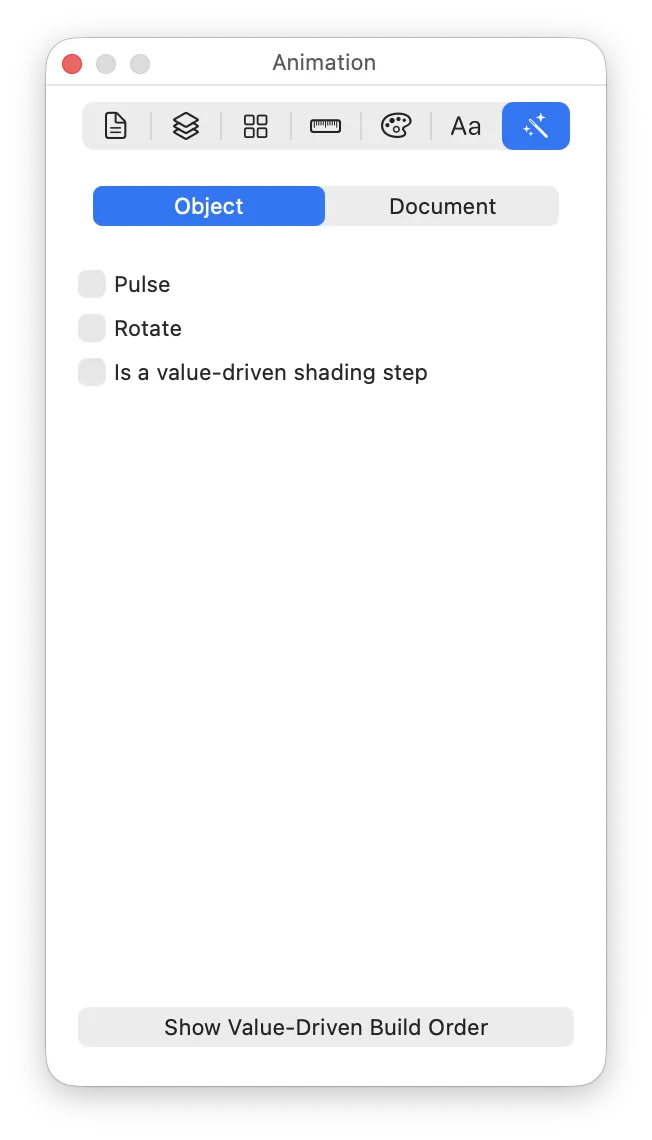
If the selected object is inside a group with Override children’s colour mode turned on, these settings live on the group instead.
Pulse
Opts the object in to the Pulse animation. Only objects with this ticked will pulse.
Rotate
Opts the object in to the Rotate animation. Only objects with this ticked will rotate, around the rotation anchor (see below).
Is a Variable Rendering step
Makes the object a step in Variable Colour rendering: one of the parts that dims or hides as the variable value changes. Only available when Variable Rendering is turned on in the Inspector -> Animation -> Document tab.
Show Variable Rendering Build Order
Opens a drawer listing your Variable Rendering steps in the order they activate. The order follows the objects’ z-order. You can click on an item in the list to select it on the canvas, which can help for finding which is which!
Document
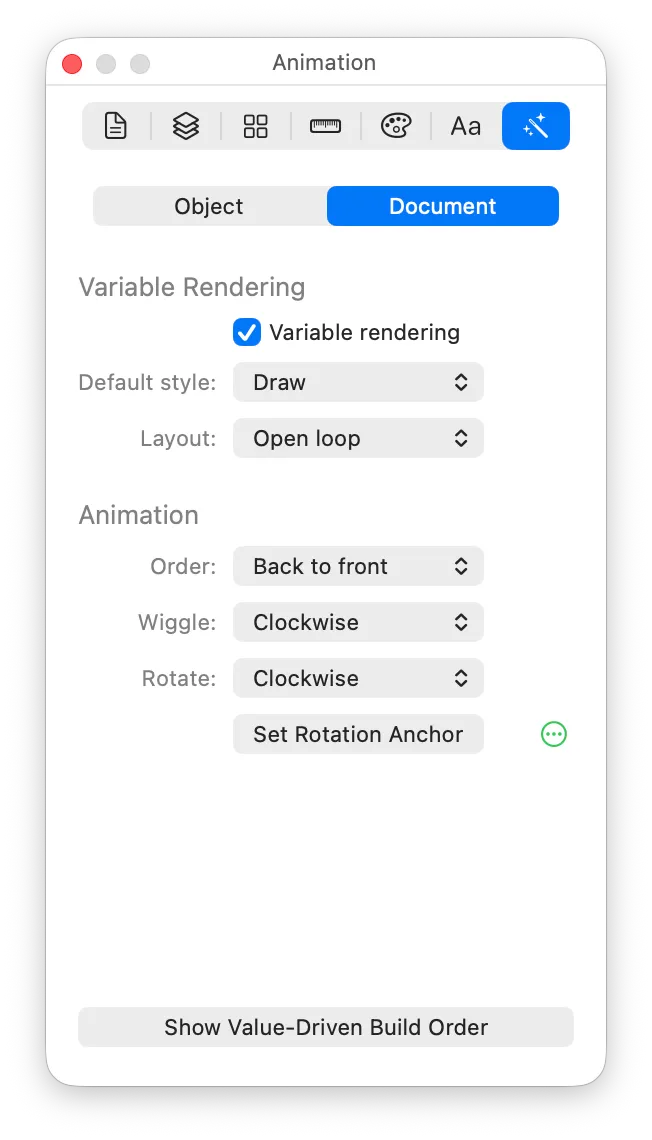
Variable Rendering
Turns on Variable Rendering for your symbol, so it can display a value. See Variable Rendering.
Default style
Whether Variable Rendering uses Colour or Draw by default. McKinley doesn’t support Variable Draw yet (see Limitations).
Layout
Open loop for steps that run in a line (such as wifi bars), or Closed loop for steps that form a complete shape (such as a circular progress indicator).
Order
Whether a Draw On/Off animation draws the front item first or the back item first. (McKinley doesn’t support Variable Draw yet.)
Wiggle
The default direction of the Wiggle animation. Choose Custom to enter your own angle in the Wiggle angle field. This is just a default — you can override this direction in your app’s code when using your symbol.
Rotate
The default direction of the Rotate animation: Clockwise or Anticlockwise. You can override this direction in your app’s code when using your symbol.
Set Rotation Anchor
Shows the rotation anchor on the canvas, so you can drag it to where you want the centre of rotation to be. The button beside it lets you set the anchor separately per weight.