Size & Metrics
Size & Metrics
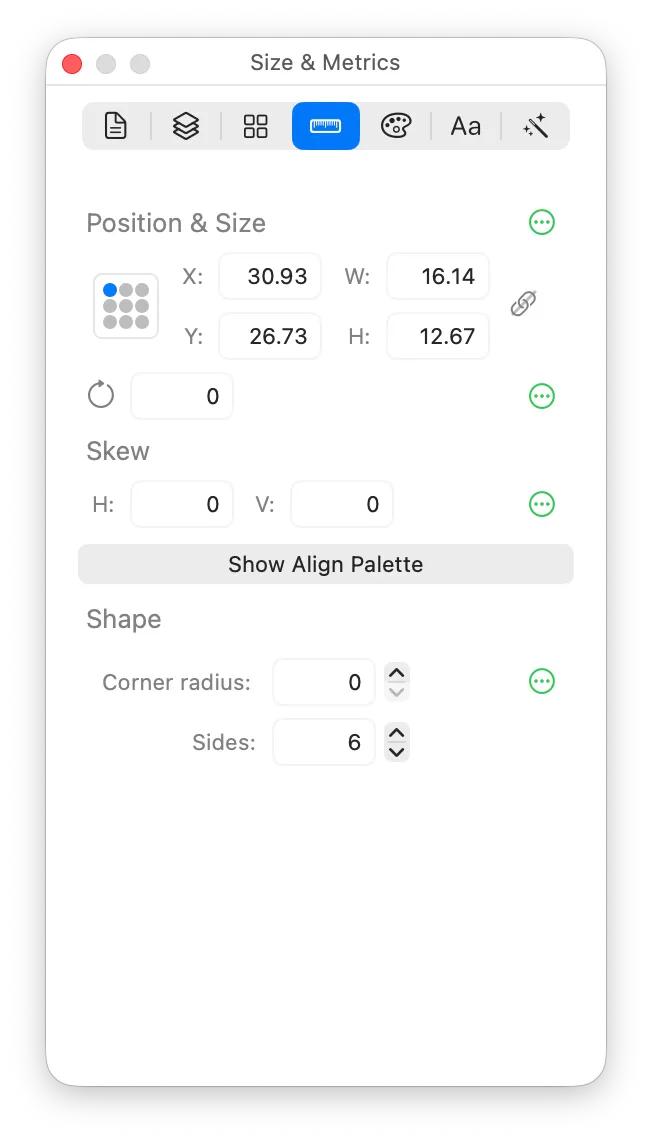
Anchor point

This widget lets you set which point on the object the X/Y position fields are referring to.
Position & Size
There are fields for position (X and Y), and size (W for width, H for height).
The link button controls whether the size varies proportionally, or whether the W and H fields are independent.
Rotation
The object’s rotation in degrees.
Skew
Fields for horizontal and vertical skew values.
You can also adjust the skew graphically by choosing Arrange -> Skew and dragging the object’s handles.
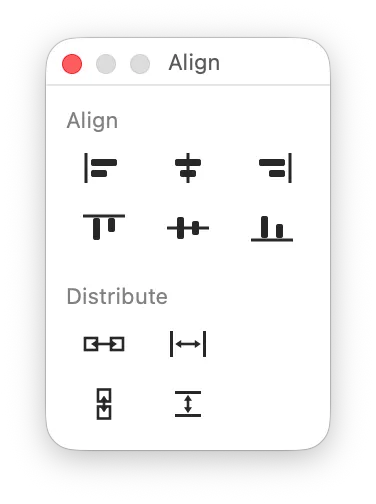
Show Align Palette
This button opens the Align palette, letting you align and distribute objects.
The button here does the same thing as choosing Window -> Show Align.
Corner radius
Some shapes, such as rectangles or regular polygons, have a settable Corner Radius property.
You can also adjust corner radius by dragging the corner radius handles inside each corner.
Rounding style
Rounded corners can be Circular (a plain circular arc, the default) or Continuous, the corner style Apple uses for app icons and system controls, where the curve eases into the straight edge instead of meeting it abruptly. (Some people call it a ‘squircle’ when applied to a rounded rectangle.) The style applies to every rounded corner in the object.
Proxy target
A proxy is a view of one symbol variant that’s imported into another. Proxies live update when the variant they are proxying changes.
If you have a proxy selected, you can use the Proxies: popup menu in this inspector pane to choose which variant the proxy targets.
Polygon sides
The number of sides on a regular polygon.
Star
For a star, five controls shape it:
- Points — how many points the star has. It always has twice as many corners: a point and a notch for each.
- Inner radius % — how far in the notches sit, as a percentage of the outer radius. 45% is a classic star; lower is spikier, higher is closer to a many-sided polygon.
- Curvature % — how far the edges bow inwards. 0% gives straight edges; higher values give the pinched, four-pointed look of a sparkle.
- Point rounding and Notch rounding — the corner radius at the outer points and the inner notches, set separately. Rounding both heavily turns a shallow star into a scalloped shape.
Points always applies to all three weights, because it decides how many corners the star has. The rest follow the object’s linked/independent setting.
Dragging with the star tool always draws a regular star; you can stretch it afterwards, and Arrange -> Make Sides Equal puts it back.
Wave
For a wave, three controls shape it:
- Cycles — how many full waves fit across its length, in steps of a quarter cycle.
- Phase — which part of the cycle the left end starts on: crest, falling, trough or rising.
- Flatness — the shape of the crests, from 0.5 (almost a zigzag) through 0.64 (a true sine wave) up to 0.78 (flat-topped).
Cycles and Phase always apply to all three weights, because they decide how many points the wave has. Flatness follows the object’s linked/independent setting like any other measurement.
Scale
For text, you can set the scale of the text object (a separate scale for each of width and height).
Ink smoothness
If your selected object is a freehand drawing from the Pencil tool, you can use this slider to adjust its smoothness. As well as the visual differences, if you subsequently convert your freehand drawing into a path, then higher smoothness values correspond to fewer Bézier control points.