Layer
Layer
This is the Layer inspector pane, letting you set some options for the current layer.
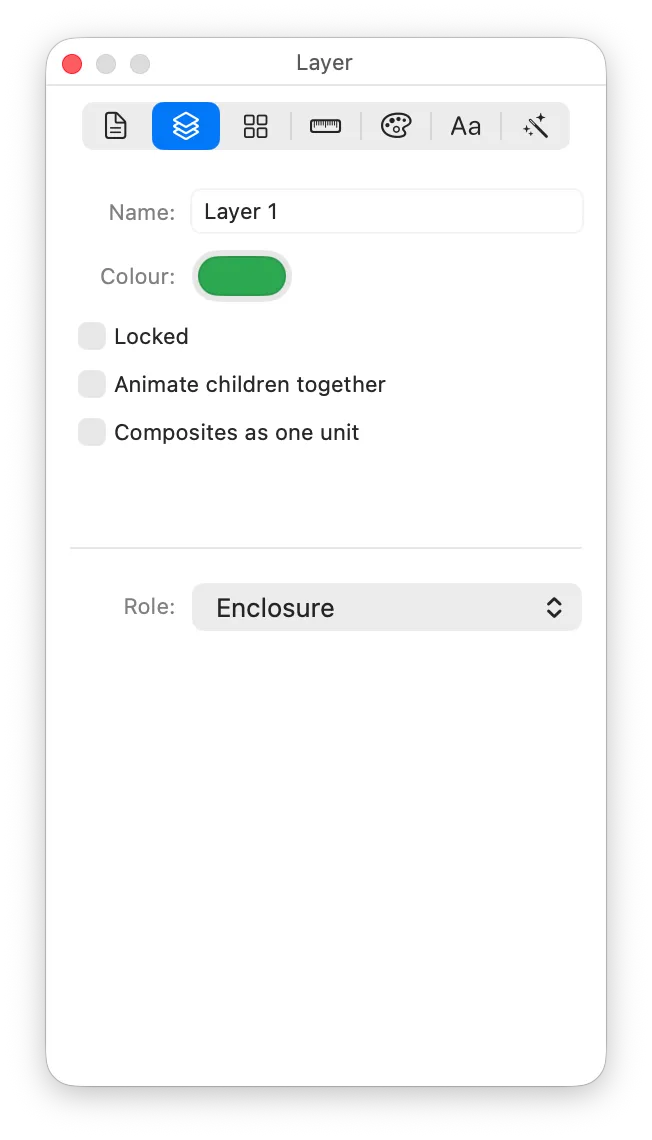
Name
Give the layer a name; it will show up by that name in the Layers palette.
Colour
A layer’s colour is used to annotate it in the Layers palette. Also, when an object is selected on the canvas, its selection chrome appears in the colour of the layer it is on.
Locked
A locked layer’s contents cannot be selected or edited.
Animate children together
When animating an SF Symbol, some animations (such as Bounce) have an option to apply the animation to Whole Symbol or By Layer.
When animating By Layer, each McKinley layer lets you choose whether the layer’s children should be animated separately (so each shape on the layer will bounce with a slightly offset time), or whether everything on the layer should animate as one group.
This checkbox corresponds to the “motion group” tag in an exported SF Symbol file.
Composites as one unit
When enabled, this checkbox has two effects:
- The layer is coloured as one unit. Instead of each shape on the layer carrying its own colour, the whole layer is flattened and painted with a single colour per render mode.
- Erase paint colours (and knockouts) on shapes within the layer will only erase other things on this layer, rather than erasing all the way back to the canvas.
This checkbox corresponds to the “shape group” feature in an exported SF Symbol file.
It is common to use “Composites as one unit” when placing a symbol onto an enclosing shape, for example. It would be desirable for any ‘erase’ colours in the placed symbol to not knock out the enclosing shape. For this reason, “Composites as one unit” is often used when applying our pre-defined enclosure adornments.
Role
In order to support features such as Magic Replace, SF Symbols needs appropriate tags to understand which parts of your symbol represent a badge, slash, or enclosure. The Role menu is how you tell McKinley this information.
You can set a layer role regardless of whether you’ve used one of our pre-defined adornments, or you’ve drawn your own custom badge, slash, or enclosure.