AppleScript in McKinley
AppleScript in McKinley
McKinley has a full AppleScript dictionary. You can script everything from batch-converting a folder of SVGs into symbols down to nudging a single path point. This page is an introduction: how McKinley’s objects fit together, and the commands most scripts are made of. The complete reference is the dictionary itself.
The scripting dictionary
Open Script Editor (it’s in /Applications/Utilities), choose File -> Open Dictionary…, and pick McKinley. Every class, property and command is documented there, including the details and edge cases this page skips. When you wonder whether something is scriptable, the answer is usually in the dictionary.
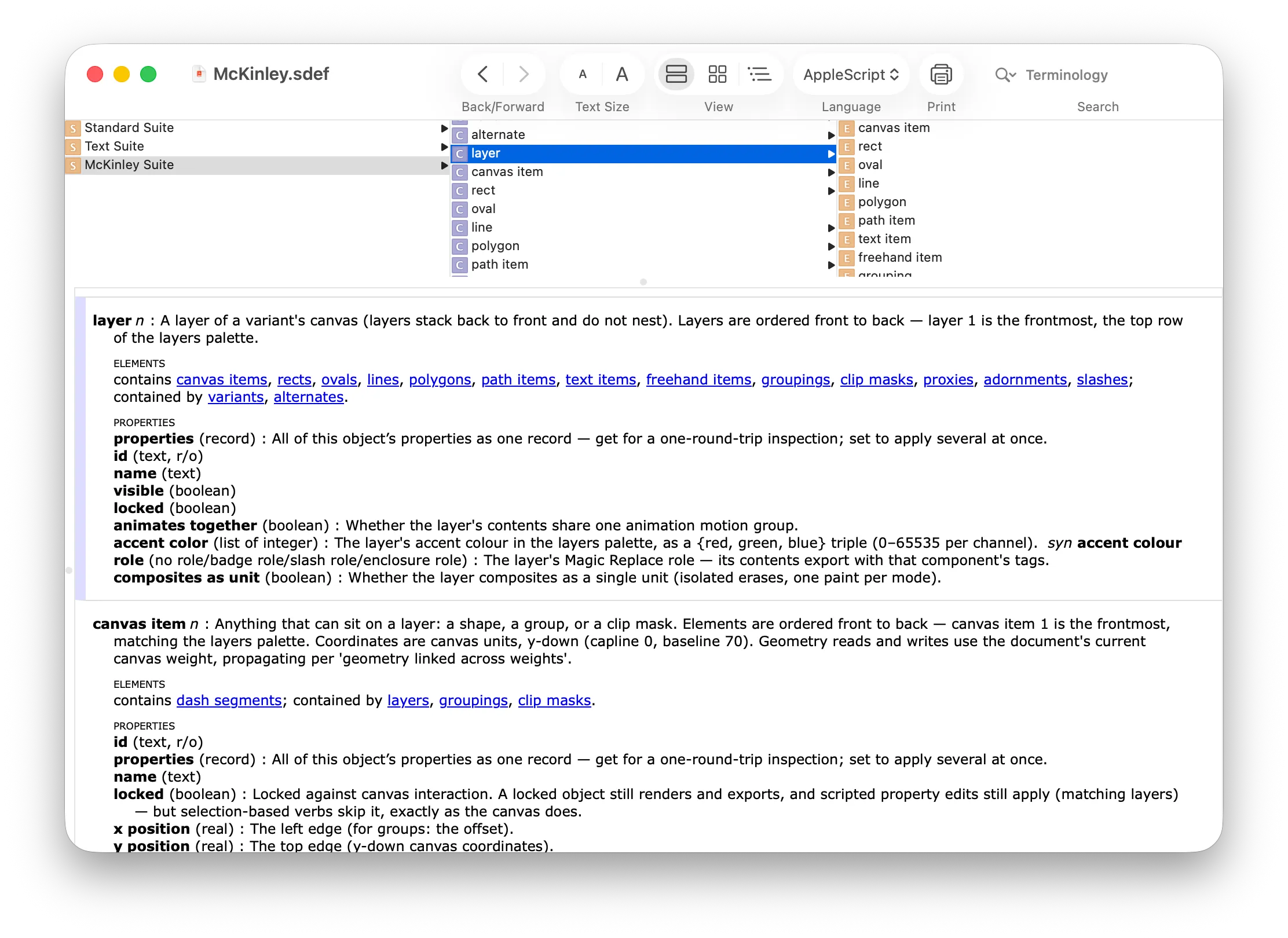
Scripts talk to the app by name:
tell application "McKinley"
	get symbol name of document 1
end tell
How McKinley thinks
To script McKinley you need its mental model of a symbol, which runs: application → documents → variants → alternates → layers → canvas items.
- A document is one .mck file. It owns the symbol’s base
symbol nameand the list of variants, plus everything that belongs to the file as a whole: theselection, theactive variantandactive layer, the canvas presentation (canvas weight,canvas rendering mode, colours), and the linked Xcodeasset catalog. - A variant is one symbol canvas — the same variants you see in the document sidebar.
variant 1is the primary variant; every other variant has asuffixappended to the symbol name. Margins, guides, and the direction and locale settings live at this level. - An alternate is one of a variant’s renditions for writing direction or locale. Every variant has at least one, and the primary alternate is the variant’s own canvas —
layer 1 of variant 1andlayer 1 of alternate 1 of variant 1are the same layer. Unless you’re scripting right-to-left or localised symbols, you can leave alternates out of your references entirely. - A layer is a row of the Layers palette. Layers are ordered front to back:
layer 1is the frontmost. - A canvas item is a thing you’ve drawn:
rect,oval,line,polygon,path item,text item,freehand item, or the containersgroupingandclip mask. Also front to back. Path items go deeper still, intosubpathsandpath points, so scripts can edit geometry the pen tool would.
References read inside-out, and objects can be addressed by index, by name, or by id:
path item "Spout" of layer "Outline" of variant 1 of document "teapot.mck"You rarely need the whole chain. selection of document 1 gives whatever’s selected on the canvas, active layer is where new items land, and whose filters do the searching for you:
tell application "McKinley"
	tell layer 1 of variant 1 of document 1
		get name of (every canvas item whose stroke width varies)
	end tell
end tell
Two things worth knowing early: properties of any object returns everything as one record, which is a quick way to explore; and scripted edits land on the document’s undo stack, one undo step per command.
One object, three weights
The McKinley twist: a canvas item is one object across the three master weights, not three copies. The dictionary flattens each per-weight value into a quartet of properties — stroke width is the Regular value, ultralight stroke width and black stroke width are the other two masters, and stroke width varies reports whether they differ. Setting an Ultralight or Black value switches varying on automatically. Margins and knockout widths follow the same pattern.
tell application "McKinley"
	tell canvas item 1 of layer 1 of variant 1 of document 1
		set ultralight stroke width to 2
		set black stroke width to 9 -- the widths now vary
	end tell
end tell
Geometry (x position, bounds, path point coordinates…) reads and writes at the document’s current canvas weight — the weight you’d be editing by hand — and propagates to the other weights according to each item’s geometry linked across weights, just like edits on the canvas. Coordinates are canvas units, y-down, with the capline at 0 and the baseline at 70.
Importing and exporting
This is what most scripts are for, so the verbs are built for automation: none of them opens a window or asks a question.
import froma .svg file makes a new document. An SF Symbol imports faithfully; any other SVG is fitted to the cap box. Give it a list of per-weight files of one icon (sayteapot-light.svg,teapot-regular.svg,teapot-bold.svg) and they’re combined into one multi-weight symbol.export … towrites an SF Symbol SVG — the file you’d feed to Xcode or the SF Symbols app. Export a variant for a single .svg; export a multi-variant document to a folder and you get one .svg per variant. The result is a list of warnings, empty when all is well.render … towrites a PNG through Apple’s own SF Symbols renderer, with optionalat size,weight, andrendering modeparameters.syncpushes every variant into the document’s linked Xcode asset catalog — or into any catalog you name withto.
Without showing
import and open both accept without showing: the document opens headless, with no window at all, which is exactly what a batch loop wants. (make new document with properties {visible:false} starts a headless document from scratch.) Set a headless document’s visible to true if you decide you want the window after all; a shown document can’t be re-hidden.
Files, not paths
Pass files as POSIX file values, not as path strings — and build them outside the tell block. A file value carries the access grant that lets sandboxed McKinley read and write folders it has never seen; a plain string grants nothing. (And inside a tell, POSIX file compiles into a McKinley reference and errors when the script runs.)
A worked example
Convert one SVG into a symbol, headless:
set inFile to POSIX file "/Users/you/Icons/teapot.svg"
set outFile to POSIX file "/Users/you/Symbols/custom.teapot.svg"

tell application "McKinley"
	set doc to import from inFile without showing
	set symbol name of doc to "custom.teapot"
	export doc to outFile
	close doc saving no
end tell
Wrap that in a loop over a folder and you have a batch converter; swap the export for render and you have a contact sheet generator.
The Scripts menu
McKinley adds a script menu to the menu bar. Choose Open Scripts Folder and drop scripts (.scpt, .scptd, or .applescript) into it — they appear in the menu immediately, and subfolders become submenus. You can then use the script menu to run your scripts.
Going further
The dictionary reaches well beyond files and shapes: boolean operations (unite, subtract, intersect, exclude), group and clip, align and distribute, text editing through each text item’s story, guides, dash segments — and the interface itself, so a script can arrange palettes, inspectors, and the Symbol Library. Open the dictionary and browse; it’s the definitive map of what McKinley can do.