The Pen Tool
The Pen Tool

The Pen tool lets you create paths, made up of a combination of line segments and Bézier curves.
Placing points
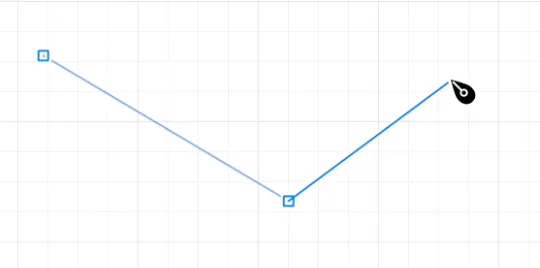
With the pen tool active, click on empty canvas. This starts a path by placing a point.
A ‘rubber band’ line links your point to the mouse cursor, showing what will happen when you add more points.
Click to place points. These points are corner points, giving your path sharp corners.
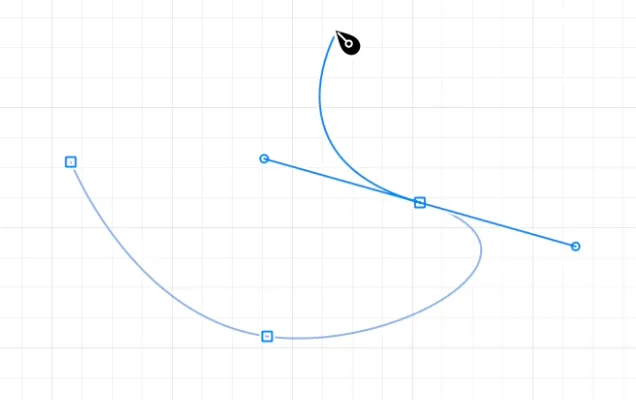
To place a smooth point, click-and-drag to produce symmetrical Bézier handles:
To finish creating your path, do one of:
- Double-click to place the last point and finish.
- Press Escape or Return to keep the path up to the last point you placed.
- Click back on the start point of the path in order to create a closed path.
Modifiers whilst placing
Hold shift to constrain the path segment to 45 degree increments.
Hold shift after starting dragging to constrain the Bézier handles to 45 degree increments.
Hold control to suppress snapping (to guides or other objects) whilst placing a point.
The Option key: edit while drawing
The Option key enables many extra bits of functionality on the Pen tool.
When placing a point:
Option-drag on the canvas to place a cusp point: only its forward Bézier handle is created.
Start dragging normally then hold option: this will draw a point with asymmetric handles. From the moment you press option, the backwards handle will remain fixed in place and you will be able to drag the forward handle separately.
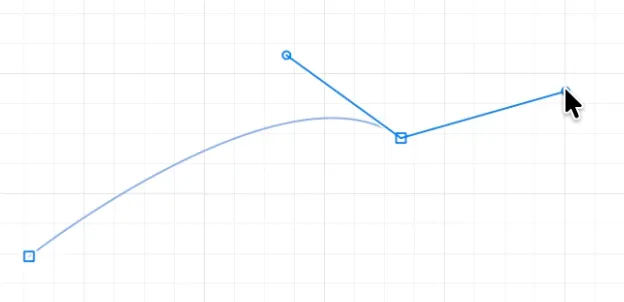
On your path’s current endpoint
The endpoint is the most recent point you placed.
Option click the endpoint to remove its Bézier handles.
Option drag the endpoint to redraw just its forward handle.
Option drag a handle to move that handle, breaking symmetry if necessary.
Option click a handle to remove just that handle.
Click the endpoint (without Option) to remove the forward handle. This is the same as option-clicking the forward handle.
On a previous point on the path
Option click a point to remove its Bézier handles.
Option drag a point to redraw symmetric Bézier handles. (This one is different from how the endpoint behaves.)
Option drag a handle to move that handle, breaking symmetry if necessary.
Option click a handle to remove just that handle.
Note that holding Option will reveal all the Bézier handles on the current path.
Elsewhere on the path
Option click on the path’s line (not on a point) to insert a new point at that location.
Moving a point while placing it
While you are dragging out the Bézier handles of a brand new point, you can hold space to temporarily move the point itself to a new location. Release space (while still holding down the mouse button) to resume positioning your Bézier handles.
Joining paths
While drawing a path, click another path’s endpoint (either end), and your current path will be joined to the other path.
While not drawing a path, clicking a path’s endpoint with the pen tool active will let you extend that path.