Variants
Variants
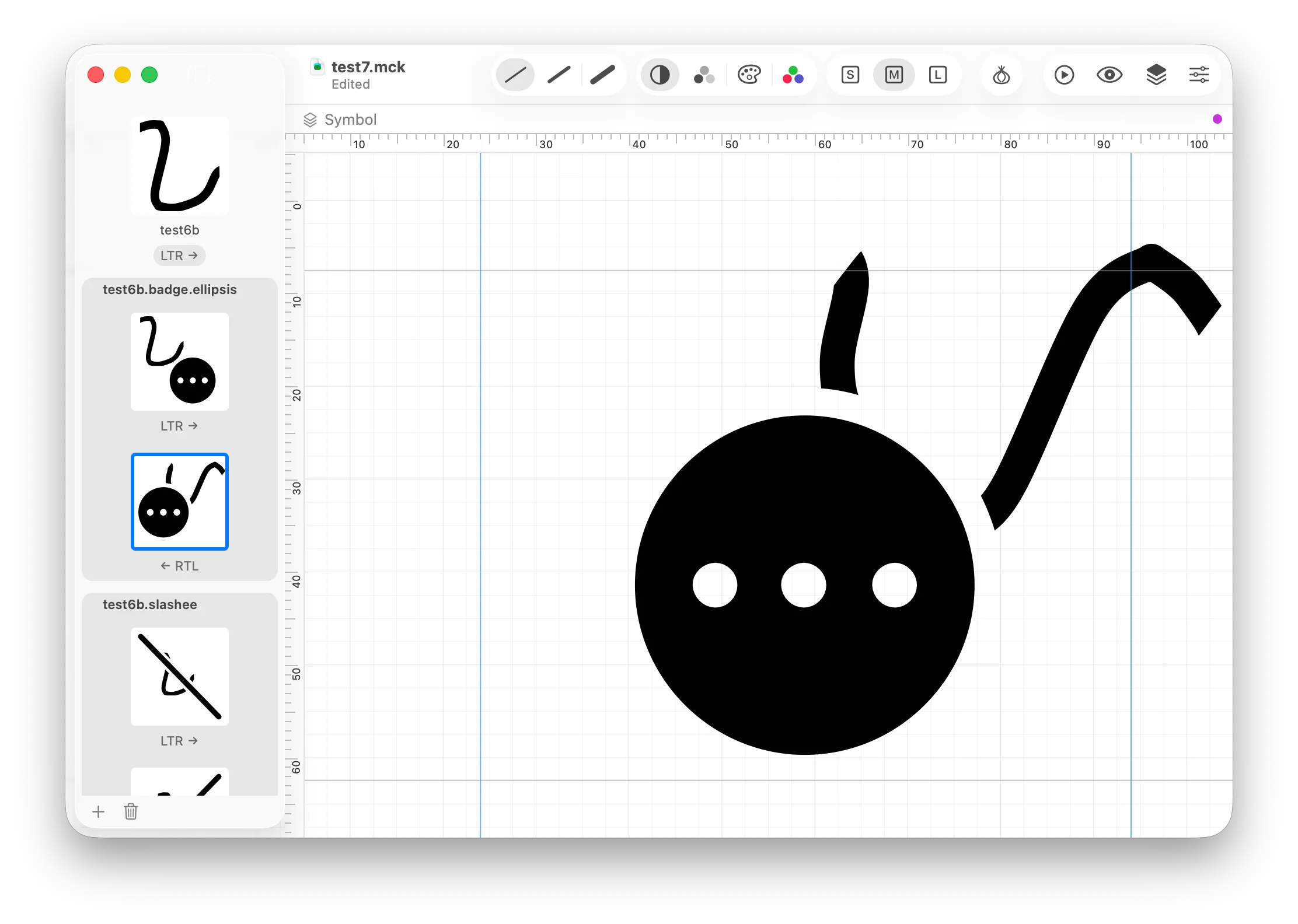
One McKinley document can contain many canvases for different symbol variants.
The intended use is that one document holds a symbol and all its related variants, e.g. the same symbol but with a badge, or a slash, or filled vs outline, etc.
McKinley is not a library application, so it’s not recommended to put all of your unrelated symbols in one file.
What is a Variant?
At its simplest, a variant is just another symbol canvas in the same file. But McKinley makes some assumptions about structure:
- The canvas at the top of the sidebar is known as the Primary Variant. You can’t delete the primary variant. Its name is the name of your symbol.
- Any additional variants you create will have names that are your symbol’s name plus a suffix. For Apple’s SF Symbols, this is a convention to show that the symbols are related to each other; McKinley enforces this convention.
What content can a variant have?
A variant is just another canvas, it can contain whatever content you like, even a completely different image to your primary symbol. However McKinley provides many helpful presets and ways to make variants that build on top of work you’ve already done: see below for more!
But it’s important to know that these presets are just that — presets — and it’s not compulsory to build your variant using them.
Do variants have semantic meaning to Apple’s APIs?
For the most part, no, with two exceptions:
- For badges, slashes, and enclosures, Apple offers a “magic replace” function, where these things can animate in/out. McKinley authors the semantic information required for this feature by setting a layer role (see below).
- There are two ways of building symbol variations that do require semantic information, which is normally added in Xcode’s asset catalog editor. These are right to left support and alternate locales. McKinley handles these with a feature called Alternates (see the next section).
Other than Alternates, McKinley variants are just more symbols that happen to have a naming scheme that shows they are related. When they export, they’ll export to separate symbol files. So you can make variants for whatever purpose you want, you’re not limited to Apple’s suggestions.
What is an Alternate?
An Alternate is a way of splitting a single variant based on writing/script direction and/or locale.
When you use multiple Alternates, they sync into the same asset catalog entry in Xcode, and your app will automatically use the most appropriate one.
Alternates are created in the Variant inspector pane:
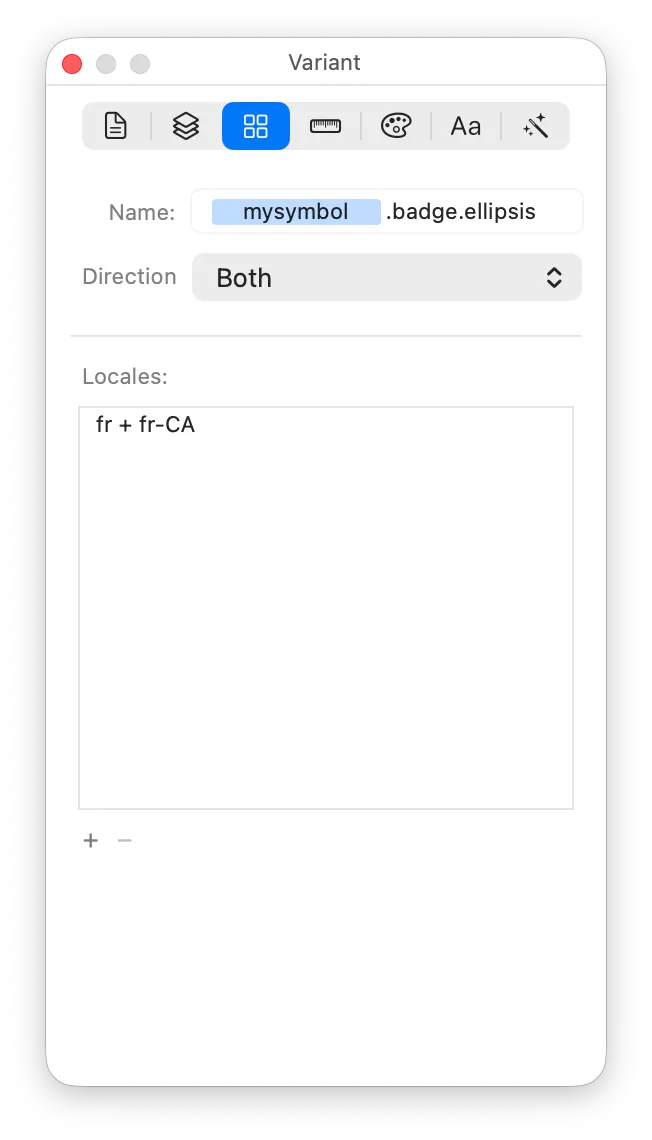
In this pane you can edit:
- The name of this variant. If you’re looking at the primary variant of your symbol, the name field will simply say “Primary Variant”. Otherwise, you can enter a name as a suffix to the symbol’s name.
- The writing direction.
- “Fixed” means that this variant does not need to vary for writing direction.
- “Left to Right (auto-mirror)” or “Right to Left (auto-mirror)” mean that you draw just one symbol (for the direction you pick), and the other writing direction is automatically supported by flipping your symbol horizontally.
- “Both” means that you supply two separate drawings of your symbol, one for each writing direction. You can use this if, for example, you want to flip only certain parts of your symbol.
- The sets of locales to vary for:
- Any variant always has a “default locale” version. But if you want to draw a specific version to be used in certain locales, you can. Each row is one set of locales for which you’ll draw a single symbol.
- You can add as many or few sets of locales as you wish, but any one locale can only be in one set.
- Locale sets only apply to the variant you are editing, you may use completely different locale sets in your other variants.
Within your variant, you draw one symbol for each combination of writing direction and locale set (plus the default locale).
As you can imagine, if you add lots of direction and locale options to multiple variants within your file, you will be drawing lots of symbols! Luckily these features are opt-in, you only need to use them if they would benefit your symbol.
Creating a Variant
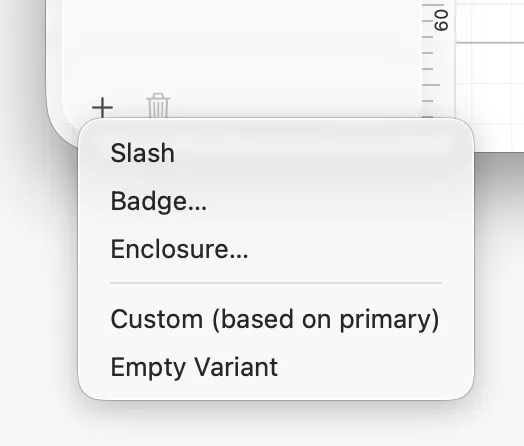
Create a new variant with the Plus button underneath the sidebar.
McKinley offers some helpful preset configurations:
Slash/Badge/Enclosure let you pick from some predefined adornments to overlay onto your primary variant. (These are roughly equivalent to the “Combine Symbol with Component” action in Apple’s SF Symbols app.)
“Custom (based on primary)” gives you a proxy of your primary symbol, for you to draw over the top of.
“Empty Variant” just gives you a blank canvas.
Any of these adornments and proxies can be added later, you don’t have to commit to them when creating your variant. The predefined options are just there to save you time.
Proxies
A proxy brings content from another variant into the canvas. A proxy maintains a link to the variant it is proxying, so any changes will automatically show up. Thus, if you’re making a variant to add a Plus badge to your symbol, then when you change the original symbol, the badged variant automatically updates too.
You can insert a proxy via Insert -> Proxy of -> <variant name>.
To change what the proxy is proxying, use the Size & Metrics inspector tab:
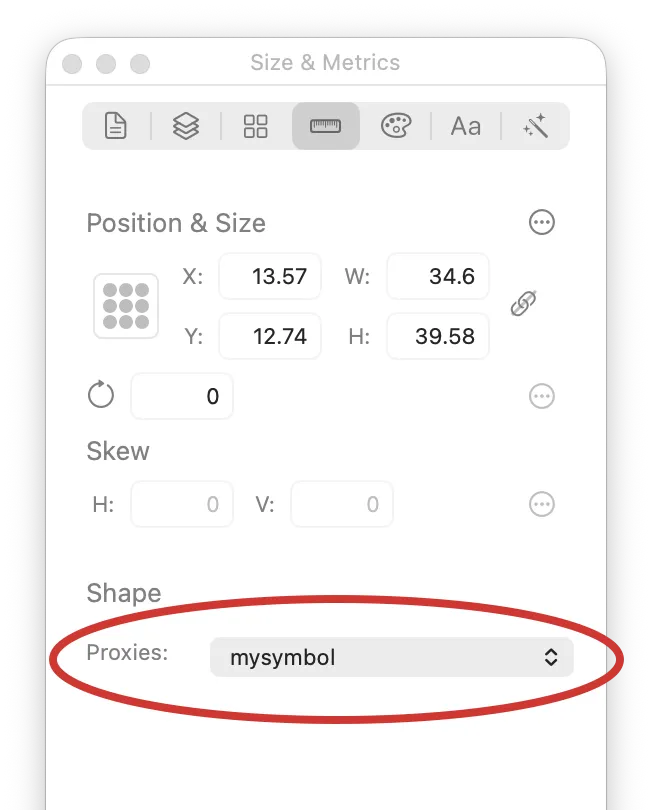
A proxy can be proportionally resized, rotated, and flipped. It cannot be skewed or non-proportionally resized, nor placed in a clipping group.
Editing individual layers of a Proxy
If you double click a proxy on the canvas (the standard way to edit inside an object), you can select and move around the individual layers of the proxy. They can be moved, rotated, and flipped (but not skewed or resized at all).
The layers still retain their link back to the original variant that they are proxying.
You could use this functionality to selectively flip certain layers for RTL support, for example.
Detaching a proxy
If you want full editing capabilities of the things that the proxy is proxying, you can Detach the proxy, via the Arrange menu.
Detaching a proxy turns it into regular vector objects, that are unlinked to the source variant. Once a proxy is detached, it will no longer track changes from its source variant. It’ll be just as if you copied/pasted the objects from one variant to another.
Adornments
An Adornment is a prebuilt symbol component, like a badge, slash, or enclosure.
You can add one to your document via Insert -> Adornment.
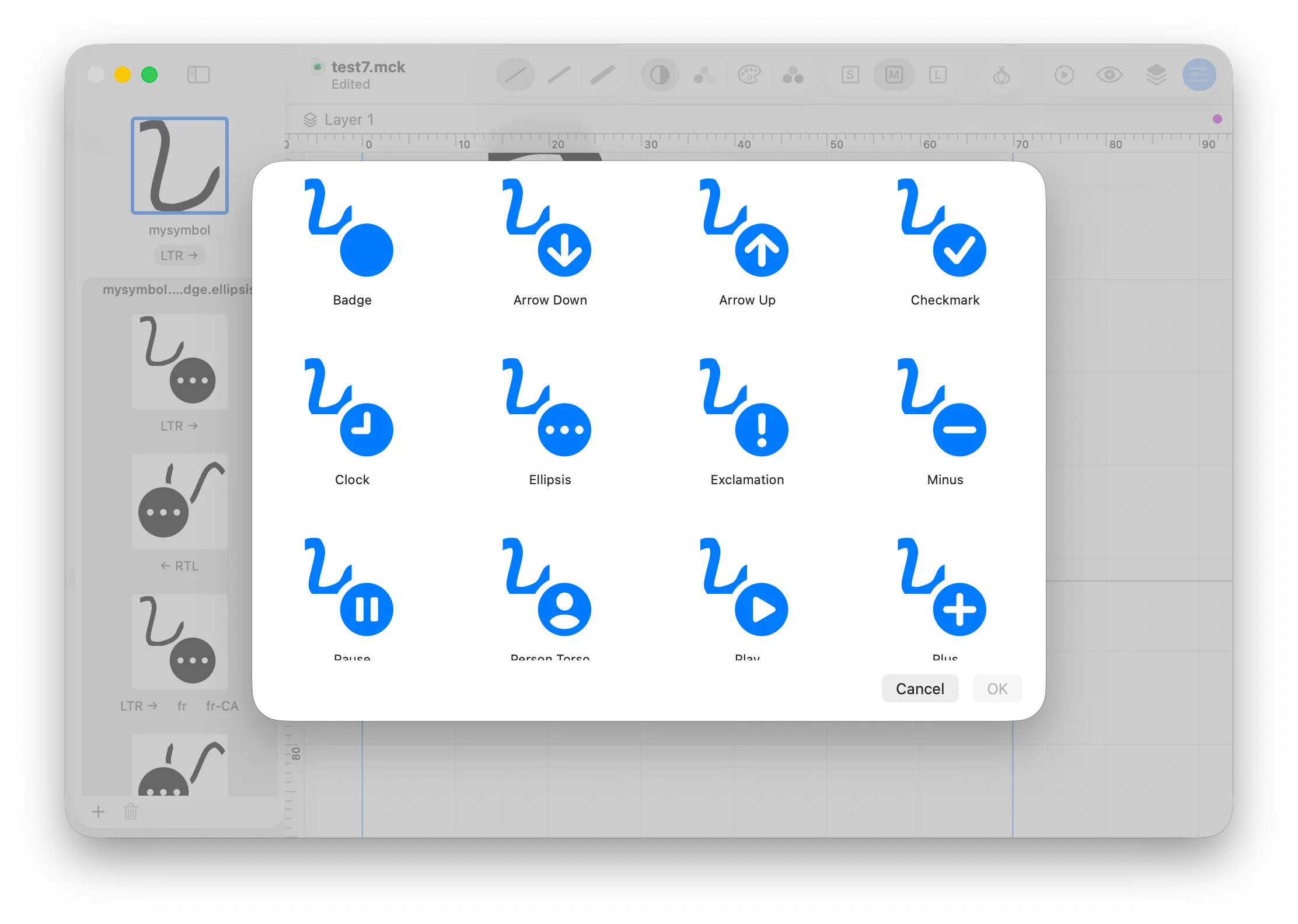
For example, here is the gallery of badges if you choose to insert a badge.
An adornment is a canvas object. You can move, proportionally resize, and rotate it. Like proxies, you can detach an adornment if you want to turn it into fully editable shapes.
Layer Roles (for badges, slashes and enclosures)
As we’ve just established, a Badge adornment is nothing special, it’s just a pre-drawn object. But Apple’s renderer does need to know which bit of your symbol is a badge, slash or enclosure, in order to do functionality like Magic Replace.
This information is provided by layer roles:
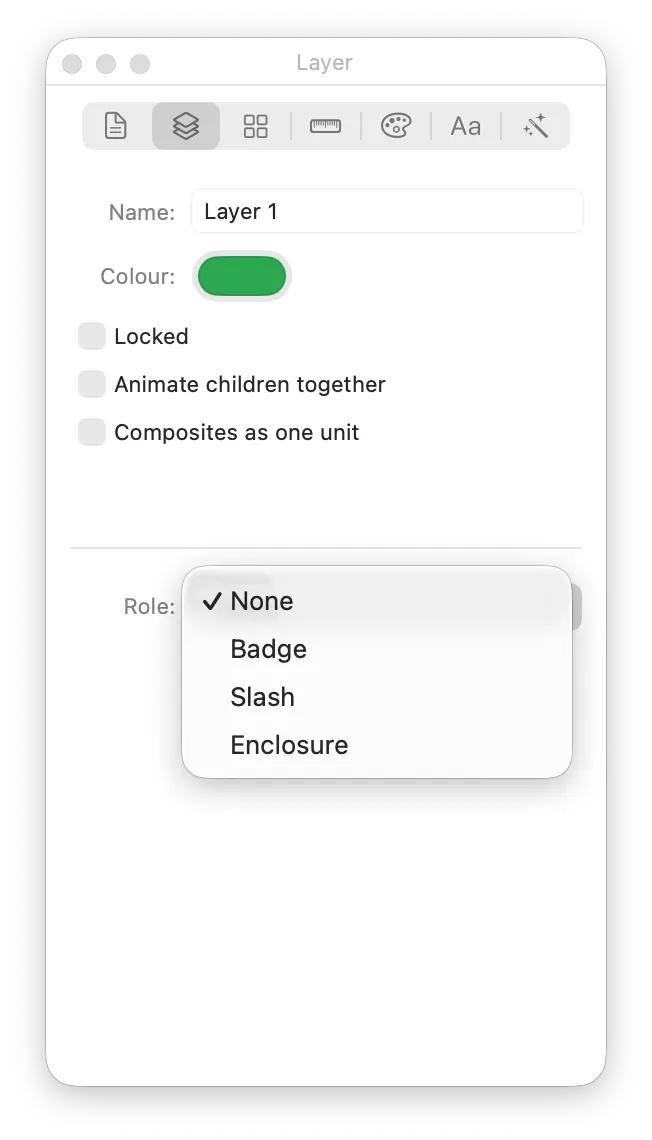
Layer roles tell McKinley that a certain canvas layer represents one of the supported adornment types. Once a layer role is set, McKinley will emit the required metadata into the exported symbol to support Magic Replace.
McKinley helpfully warns you if you have a Badge adornment on a layer without a Badge role, etc:
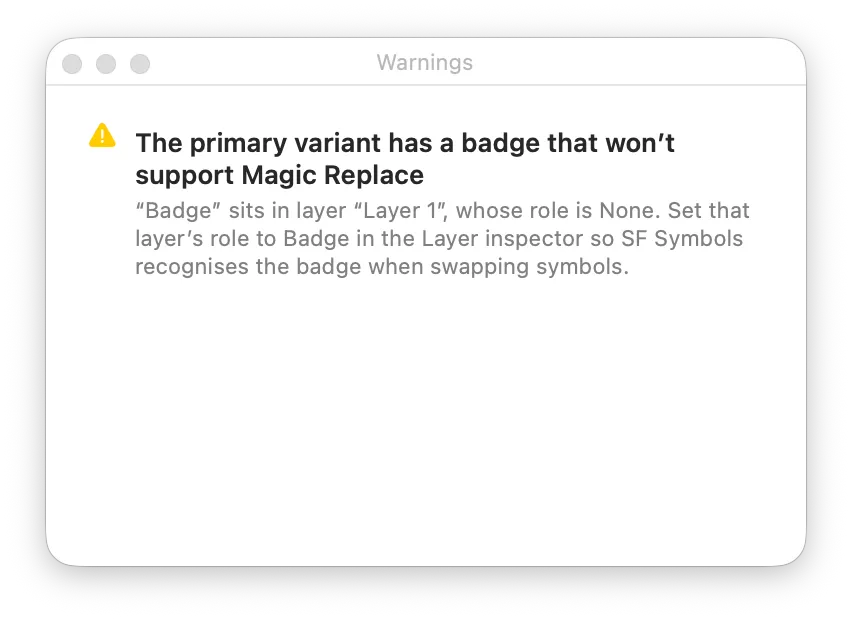
The upshot of this Layer Role system is, you can draw completely custom badges and have them work with Magic Replace: you’re not limited to the ones supplied.
If you created your badge via the “Badge…” option in the New Variant menu, it will already be on a layer with the correct role set.
Summary
- Build variants for any versions of your symbol you want. There are pre-defined templates for badges, slashes, and enclosures, but you can also create variants from scratch.
- Each variant shares the symbol name, plus a suffix. (The primary variant has no suffix.)
- Use proxies to bring one variant’s canvas into another, with live updating.
- Move, rotate and flip the individual layers of your proxy for extra customisation.
- Add Alternates to your variants (including the file’s Primary Variant) if you want to support multiple writing directions and/or locale-specific symbols.
- Layer Roles let you tell SF Symbols that a layer represents a slash, badge, or enclosure, so it can be supported by Magic Replace.
- Detach a proxy or adornment to turn it back into editable shapes, enabling further customisation (at the expense of losing live updating).
- When exporting to SF Symbol files, you can choose whether to export the current variant or all of them. When syncing to an Asset Catalog, all of the variants and Alternates in your file are automatically exported at once. McKinley automatically configures an Asset Catalog to use the correct Alternates.