Colour
Colour
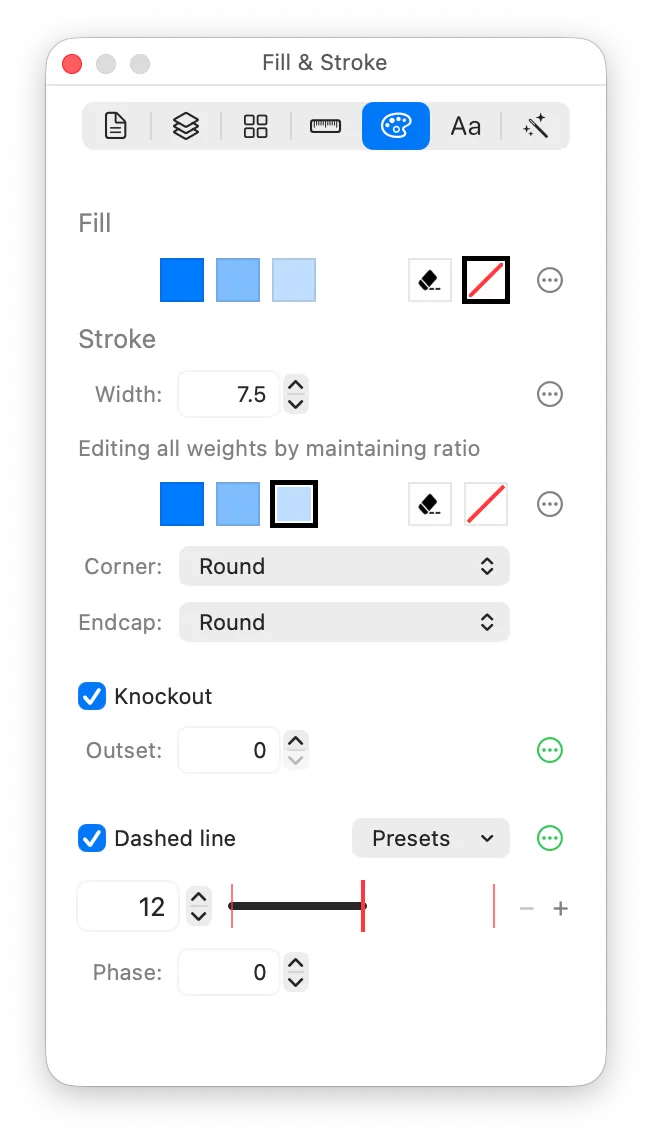
Fill
The fill colour of the selected object. There are colour chips for each colour supported by the current colour mode, plus “Erase” and “None”.
- None means the current object has no fill.
- Erase means the current object will erase the content behind it. If the object is on a layer with “Composites as one unit” turned on, the Erase object will erase content on that layer; otherwise, it will erase anything behind it, revealing the canvas.
The colours available:
- In Monochrome mode, there is a single fill colour.
- In Hierarchical, there are three colours: primary, secondary, and tertiary. These are different shades of one tint colour.
- Palette also has three colours, also known as primary, secondary, and tertiary, but this time they’re completely separate colours. (When using the symbol in your app, you can supply each palette colour separately if you desire.)
- Multicolor has a choice between the accent colour, or a dropdown menu with all the Apple system colours, plus a “Custom” option for picking any colour from a colour picker.
Note that Hierarchical and Palette actually share a colour value (i.e. you can’t have Primary on one and Secondary on the other!). This is an Apple restriction.
When changing your colour to or from Erase or None, this applies across all colour modes. If you want to separately configure your object’s colour per mode, use the divergence button to the right of the colour chips:
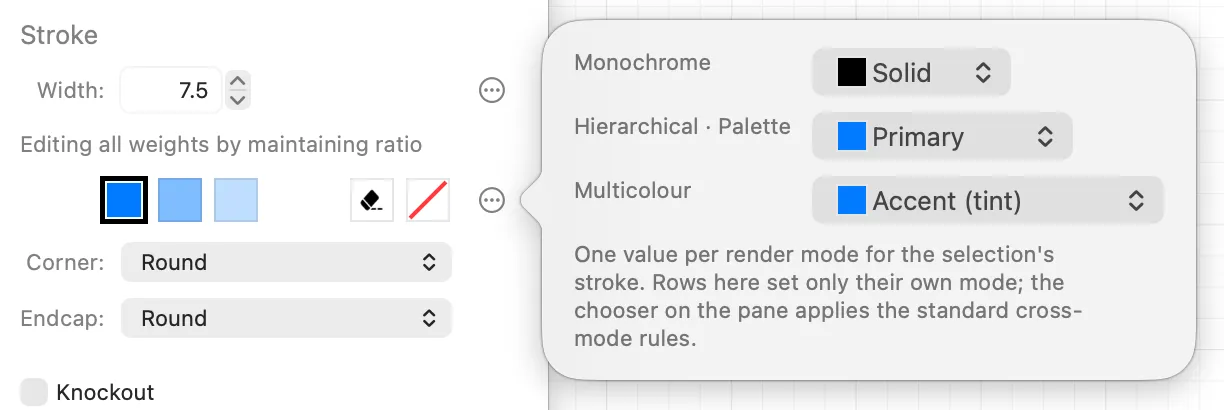
Stroke Colour
Stroke colours follow the same logic as fill colours. Again, if you don’t want your object to have a stroke, choose None for the stroke colour. The stroke’s width, join, endcap, alignment and dashes live on the Stroke pane.
Knockout
Knockout clears whatever lies behind the shape before it draws, so it punches a clean hole through the symbol. It clears only what the shape paints: a filled shape clears its whole footprint, a stroked shape with no fill clears a band on both sides of its stroke and leaves its interior alone. To hollow out a fill-less shape, give it an Erase fill. The outset widens the cleared band around everything the shape paints, and is per weight.