Document
Document
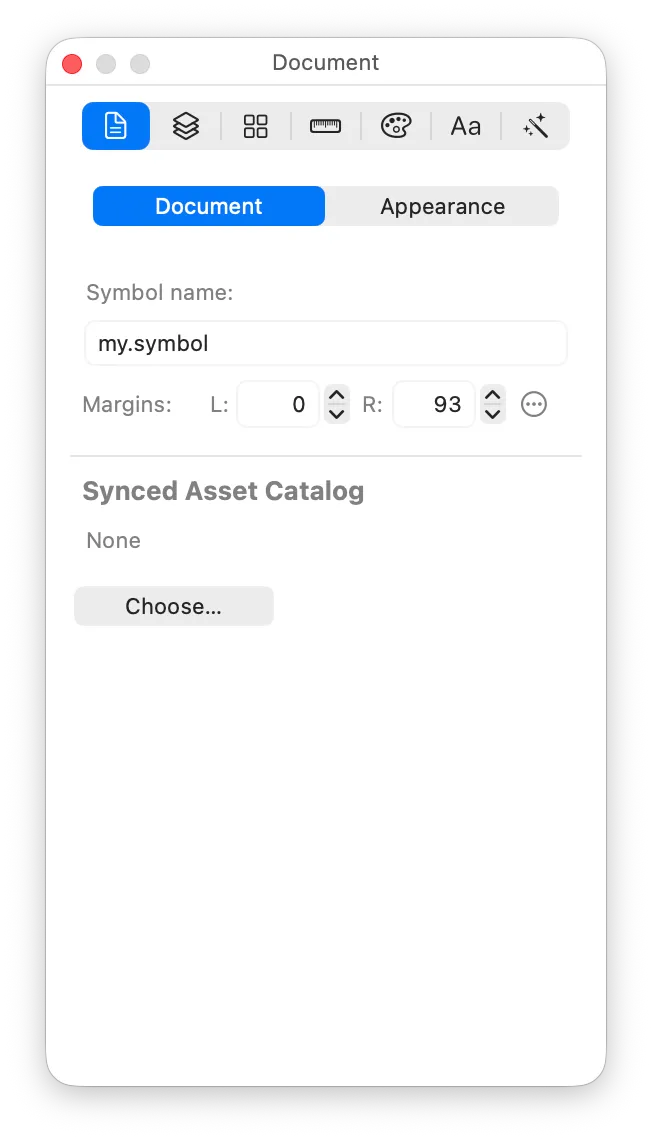
The Document Inspector contains settings that apply to your whole McKinley document.
Document tab
Symbol name
This is the base name of the symbol, as it will appear in the Xcode asset catalog and when you refer to it in your app.
Variants will gain a suffix after the symbol name.
Margins
Margins are used by SwiftUI and other frameworks to lay out your symbol, for instance positioning it next to text.
At the top and bottom of your symbol you have the baseline and capline. These are not adjustable. (They’ll also vary for the small/medium/large sizes of symbol.)
Margins go at the left and right of the symbol, and are under your control. Margins can be varied by weight.
Synced Asset Catalog
McKinley can automatically save your symbol (and its variants) into an asset catalog. If this document is linked to an asset catalog, McKinley displays a purple dot in the top right of your document window whenever there are changes in the McKinley document that have not yet been exported to the asset catalog.
Appearance tab
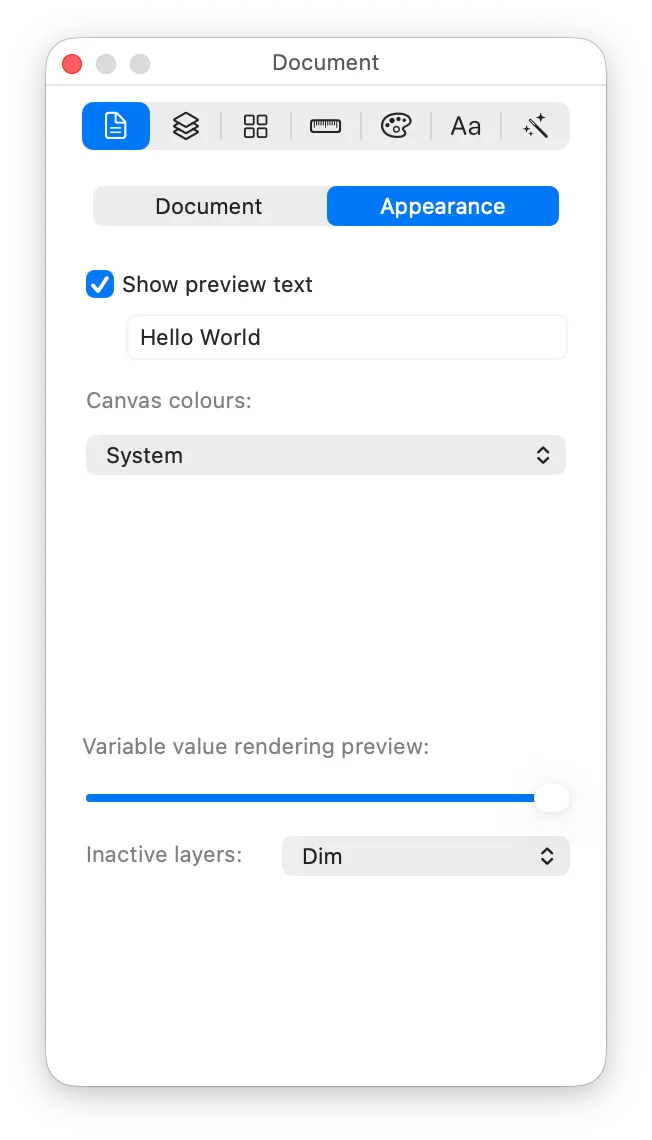
This tab controls how the canvas looks.
Preview text
This is some text that can be displayed on your canvas next to the symbol, letting you compare your symbol’s size and visual weight against some text.
Here in the inspector you can turn the preview text on/off, and change what the text says.
Canvas colours
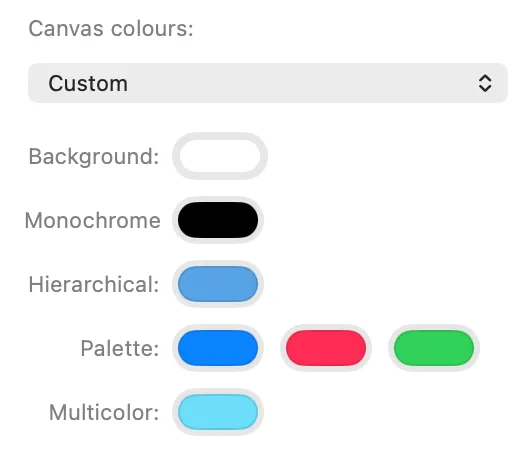
You can choose a default set of colours based on either light mode or dark mode, or you can customise them all individually.
The settings here affect the current document. To change the default colours used for all new documents, look in Settings.
Variable Rendering preview
SF Symbols can use Variable Rendering to display a “variable value”, depicted as either objects changing colour (Variable Colour), or (in SF Symbols 7 and above) by a stroke ‘drawing’ a variable amount (Variable Draw).
Note that McKinley does not support Variable Draw yet; however Variable Colour is fully supported.
This control sets what value is being displayed on your canvas, so you can scrub through it and see the changes.
Inactive layers sets what happens to layers that are not highlighted by the variable value: do they disappear, or are they merely dimmed?